For: Owners, Operations, Marketing
Where: Setup > Storefront > Editor > Catalog
Available: Web dashboard · All countries
A café with 12 items and a grocery with 400 need different menus. You choose how customers move through your categories and how each product card looks.
How it works
Two sections of the editor set the menu, under Catalog:
- Layout: the store language, how categories and products are laid out, and how customers browse.
- Product cards: how each product looks in a list or a grid.
Both save each change as you make it. The changes go into your unpublished changes, and customers see them after you select Publish. While you edit these sections, the preview shows a sample of your menu.
Lay out your categories and products
- Go to Setup > Storefront > Editor and open Catalog > Layout.
- Under Default language, choose the language your store opens in: English or العربية.
- Under Menu layout, choose Categories:
- Grid: categories as tiles.
- Tabs: categories as tabs above the products.
- Single page: every category on one long page.
- Choose Products: Grid or List. With Single page, products always show as a list.
- Select Publish.
Show category photos in circles or squares
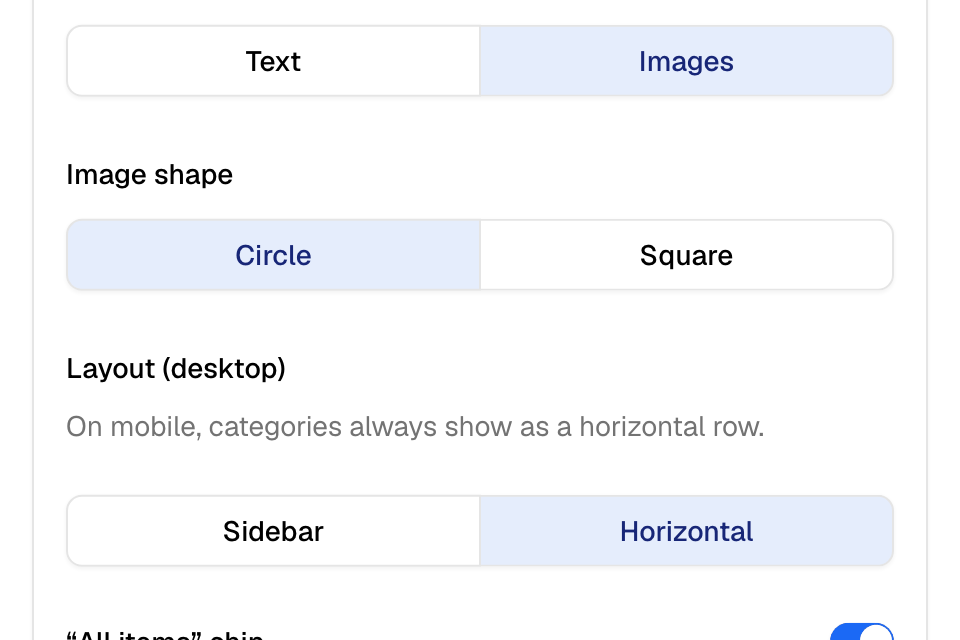
- In Catalog > Layout, under Browsing, set Category navigation to Images.
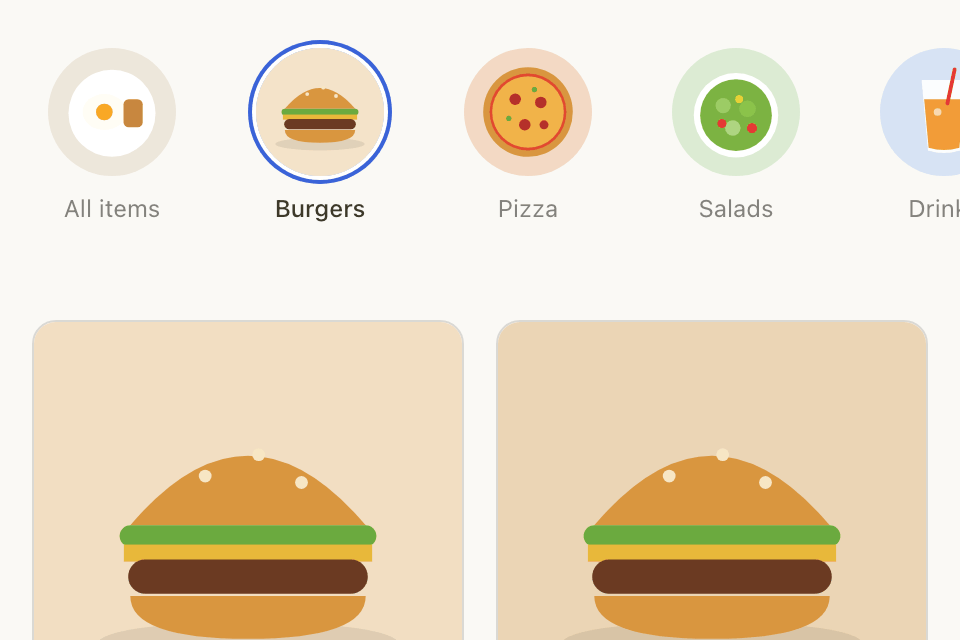
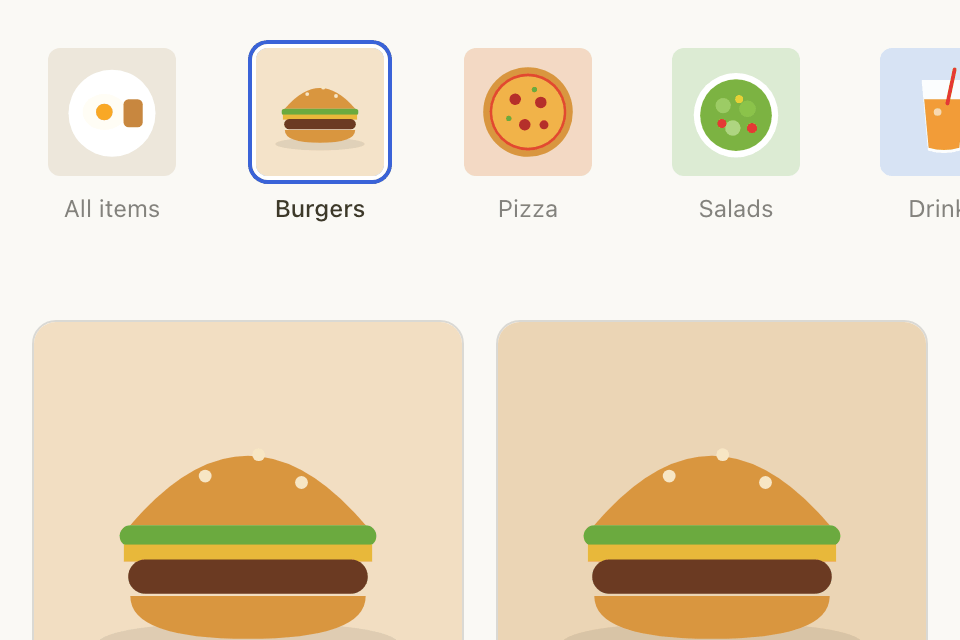
- Choose Image shape: Circle or Square.
- Choose Layout (desktop): Sidebar or Horizontal. On phones, categories always show as a row.
- Optional: turn on “All items” chip to add a first photo that opens your full menu. Then add its picture under “All items” photo.
- Select Publish.
The photos come from your categories. Add them in Setup > Menu. See Organise your menu with categories. A category with no photo shows the first two letters of its name.
Choose how customers browse
Also under Browsing:
| Setting | Choices |
|---|---|
| Product page style | Pop-up or Full page on a computer. Phones always open a full page. |
| Ordering animation | None or Advanced. Advanced slides the phone screens for order type, address, time and cart. |
| Page width | Contained, Wide or Full width, on every page. |
| Product count & sort | Shows the number of products and a sort list on category pages, on a computer. |
Set how product cards look
- Open Catalog > Product cards.
- Choose your settings:
- Text alignment: Left or Center.
- Show description in list: shows each product's short description on its card.
- Image ratio: Square or Portrait.
- Grid columns (desktop): Auto, 2, 3, 4 or 5 products in a row on a computer.
- Edge-to-edge cards: removes the card border, corners and gaps.
- Select Publish.
Show or hide delivery zones on the map
- Open Ordering > Delivery.
- Turn Show delivery zones on the map on or off.
When it is on, customers see your zones on the map and can pick one from a list. When it is off, customers see a map with an address search only. Delivery works the same, and your zone names stay hidden. You set the zones and fees in Serve > Delivery.
Rules and limits
- Grid columns (desktop), Image ratio and Edge-to-edge cards work when Products is Grid.
- Image shape, Layout (desktop) and “All items” chip show only when Category navigation is Images.
- A look from Start > Looks changes many of these settings at once.
Common questions
Why do my categories show letters instead of photos?
Those categories have no photo. Add a photo to each category in Setup > Menu, then check again.
Can I go back to the default layout?
Yes. Open Start > Looks and select Reset layout under Reset layout to defaults. Your colours, fonts, photos and videos stay.