For: Owners
Where: Setup > Payments > Online payments
Available: Web dashboard · All countries
Customers who want to pay by card, KNET or Apple Pay need an online payment option at checkout. Connect a payment gateway, and they can pay online when they order.
How it works
A payment gateway is the company that takes card payments for you and sends the money to your bank account. Your store uses one gateway at a time.
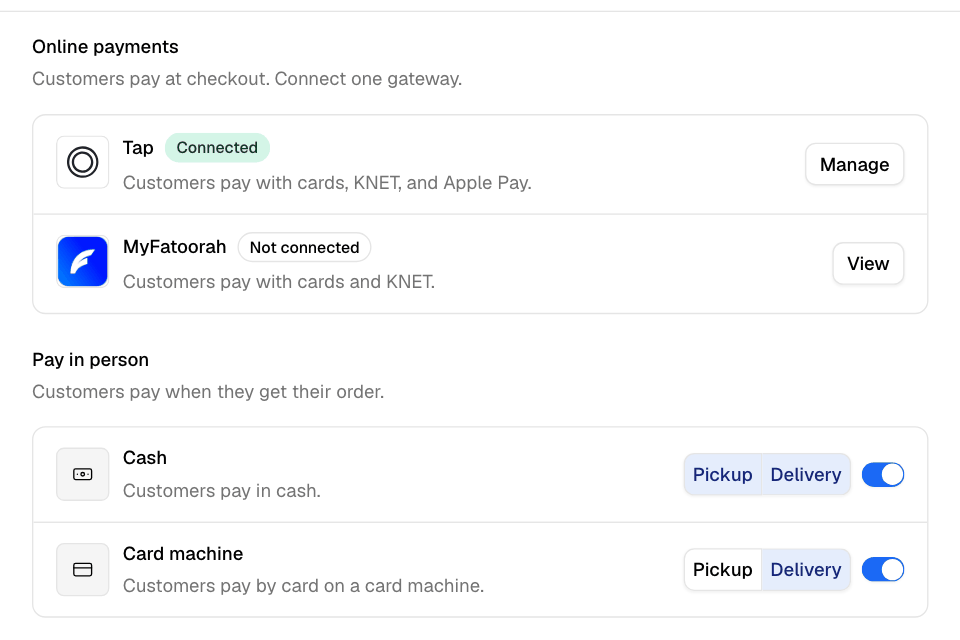
Go to Setup > Payments. The Online payments section lists the gateways in your country, for example Tap, MyFatoorah or Paymob. Each row shows the ways customers pay through that gateway, such as "Customers pay with cards, KNET, and Apple Pay."
Each row has one status:
| Status | Meaning |
|---|---|
| Not connected | Your store does not use this gateway. |
| In review | You sent your details. The gateway is checking them. |
| Connected | The gateway approved your account. |
| Rejected | The gateway did not approve your account. Open it to see the Reason. |
Each row has one button. Connect shows when your store has no gateway yet. Manage opens your own gateway. View opens a gateway you do not use.
Connect a gateway
- Go to Setup > Payments.
- Under Online payments, find the gateway. Select Connect.
- Select Connect now.
- Fill in the form. The gateway decides which fields it needs. Most ask for:
- Account holder: the person who owns the bank account, with their phone number and ID details.
- Licensed business: turn it on if your business has a commercial licence. Then add the company name, licence number and documents.
- Bank account: the bank, the account name in English and the IBAN.
- Store profile name: English letters and numbers only, with no spaces.
- Select Connect.
Online payment turns on when the details are saved. The row shows In review until the gateway answers.
Some gateways give you your own keys, for example Paymob. For these, the gateway asks for the keys from its own dashboard instead of the form.
Send your business documents to MyFatoorah
In Kuwait and Egypt, the MyFatoorah page can show a Business documents card. MyFatoorah needs four documents to open your account:
- The owner's ID, front
- The owner's ID, back
- The commercial licence (in Egypt, the commercial register)
- The authorized signatory certificate
- Open MyFatoorah from Setup > Payments.
- On the Business documents card, select Add documents.
- Next to each document, select Upload. Use a JPG or PNG file of up to 10 MB.
When the last document is in, Zyda sends your account to MyFatoorah. The page then shows where it stands: Account in review, Account approved or Account rejected, with MyFatoorah's reason.
In Egypt, the page also asks What kind of business is it? Choose Restaurant or Bakery or dessert shop.
Turn online methods on or off
- Go to Setup > Payments.
- Select Manage on your gateway.
- Under Payment methods provided by, use the switch next to each method, such as KNET or Apple Pay.
Turning a method off asks you to confirm first. Customers stop seeing it at checkout.
Change your details or disconnect
- To change your details, open your gateway and select Edit details.
- To stop online payments, select Disconnect, then confirm.
When you disconnect, your details are deleted and online payment on your store turns off. To use online payments again, you must send all your details again.
To move to another gateway, disconnect your current gateway first.
Give a branch its own gateway
A branch can send its online payments to its own merchant account.
- Go to Setup > Branches and open the branch.
- Under Payment gateway, choose Its own gateway.
- Connect a gateway for the branch.
- Save the branch.
Cash and card machine payments are shared by all branches. See Turn cash and card machine payments on or off.
Rules and limits
- Only someone with access to Payments sees this page. Owners have it.
- Only the store owner can change the bank details that payouts go to.
- Only the store owner can add gateway keys for the store's own account, or remove the payment account.
- Your store uses one gateway at a time.
- If Zyda set a service fee for your store, Zyda support makes changes to the gateway for you. Edit details and Disconnect are greyed out.
Common questions
What does the gateway charge?
Open the gateway and select Check pricing list. You see every fee you paid in Finance > Fees & payout. See Understand your fees and payout.
Can I use two gateways at the same time?
No. The store uses one gateway. A branch can have its own gateway. See "Give a branch its own gateway" above.
Can I open a Paymob account from Zyda?
If Paymob account shows under Online payments, yes. Select Open, then fill in Paymob's form. Paymob reviews it in about 3 business days.