For: Owners, Operations
Where: Setup > Menu > Modifiers
Available: Web dashboard · All countries
Modifiers let customers change what they order, such as the sauce, the bread or extra cheese. Build a group of options once, then add it to as many items as you need.
How it works
A modifier group is a list of options with a name, such as "Choose your sauce". Each option has a name in English and Arabic and a price. A price of 0 makes the option free.
You build groups on the Modifiers page. Then you add a group to items, and set how many options a customer must or can pick. See Add modifiers and notes to items.
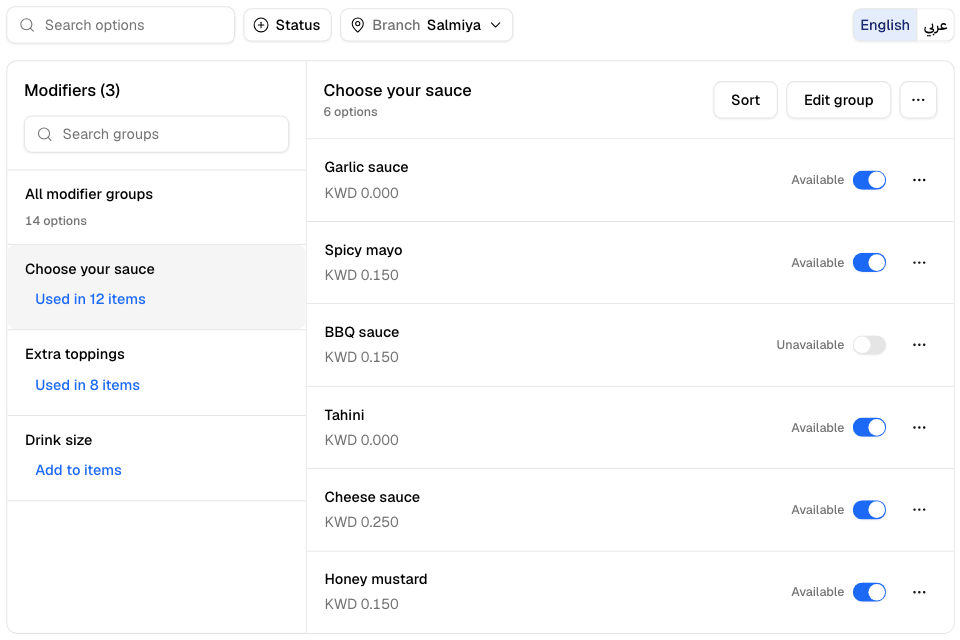
The page shows your groups on the left, with how many items use each one. The options of the open group show on the right, each with an Available switch for the branch on screen.
Create a group
- Go to Setup > Menu > Modifiers.
- Select Add modifier group.
- Enter the group's Name in English and Arabic.
- Under Options, enter each option's English name, Arabic name and price. Select Add option for each new row.
- Select Add.
If another group already has the same name, the window warns you. You can still save.
Add or edit an option
- Choose the group on the left.
- Select Add option. To change an option, select the "…" menu on its row, then Edit.
- Enter the Name in English and Arabic, and the Price.
- Optional, when you edit an option: add an Option photo. It shows on your store when the group uses the Grid style.
- Select Add or Save.
A change to an option changes it on every item that uses the group.
An option photo saves as soon as you add it. Remove deletes the photo at once, after you confirm.
Show options as a list or a grid
- Choose the group, then select Edit group.
- Under Options display on storefront, choose List or Grid.
- Select Save.
Grid shows the option photos as cards. List shows a compact list. To compare the two, see Show modifier photos as a list or a grid.
Sort, copy or delete
- Sort: choose the group, select Sort, drag the options into order, then select Save. A group needs two options or more.
- Duplicate group: makes a copy named "Copy of …". Change the names, then select Duplicate.
- Delete a group: select Edit group, then Delete Modifier Group, and confirm.
- Delete an option: select the "…" menu on the option, then Edit, then Delete Option, and confirm.
See which items use a group
Select Used in N items under a group's name. A panel lists each item and size that uses the group. Select an item to open it.
The same panel can add the group to many items at once, change its rules on all of them, or remove it. See Add modifiers and notes to items.
Rules and limits
- A group needs both names and at least one option.
- An option needs both names and a price.
- If your store is connected to a POS, each option also needs its External ID from the POS.
- Only the Owner and Operations roles can add, edit, sort, copy or delete groups and options. Branch staff can only turn options on and off, in Manage > Availability > Modifiers.
- With allergens and nutrition on, each option can add its own nutrition and allergens to the item. See Add allergens and nutrition to items.
Common questions
How do I turn off an option that ran out?
Turn off its switch on this page, for the branch on screen. See Turn items off when they run out.
Where do I change an option's price for one branch?
Use the Modifiers tab on Setup > Menu > Prices. See Set prices, special prices and costs.