For: Owners, Operations, Marketing
Where: Grow > Campaigns > WhatsApp templates
Available: Web dashboard · All countries
Needs: A connected WhatsApp number
WhatsApp lets a business message customers first only with a template that Meta approved. Write your templates once, and use them in campaigns and Autopilot.
How it works
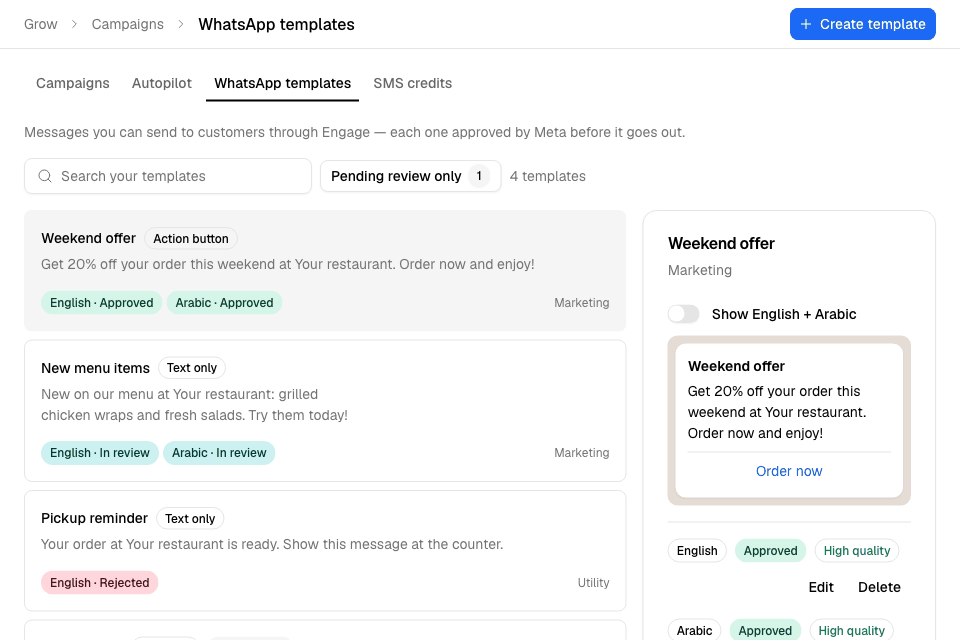
You write a template and submit it. Meta reviews it, usually within a few hours. Its status shows in the list:
| Status | Meaning |
|---|---|
| In review | Meta is checking it. The list updates by itself. |
| Approved | You can send it. |
| Rejected | Meta refused it. The reason shows when you open it. Fix it and resubmit. |
| Paused | Meta paused it for low quality. Customers no longer get it. Edit and resubmit. |
| Disabled | Meta turned it off. |
Before you start
- Connect your number: select Connect WhatsApp and follow Meta's steps.
- Add a payment method in Meta billing. Without it, Meta blocks campaigns and replies.
Connecting a WhatsApp number needs the WhatsApp Inbox add-on, on trial or paid.
Create a template
- Go to Grow > Campaigns > WhatsApp templates and select Create template.
- Enter a Template name: lowercase letters, numbers and underscores.
- Choose the Language and Category. Use Marketing for offers and promotions.
- Optional: add a Header: text, an image, a video or a document.
- Write the Body, up to 1,024 characters. Select Insert variable to add details such as the customer's name.
- Optional: add a Footer and Buttons: a quick reply, a website link or a phone number.
- Select Submit for approval.
You cannot change the name or language later.
Add a ready-made template
Under Ready-made templates, select Add on one: welcome message, we miss you, cashback reward, voucher offer or order rating request. They come in English and Arabic.
Templates in campaigns
A WhatsApp campaign can use only approved Marketing templates that need no per-customer values, except the customer's or store's name. Templates with a voucher code or an expiry date are for Autopilot.
If your campaign has an offer, write its code into the template text.
Rules and limits
- A variable cannot be the first or last thing in the body.
- You can edit an approved, rejected or paused template. You cannot edit one in review.
- After you delete a template, you cannot reuse its name for 30 days.
- Meta may approve a template under a different category, which changes its price per message.
Common questions
Why isn't my template in the campaign composer?
It is not approved yet, it is not Marketing, or it needs a value a campaign cannot fill, such as a voucher code.