For: Owners, Branch staff, Operations
Where: Manage > Orders > open an order > Edit order
Available: Web dashboard and Zyda phone app (Android) · All countries
An item runs out after the order comes in, or the customer calls to change it. You can change the items on the order itself, instead of cancelling it and asking the customer to order again.
How it works
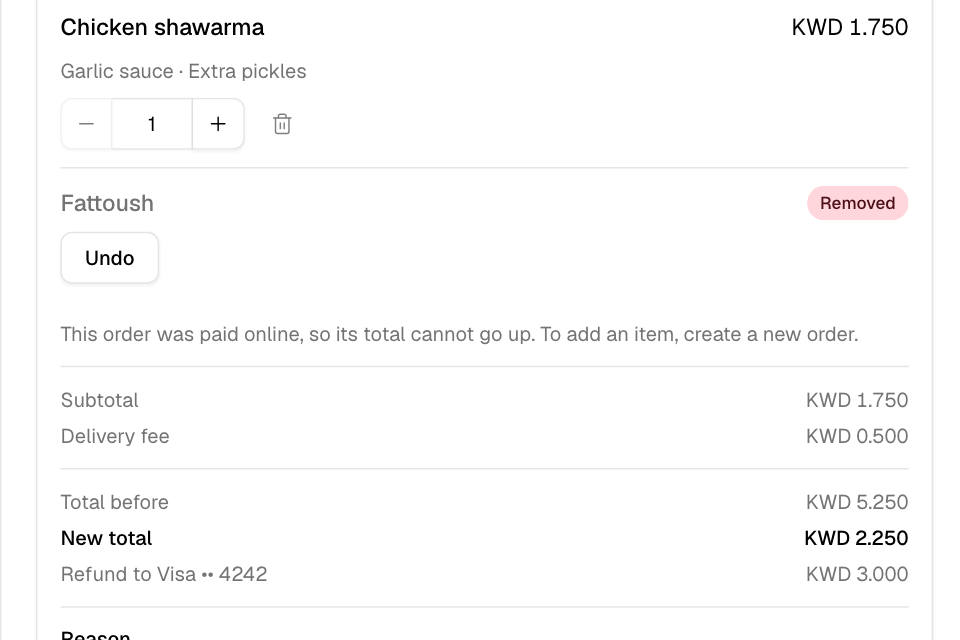
You change the items, and Zyda prices the order again. Before you confirm, you see Total before, New total and what happens to the difference:
| The customer paid | When the total goes down | When the total goes up |
|---|---|---|
| Online (card or wallet) | Zyda sends the difference back to the card or wallet. | Not allowed. Create a new order for the extra item. |
| Cash or card on delivery | You collect less from the customer. | You collect more from the customer. |
| In store | You hand the difference back. | You collect the difference. |
Nothing changes until you confirm.
Edit the items
- Open the order in Manage > Orders.
- Select Edit order.
- Change the order:
- Select One fewer or One more to change a quantity.
- Select Remove to take an item off. Select Undo to put it back.
- Select Add item to add from your menu. This shows only for orders paid in cash, by card on delivery or in store.
- Check New total and the line under it.
- Choose a Reason: Out of stock, Customer asked, Wrong item, Wrong option or Other.
- Optional:
- Add a Note for your team.
- Tick Customer agreed by phone.
- Keep Notify customer ticked to send the customer the changes and the new total.
- Under Mark unavailable, tick a removed item to switch it off for a time you choose.
- Select the confirm button. It names what happens, for example Confirm and refund or Confirm and collect.
You see "Order updated".
What the customer gets
If Notify customer is ticked, the customer gets one message with the changes and the new total. If a refund started, the message says so. Zyda sends it in the customer's WhatsApp chat, or from your WhatsApp number, or by SMS.
See what changed
- The order shows Edited in the Orders list.
- The Changes card in the order lists each edit: who made it, when, the reason, the items and any refund.
- The printed receipt shows that the order was edited.
When you cannot edit
If Edit order is greyed out, it says why:
| Message | Why |
|---|---|
| This order can no longer be changed at its current status. | You can edit only new, accepted or ready orders. |
| The customer has not finished paying for this order. | Wait for the payment. |
| This order is in your POS. Edit it in your POS. | Your store sends orders to a POS. |
| A courier is booked. Cancel the courier first. | A courier company has the order. |
| The customer already earned loyalty points on this order. | Points were already given. |
| The customer already got cashback on this order. | Cashback was already given. |
| This order was already edited the most times allowed. | Each order can be edited 5 times. |
| Change a dine-in round from its table. | Dine-in orders are changed from the table. |
Rules and limits
- You need edit access to orders at the order's branch.
- A refund needs the refunds permission. The Owner and Operations roles have it. Without it, ask someone with one of these roles to confirm the edit.
- You cannot remove the last item. Cancel the order instead.
- Combos can be removed, but not changed. Reward items and booked slots cannot be changed.
- A promo code is priced again on the new items. A percentage code keeps its percentage, but never gives more than the first discount. A fixed code is capped at the new item total.
- The delivery fee and service fee do not change.
- Removed items go back into stock.
Common questions
The refund failed. What now?
The edit is saved. Open the order, find the edit in Changes, and select Retry.
Does an edited refund show in my closing report?
Yes, under Refunded by edit. It is not counted again in refunds, because the edit already lowered the order total.