For: Owners, Operations
Where: Setup > Business > Policies
Available: Web dashboard · All countries
Needs: Owner or Operations role
Customers want to know how you use their data and how returns work. Your store already shows these policies, written for your store type. Change the wording only if you want to.
How it works
Your online store shows three policies:
- Privacy Policy
- Return & Shipping Policy
- Terms of Service
Each starts from Zyda's recommended text for your store type and country. Zyda fills in your store name, company name, currency and country.
If you never change a policy, your store keeps showing the recommended text. If you change it, your store shows your text.
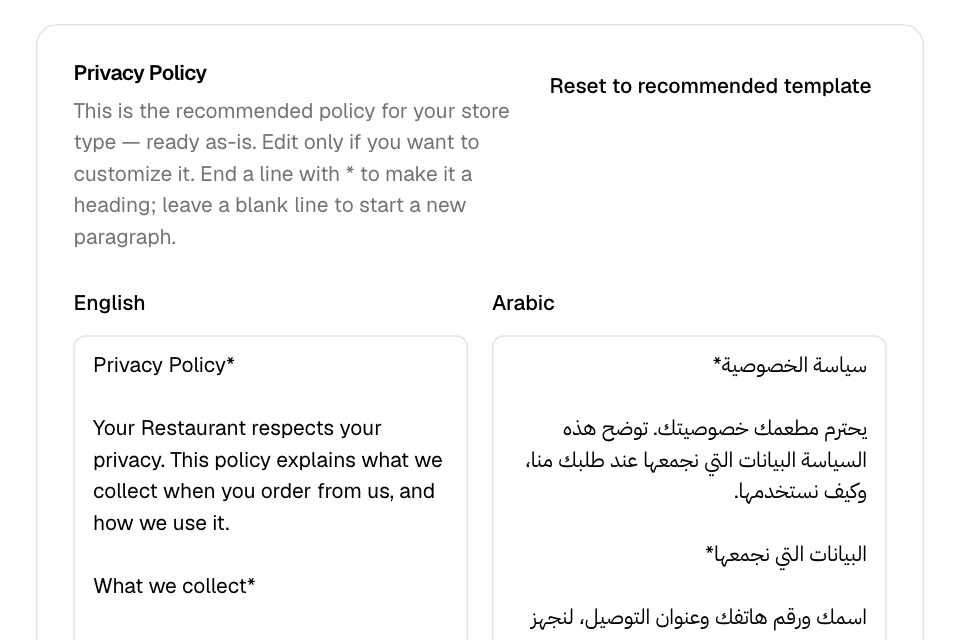
Change a policy
- Go to Setup > Business > Policies.
- Find the policy.
- Change the text in English, Arabic, or both.
- Select Save at the bottom of the page.
You see "Store policies updated".
Format the text
- End a line with * to make it a heading.
- Leave a blank line to start a new paragraph.
Go back to the recommended text
- On the policy, select Reset to recommended template.
- Select Save.
If the policy had your own text, this saves a copy of the recommended text, with your names as they are today. If you change your store name or company name later, change it in the policy text too.
Rules and limits
- Save writes only the policies you changed.
- If you select Save with no change, you see "No changes to save — your store is using the recommended policy."
- If you save a policy empty, your store shows the recommended text again.
- Only the Owner and Operations roles see Setup > Business.
Common questions
Do I have to write my own policies?
No. The recommended policies are complete for your store type.
My company name is wrong in the policy. How do I fix it?
Change the Company name in Setup > Business > Details. See Edit your business details and VAT. The company name is in the Terms of Service. If you never changed that policy, it shows the new name. If you changed it, or reset it and saved, change the name in its text too.