For: Owners, Operations, Finance
Where: Understand > Sales > Report
Available: Web dashboard · All countries
A customer says they paid, but the order looks unpaid. The sales report lists every online payment, so you can find it and see if it went through.
How it works
Go to Understand > Sales, then select Report. The table lists your store's online payments, newest first:
| Column | What it shows |
|---|---|
| Order | The order number. |
| Reference | The payment's reference at the payment gateway (the company that takes card payments). |
| Date | When the payment started. |
| Status | What happened to the payment. |
| Payment method | For example KNET or a credit card. |
| Amount | The amount of the payment. |
| Branch | The branch of the order. |
The Status column shows one of these:
| Status | Meaning |
|---|---|
| Captured | The money was taken. The payment is complete. |
| Initiated | The customer started paying, but the payment did not finish yet. |
| Failed or Declined | The payment did not go through. |
| Abandoned | The payment was not completed. |
Cash and other payments you collect yourself are not in this list. They have no online payment.
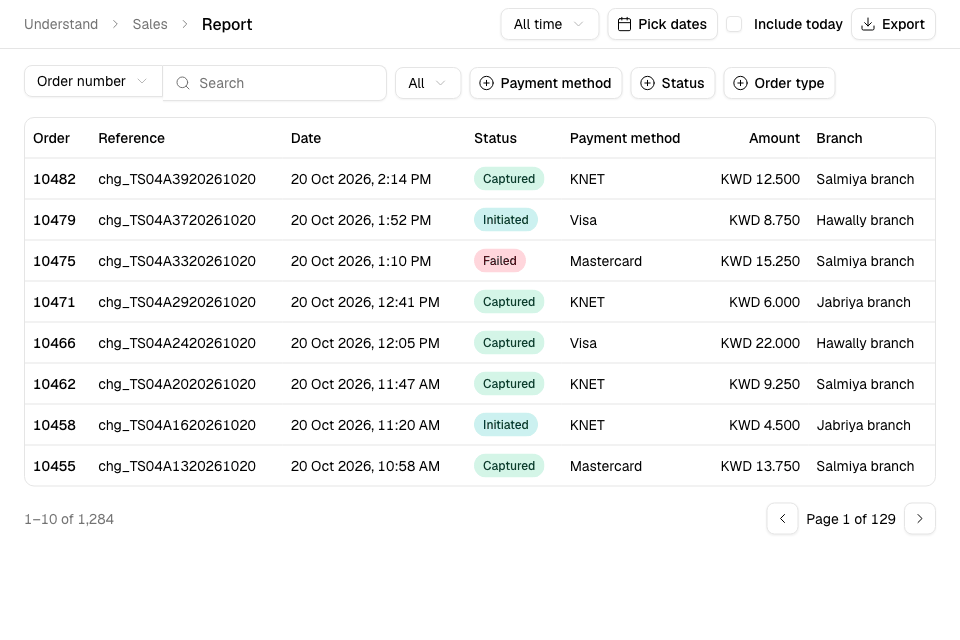
Find a payment
- Go to Understand > Sales > Report.
- In the list next to the search box, choose Order number or Reference.
- Type the number in the search box. The list updates when you stop typing.
- Check the Status of the payment.
The first time you open the report, it shows All time. To see fewer payments, choose dates, for example Last 7 days.
Filter the list
- Choose one branch in the branch list.
- Select Payment method to keep only some methods.
- Select Status to keep only Captured, Initiated or Failed payments.
- Select Order type to keep only Delivery or Pickup orders.
- Select Reset to clear the three filters.
The table shows 10 payments on each page.
Export the list
- Set the dates, search and filters you want.
- Select Export.
- Zyda emails the file to you. A message says the file will arrive at your email in a few minutes.
Rules and limits
- You need view access to sales to see Report.
- Export shows if you have the Download reports permission, or edit access to orders.
- The Status filter has Captured, Initiated and Failed. Initiated also finds payments that are still pending.
Common questions
Can I search by the customer's name?
No. Search by Order number or Reference. To find a customer, use Understand > Customers. See Look up a customer and their orders.
Where do I see refunds?
Refunds are in Finance > Transactions > Refunds. To refund an order, see Refund an order.