For: Owners, Branch staff, Operations, Finance
Where: Orders tab > search, filters and the ⋯ menu
Available: Zyda phone app (Android) · All countries
Needs: The new look of the Zyda app. The iPhone version does not have it yet.
A customer calls about an order from last week, or you need to print ten receipts at once. The Orders tab can search every order, filter the list and act on many orders together.
How it works
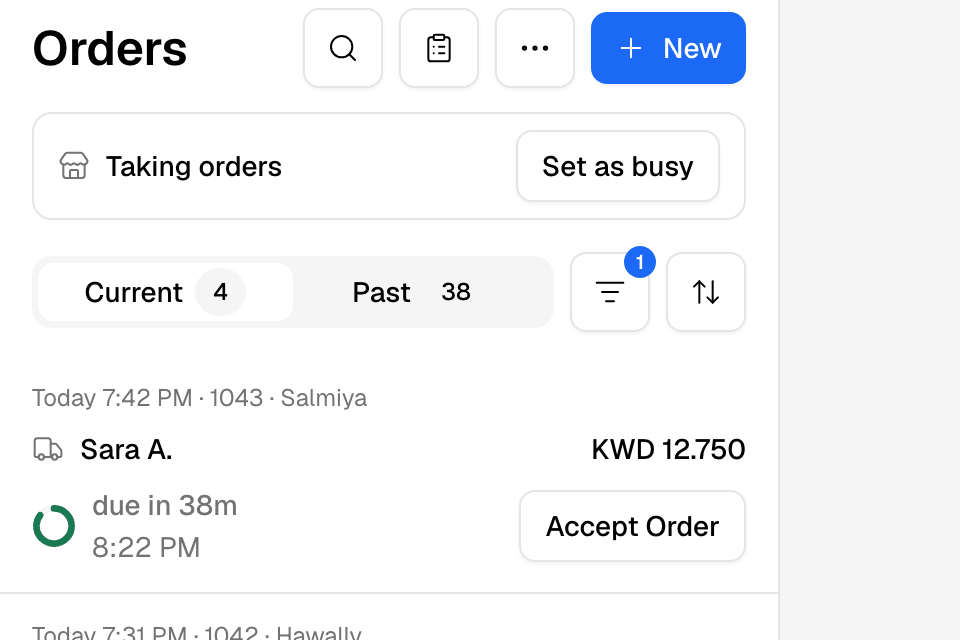
The top of Orders has these buttons:
- Search (magnifying glass): find one order.
- Preparation (clipboard): what the kitchen needs to make. See Plan the kitchen with the preparation list.
- ⋯: Select orders and Export.
- New: create an order. See Create an order in the app.
Under them are the Current and Past lists, the filter button and the sort button.
Search for an order
- Tap the magnifying glass.
- Type an order number, a phone number, a customer name or a voucher code.
- Tap search on the keyboard.
A search looks at orders of every status from the last 12 months. Tap the X to close the search.
Filter and sort the list
- Tap the filter button beside Current and Past.
- Choose what to show:
- Date: Today, Last 7 days or Last 30 days.
- Status, Type, Payment and Source.
- Tap Show orders.
A number on the filter button shows how many filters are on. Tap Reset to clear them.
To sort, tap the sort button and choose Newest placed or Earliest scheduled.
Act on many orders at once
- Touch and hold an order's row. Or tap ⋯ and then Select orders.
- Tap more rows to add them. Tap the box at the top to select every order on the page.
- At the bottom, choose:
- Print receipts: prints the selected orders. See Print orders from the app or a Sunmi device.
- Assign delivery: gives the selected orders to one of your own drivers. Delivery partners are booked one order at a time, from the order itself.
- Tap the X at the top to stop selecting.
The bar shows how many you picked, for example "3 of 12 selected".
Export orders
- Tap ⋯ and then Export.
- Under Orders to export, choose Filtered Orders, Current Orders or Past Orders.
- Optional: tick to add the products' details or the order timeline.
- Tap Export.
Zyda emails the report to you. The message says "We are now generating your orders sales report. You will receive it by email shortly."
Rules and limits
- Filtered Orders shows only after you turn on a filter.
- An export covers 3 months and 10,000 orders at most. Narrow the filter if your range is wider.
- Export needs the download reports permission, or orders at edit.
- Assign delivery and New need orders at edit.
- Print receipts takes 50 orders at most. Unpaid orders are not printed.
- Assign delivery does not work for pickup orders, or for orders that are already delivered or cancelled.
- The date filter has no custom range in the app. Use the web dashboard for a custom range.
Common questions
Can I mark many past orders as completed?
Not in the app. Use Mark completed on the web dashboard. See Find and follow orders on the Orders page.
Where is the report?
In the email inbox of the account you signed in with. It can take a few minutes.