For: Owners, Operations, Marketing
Where: Understand > Customers > Profiles
Available: Web dashboard · All countries
Your best customers and the ones you are losing need different messages. The Customers page puts every customer in a segment, so you can find each group in one click.
How it works
Go to Understand > Customers. The Profiles page opens. The number next to the title is how many customers you have.
A customer is one phone number. If a customer ordered as a guest and later with an account on the same number, they are one customer. Customers with no order are not listed.
Each customer is in one of six segments. Zyda places them by the date of their last order and by how many orders they placed:
| Segment | Last order | Orders |
|---|---|---|
| Champions | In the last 7 days | 3 or more |
| Loyal | 8 to 90 days ago | 3 or more |
| New | In the last 30 days | 1 or 2 |
| Promising | 31 to 90 days ago | 1 or 2 |
| Needs Attention | 91 to 180 days ago | Any |
| Needs Attention | Over 180 days ago | 2 or more |
| Low Value | Over 180 days ago | 1 |
The page works out each segment again every time it opens. When a customer orders again, or time passes without an order, they move to another segment.
Each segment card shows how many customers are in it, and their share of all customers.
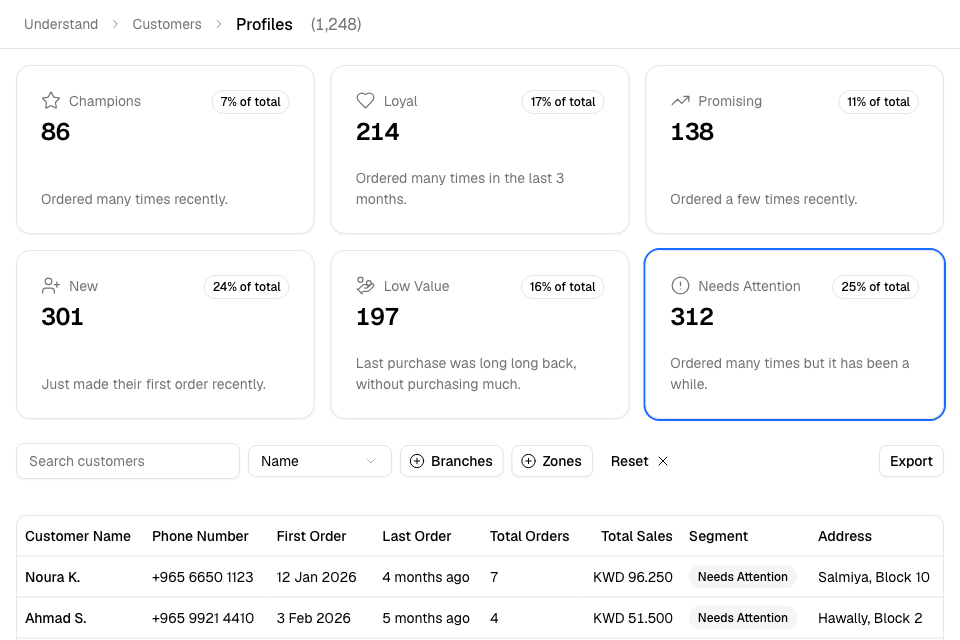
See one segment
- Go to Understand > Customers.
- Select a segment card, for example Needs Attention. The list shows only its customers.
- To see everyone again, select the same card again.
Search and filter the list
- In the list next to the search box, choose Name or Phone number.
- Type in Search customers, then press Enter.
- Optional: select Branches to keep customers who ordered from some branches.
- Optional: select Zones to keep customers who got deliveries in some zones. Pickup-only customers have no zone.
- To clear the segment, search and filters, select Reset.
A phone number search takes digits only.
Sort the list
Select a column title to sort by it: First Order, Last Order, Total Orders or Total Sales. Select it again to reverse the order. The list opens sorted by Last Order, newest first.
The list shows 15 customers on each page.
Open a customer
Select a customer to open their details on the side. To open the full page, select … at the end of the row, then View Profile. See Look up a customer and their orders.
Export the list
- Optional: select Branches or Zones.
- Select Export.
- Zyda emails the file to you. You see "Customers report has been sent to your email".
The file uses the Branches and Zones filters. It does not use the segment or the search.
Send a campaign to a segment
Kuwait stores see Create campaign at the top of the page. To choose a segment for a campaign, see Choose who gets a campaign.
A campaign uses a saved copy of each customer's segment. Zyda updates the copy every 30 minutes for customers who just ordered, and every night for customers who ordered in the last 6 months. So a campaign count can differ a little from the cards.
Rules and limits
- You need access to customers. The Owner, Operations and Marketing roles have it.
- Total Sales shows only if you also have view access to sales. Without it, you see a dash, and you cannot sort by it.
- Export needs the Download customer lists permission. The Owner and Operations roles have it.
- Deleted customer accounts are not listed.
Common questions
Why does the segment total match the header number?
Each customer is in exactly one segment. The six cards add up to the number next to the title.
Can I move a customer to another segment?
No. Zyda sets the segment from the customer's orders. It changes when they order again, or as time passes without an order.