For: Branch staff, Operations, Owners
Where: Manage > Orders
Available: Web dashboard and Zyda phone app (Android) · All countries
The Orders page is where your team works all day. It updates by itself. New orders and status changes appear without reloading the page.
How it works
Manage > Orders has two tabs:
- Current Orders: open orders due in the last 6 hours or later.
- Past Orders: finished and cancelled orders, and open orders due more than 6 hours ago.
The list shows the last 30 days by default.
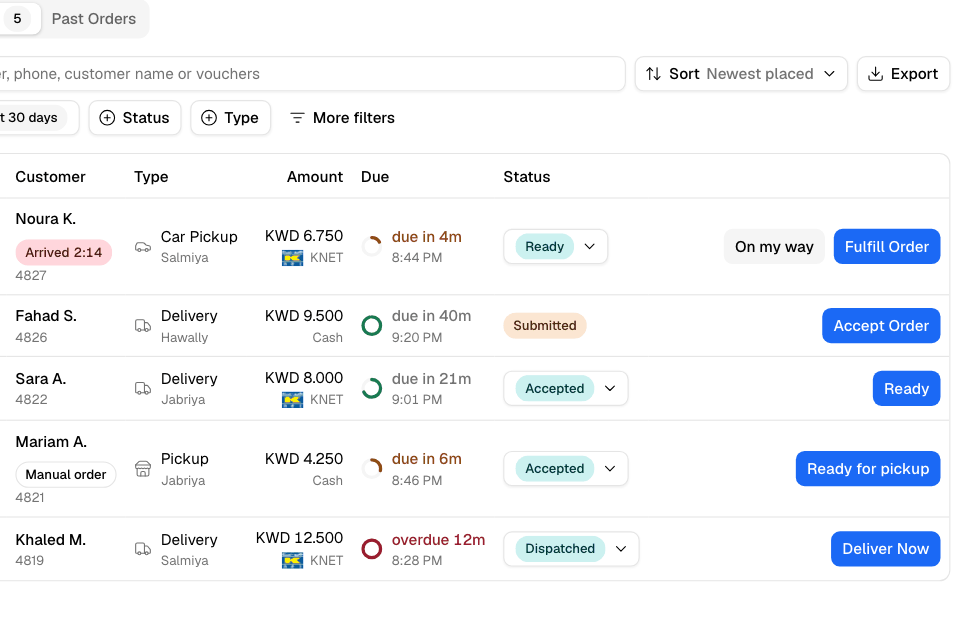
Read a row
| Column | Shows |
|---|---|
| When | When the order was placed. A blue dot means nobody has opened it yet. |
| Customer | Name and order number, with marks: Arrived (a curbside customer is waiting, with a timer), Edited, Manual order, the order source, and a note mark. |
| Type | Delivery, pickup, beach or dine-in, with the area or branch. |
| Amount | Total and payment method. |
| Due | A countdown: "due in 6m", "due now" or "overdue 12m". It turns amber at half the time and red 10 minutes after the due time. |
| Status | The current step. Select it to change the step. |
Curbside customers who arrived are pulled to the top, longest wait first.
Finished deliveries show Delivered on Time, Delivered Early or Delivered Late, measured against the time promised at checkout. Ten minutes either way counts as on time.
Search
Type an order number, phone number, customer name or promo code, then press Enter. Search looks at every status, across the last 12 months. Clear the box to go back to Current Orders.
Filter and sort
- Date: Today, Last 7 days, Last 30 days or Custom Date (up to 62 days).
- Status and Type.
- More filters: Payment, Source, Placed through (website, your app or manual order), Refund, Wholesale and Driver.
- Sort: Newest placed or Earliest scheduled.
Filters apply at once and stay in the page address, so you can share the link. Select Reset to clear them.
With more than one branch, choose a branch at the top, or All branches.
Export orders
- Select Export.
- Choose Filtered Orders, Current Orders or Past Orders.
- Optional: include the items in each order, or the timeline of each order.
- Select Export.
Zyda emails you the file. An export covers up to 3 months and 10,000 orders.
Common questions
Why did an open order move to Past?
Its due time was more than 6 hours ago. Close it from Past Orders: tick it and select Mark completed.
Do I need a browser extension to refresh the page?
No. The list updates by itself.