For: Owners, Operations
Where: Setup in the sidebar
Available: Web dashboard · All countries
Your store can take orders once customers can see your menu, reach you and pay. Work through this list once, from the top. Each step links to the article that explains it.
How it works
Most of the setup is under Setup in the sidebar. A few steps are under Serve.
You do not need every step. For example, skip delivery if you only offer pickup. Steps 2 to 5 are what a customer needs to place an order.
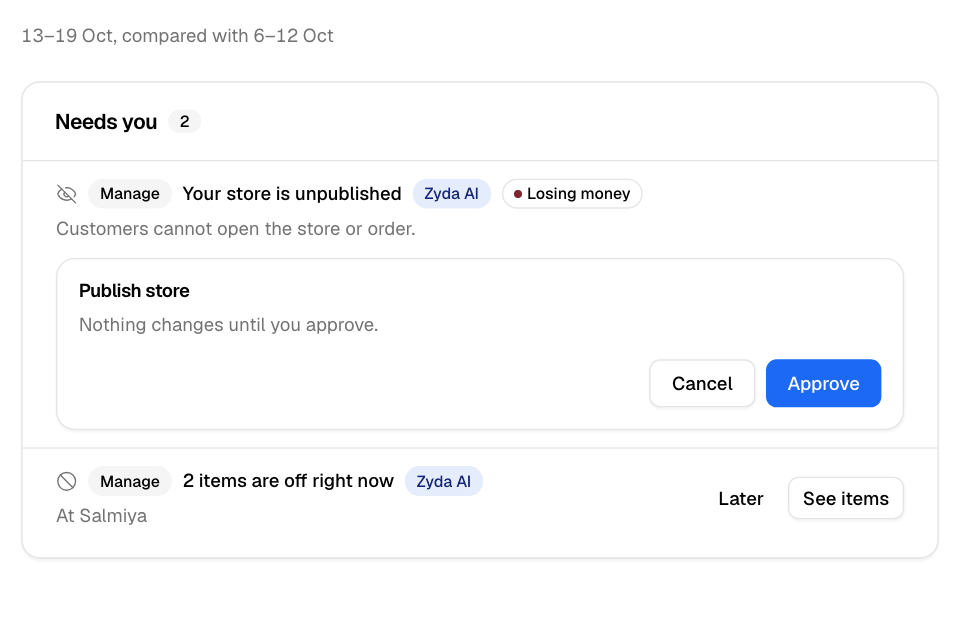
When your store is unpublished, Home says so in its Needs you list. Home warns about an unpublished branch, or delivery or pickup that is off, only at hours when that branch usually gets orders. So before your first orders, check your branches yourself. Check Home when you finish. See Fix what needs you on Home.
Set up what customers see
- Add your logo and store name. Go to Setup > Storefront > Branding. See Add your logo, cover and store name.
- Add your branches and opening hours. Go to Setup > Branches > Locations. Opening hours decide when each branch takes orders. See Add a branch and set its opening hours.
- Add your menu. Go to Setup > Menu. Add items one at a time, or import a file with many items. See Add or edit a menu item and Import or export your menu.
Set up how customers order and pay
- Choose how customers get their order.
- For delivery, add the areas you deliver to. See Add a delivery zone.
- For pickup, turn it on at your branches. See Turn on pickup and curbside at your branches.
- Choose how customers pay.
- For card and wallet payments online, connect a payment gateway. See Connect a payment gateway for online payments.
- For cash or a card machine at the door or the counter, see Turn cash and card machine payments on or off.
- Set your preparation time. This is how long your kitchen needs for an item that has no time of its own. You can also choose to accept orders automatically. See Set preparation time, auto-accept and checkout options.
Get your team ready
- Add the people who handle orders. Give each person a role and their branches. See Add a person to your team.
- Turn on order sounds. On the computer that takes orders, select the bell in the top bar. Click once on the page so the browser allows sound. See Hear new orders and arrivals.
Open your store
- Check Home. Open Home and read Needs you.
- If it says Your store is unpublished, customers cannot open your store. The store owner selects Publish store, then Approve.
- Before your first orders, Home does not warn about a branch. Check that each branch takes delivery or pickup in Setup > Branches > Locations.
- Once your branches get orders, Home also tells you when a branch is unpublished, or when delivery or pickup is off. Select the button on that row.
 10. Share your store. Put your store link on your social pages, and print a QR code for your counter. See Make a QR code for your store and Create a link in bio page.
When the first order comes in
The bell rings and the order shows in Manage > Orders. Accept it, prepare it and move it to the next step. See Accept an order and move it to the next step.
Rules and limits
- Only the store owner can publish the store, and only while the Zyda plan is not cancelled.
- Some steps need the owner: payments and the team.
- To try the full flow, place an order on your own store. Then cancel it with the reason Duplicate, fake or test order and choose test order. Test orders do not count in your cancellation rate. Only a role with Refund money can choose it: Owner and Operations, or a role of your own with that switch on.
Common questions
A customer says my store does not open. Why?
Your store may be unpublished. Open Home and look for Your store is unpublished in Needs you.
Customers see my store but cannot order. Why?
Check Needs you on Home first. Then check that the branch is open now, and that it delivers to the customer's area or offers pickup.