For: Owners, Operations, Branch staff, Marketing, Finance
Where: App Store or Google Play > Zyda
Available: Zyda phone app (Android) · All countries
You cannot always sit at a computer during service. The Zyda app lets you and your team take, accept and track orders from a phone. It uses the same account as the web dashboard.
How it works
The Zyda app comes with your Zyda account. Anyone on your team can use it. Each person signs in with the email and password of their own dashboard account. The app shows only the pages that person's role allows. To add a person, see Add a team member.
The app has two looks:
- The new look: the same pages and words as the new web dashboard. These articles describe it.
- The old look: the first version of the app. It opens until you turn on the new look.
| Phone | What it has today |
|---|---|
| Android | The new look and the old look. You choose. |
| iPhone | The old look only. The App Store version does not have the new look yet. |
Get the app
- On an iPhone, open the App Store. On an Android phone, open Google Play.
- Search for Zyda.
- Install the app called Zyda.
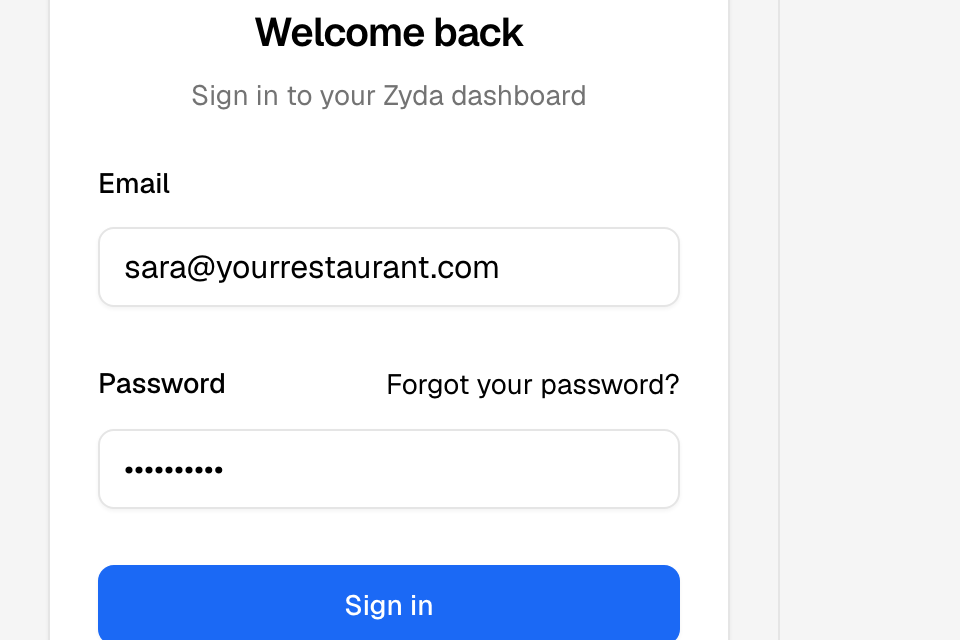
Sign in
- Open the app.
- Enter your Email and Password.
- Tap Sign in.
To use Google, tap Continue with Google and pick your Google account. This works only if your dashboard account uses the same email.
To change the language before you sign in, tap English or العربية under the sign-in box.
On an iPhone, the old sign-in screen shows. Enter your email and password, then tap Login.
Turn on the new look
- Sign in.
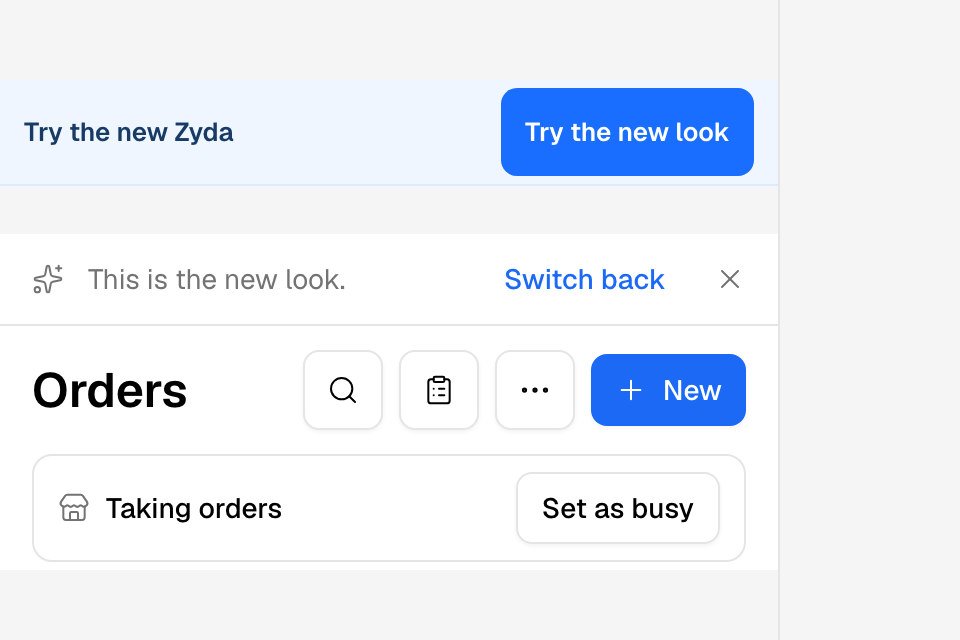
- At the top of the screen, tap Try the new look.
The app switches to the new look at once. A thin bar at the top says "This is the new look." Tap the X to hide it.
To go back to the old look, tap Switch back on that bar. If you hid the bar, go to More > Settings and turn off Use the new look.
Reset your password
- On the sign-in screen, tap Forgot your password?.
- Enter your email.
- Tap Send reset link.
- Open the email and follow the link to choose a new password.
A new password needs 8 to 32 characters. For more, see Sign in and reset your password.
Rules and limits
- The look you choose is saved on this phone only. Other phones keep their own choice.
- When you sign out, the phone goes back to the old look. The next person chooses again.
- If the new look closes by itself twice in a row, the app opens in the old look. Turn the new look on again when you are ready.
- Continue with Google never creates an account. Ask your store owner to add you first.
Common questions
It says "That email and password don't match."
Check the email for a typing mistake. Then reset your password with Forgot your password?.
It says "This account is inactive."
Your store is not active on Zyda. Contact Zyda to reactivate your store.
It says "No Zyda dashboard account uses this Google email."
Your dashboard account uses another email. Sign in with your email and password, or ask your store owner to add your Google email.
Can two people use the same phone?
Yes. Each person signs out when they finish, from More > Sign out. The next person signs in with their own account.