For: Owners, Operations
Where: The guest's phone, after scanning a table's QR code
Available: Web dashboard · All countries
Your team answers fewer questions when you know what guests see. Guests scan the code on their table, order together from their own phones and pay from there. They do not install an app. Everything happens on your store's website, in your store's colours.
How it works
- A guest scans the table's QR code. Your store opens on their phone at that table.
- The guest types their name to join the table. Everyone at the table joins the same way.
- Each guest adds items from your menu. All the items go into one shared order for the table.
- A guest selects Send to kitchen. The items go to your kitchen as one round.
- Guests can order more rounds while they eat.
- Each guest opens the bill and pays their part, or the whole bill, from their phone.
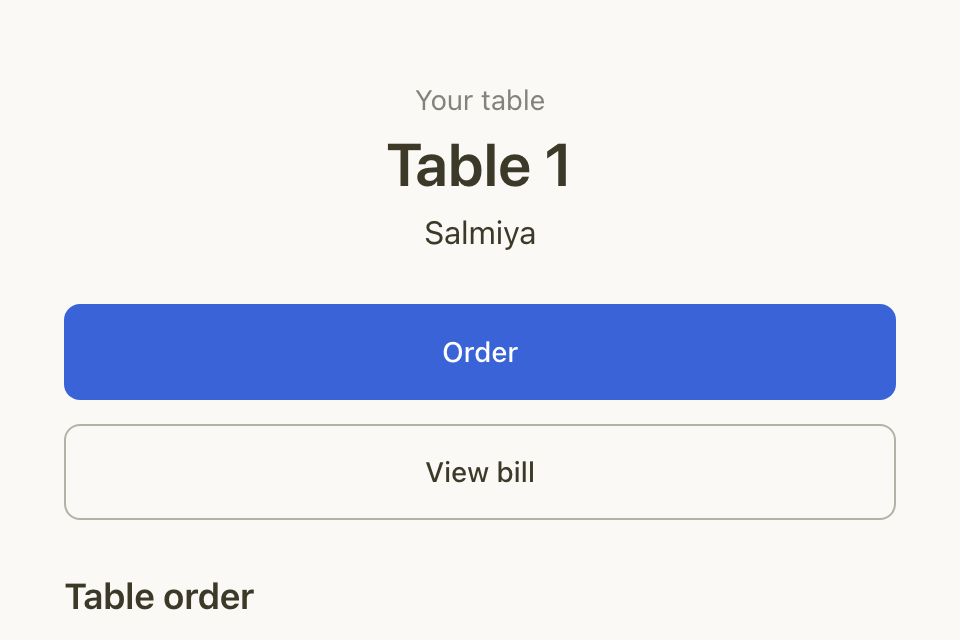
Order together
The table page shows Your table with the table's name, then two buttons:
- Order opens your menu. Guests add items as they do for any order.
- View bill opens the table's bill.
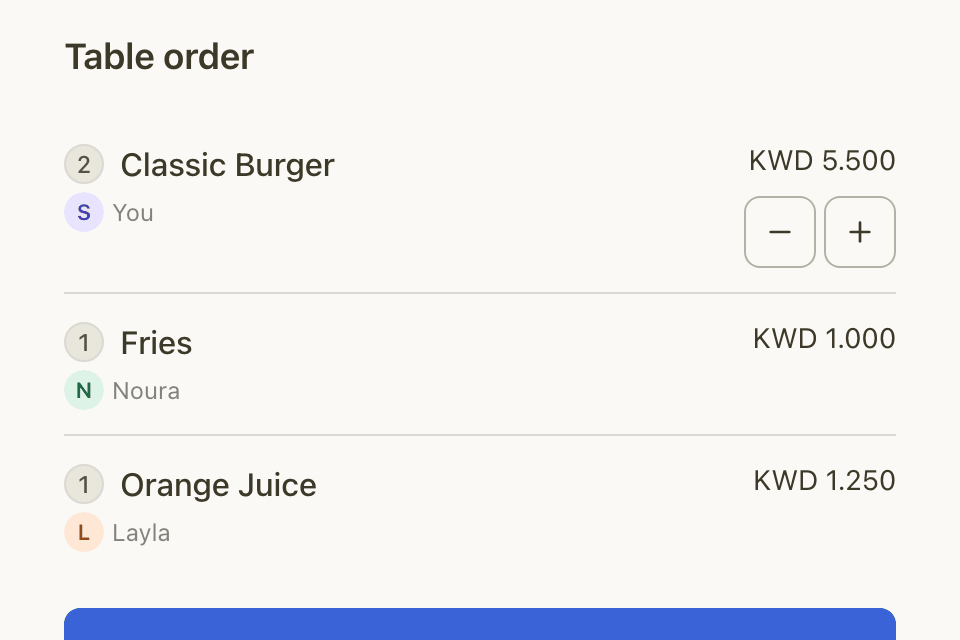
Under Table order, every guest sees every item, who added it and its price. A guest can change or remove only the items they added. When someone else adds an item, the order updates on every phone.
Send to the kitchen
- A guest selects Send to kitchen.
- The first time, the phone asks for Your phone number. Your restaurant needs it before the first round goes to the kitchen. The guest uses it to pay too.
- The guest sees "Sent to the kitchen."
The first round of each table waits for your team. The guests see "Waiting for staff to confirm your first order", and they cannot send another round until your team accepts it. Later rounds go to the kitchen at once.
Each round shows its state: Waiting for staff, Preparing, Ready, Served or Cancelled.
Call a waiter
Under the order, guests have two buttons:
- Call a waiter: your team sees "Asked for a waiter".
- Ask for the bill: your team sees "Asked for the bill".
The guest sees "A waiter is on the way." or "The staff will bring your bill."
Each guest can call once every 2 minutes. The phone shows how long until they can call again.
Pay at the table
- The guest selects View bill. The bill shows each round, the total, what was paid and Left to pay.
- The guest selects Pay or split. A guest alone at the table sees Pay with the amount.
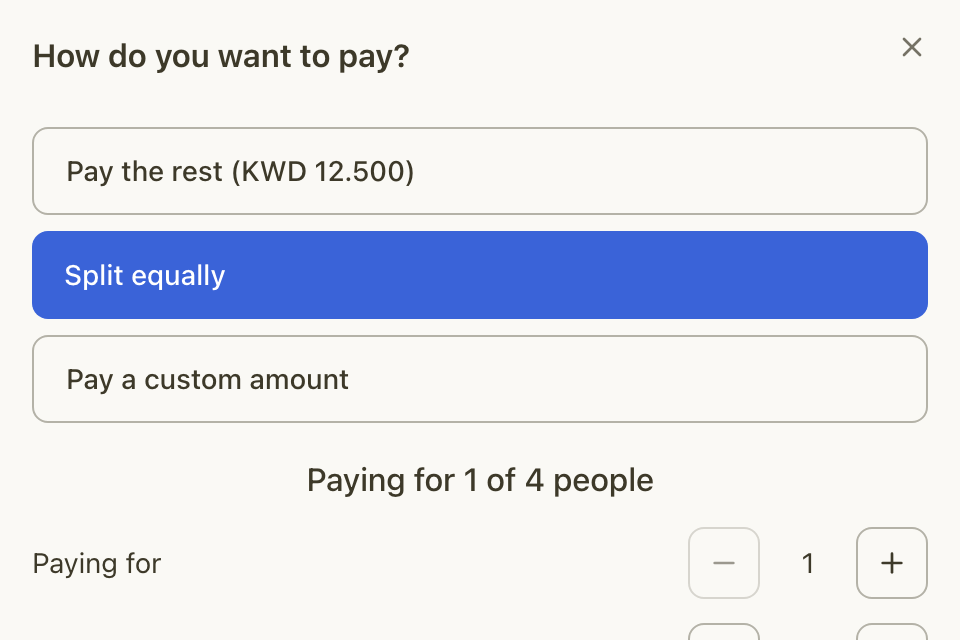
- The guest chooses how to pay:
- Pay the rest: everything that is left.
- Split equally: the guest sets how many people share the bill, from 2 to 20, and how many shares they pay for.
- Pay a custom amount: any amount up to what is left.
- If tips are on, the guest chooses a Tip: No tip, 5%, 10%, 15% or Other.
- The guest types their Phone number and chooses how to pay, such as KNET, card or Apple Pay.
- The guest selects Pay with the amount.
The bill shows who is paying now, so the table does not pay twice. Two guests may pay at the same time, so the table pays too much. The extra amount then goes back to the card by itself.
When the table is paid in full, the table closes by itself. Each guest sees a receipt of their own payments, and can rate the meal.
When guests can only see the menu
Guests who scan see the menu, but cannot order, when:
- Table ordering is off at the branch.
- The branch is closed now, or it is a holiday, or it is after the last order time.
- Your free trial ended and you have not added Dine-in. Guests cannot open a new table.
- The table session ended because nobody used it for the session length. The guest scans the code again to start a new one.
Rules and limits
- Guests must give a name to join, and a phone number to send the first round and to pay.
- Guests pay online with the methods your branch takes for pickup orders, through Tap or MyFatoorah. They can also pay your staff at the counter.
- Guests earn loyalty points on what they pay, if your points program applies to all orders. Tips do not earn points. Points come after the table is paid in full. Dine-in does not earn cashback.
- Zyda takes no commission on table payments. Your gateway's fee applies. If Autopilot is on, the marketing processing fee can apply once per table, as it does for other orders.
Common questions
Can each guest pay for only the items they ordered?
No. Guests can pay the rest, an equal share or a custom amount. To pay for their own items, a guest types that amount with Pay a custom amount.
What if a guest leaves without paying?
Live tables shows Possible walkout when money is still owed and nobody used the table for the session length. Read Take payments, refund and close a table.