For: Owners
Where: Setup > Menu > Items > Import
Available: Web dashboard · All countries
Typing a large menu item by item takes hours. Fill one spreadsheet instead, and upload it. You can also download your current menu, change it, and upload it again.
How it works
The import reads an .xlsx spreadsheet in Zyda's template. It adds and updates categories, items, sizes and prices. It runs in the background, so you can keep working.
Import history lists every import with its status:
| Status | Meaning |
|---|---|
| Queued | Waiting to start. |
| Processing | Running now. |
| Imported | Done. It may say how many products were updated. |
| "{n} errors" | Some rows could not be imported. |
| Upload rejected | The import failed, but no single cell caused it. |
| Canceled | You stopped it. |
While an import runs, or if the last one failed in the past 24 hours, the menu page shows a notice with a link.
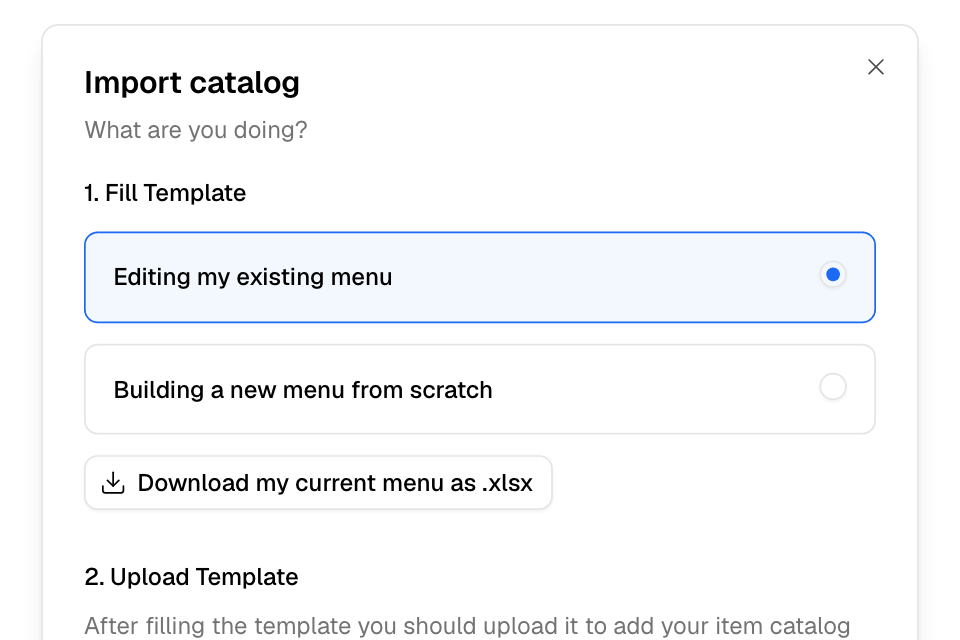
Import a spreadsheet
- Go to Setup > Menu > Items.
- Select Import, then Import from spreadsheet.
- Under Fill Template, choose what you are doing:
- Editing my existing menu: select Download my current menu as .xlsx.
- Building a new menu from scratch: select Download blank template.
- Fill in the spreadsheet and save it.
- Under Upload Template, select Choose a file, and pick the file.
- Select Import.
You see "Upload received, processing in the background".
Fix a failed import
- Select Import, then View import history.
- Find the import. The newest failed import opens by itself.
- Read Why this failed. The error list shows the sheet, row, column and problem for each error.
- Select Download annotated file to get your file with the problem cells marked.
- Fix the file.
- Select Re-upload fixed file.
From an import's "…" menu you can also Retry a failed import, Cancel one that is queued or processing, or Download original file.
Import your menu from Foodics
This shows only if your store is connected to Foodics and can take its menu.
- Select Import, then Import catalog from Foodics.
- Link each location to a Foodics branch. One Foodics branch can serve one location only.
- Select Next.
- Pick the Foodics menu to import.
- Select Import.
You get an email when the import from Foodics is done.
Export your menu
- Go to Setup > Menu > Items.
- Select Export menu.
You get an email with the .xlsx file when it is ready. One export runs at a time.
Rules and limits
- Only the store owner can import a menu or export it.
- With allergens and nutrition on, the template has Calories and Allergens columns. Leave the Allergens cell empty to keep what is there. Write "none" for no listed allergens, or "undeclared" to clear it. Otherwise, write codes such as "contains: gluten, milk; may_contain: eggs; dietary: vegan".
- A POS import can create items that are in no category. They show under Uncategorized at the end of your menu.
Common questions
I cannot see Import from spreadsheet.
Only the owner can import. Ask the owner to upload your file.
My import says Upload rejected. What do I do?
Open the import in View import history and read Why this failed. If the reason is not clear, download the template again, copy your data into it, and upload the new file.