For: Owners, Marketing, Operations
Where: Setup > Storefront > QR code
Available: Web dashboard · All countries
A QR code on your packaging, menus or window takes customers straight to your store. You can also make a code that opens pickup at one branch, so customers order for pickup there.
How it works
The page draws a QR code from a link to your store. You choose where it opens and how it looks, then download it as a picture to print.
Nothing is saved. The code holds only the link, so it keeps working when you change your menu or your store's look.
The link ends with utm_source=qr_code. Your website reports can then tell which visits came from the code.
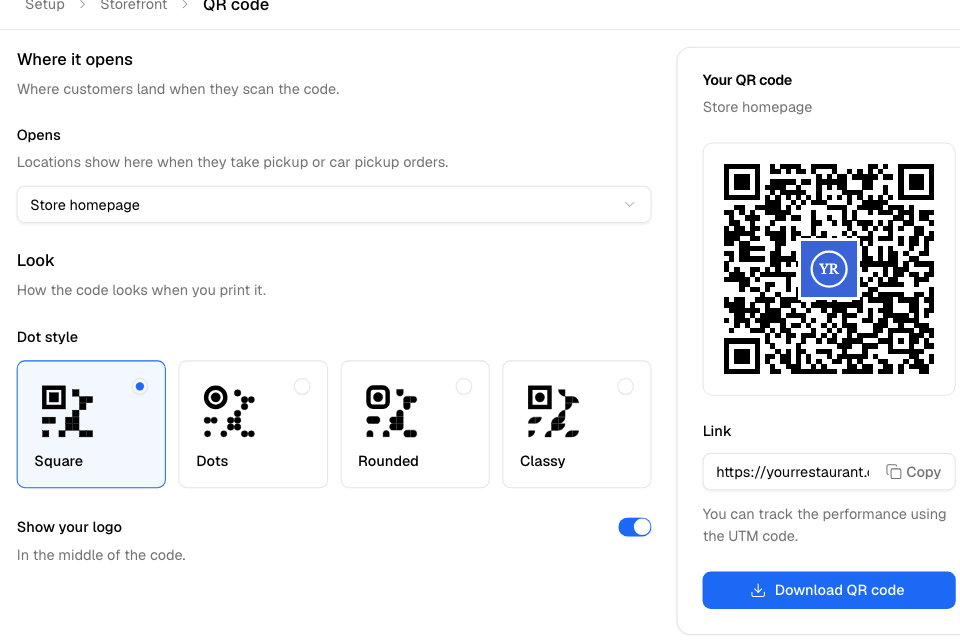
Make a QR code
- Go to Setup > Storefront > QR code.
- Under Opens, choose Store homepage, or a branch.
- Under Dot style, choose Square, Dots, Rounded or Classy.
- Optional: turn on Show your logo to put your logo in the middle of the code.
- Check the code under Your QR code. Scan it with your phone to test it.
- Select Download QR code.
The file is an SVG picture. It stays sharp at any print size.
To share the link without the code, select Copy next to Link.
Make a code for one branch
Choose a branch under Opens. The code then opens that branch, and Your QR code says where:
- Pickup at and the branch name, for a branch that takes pickup orders.
- Car pickup at and the branch name, for a branch that takes only car pickup orders.
A branch shows in the list only when it takes pickup or car pickup orders. A branch that takes both opens in pickup.
Rules and limits
- The code is always black on white, so every phone can scan it.
- Show your logo needs a logo. Add it in Setup > Storefront > Branding first.
Common questions
Do I need a new code if I change my menu?
No. The code opens your store, which always shows your current menu.
Why is my branch not in the list?
The branch does not take pickup or car pickup orders. Turn on pickup for the branch, then come back.