For: Owners, Branch staff, Operations
Where: Orders tab > tap an order
Available: Zyda phone app (Android) · All countries
Needs: The new look of the Zyda app. The iPhone version does not have it yet.
A new order needs an answer fast, even when nobody is at the computer. On the Orders tab you accept orders, move them along and answer the customer from your phone.
How it works
Orders has two lists:
- Current: open orders. A ring on each row counts down to when the order is due. It says "due in 12m", "due now" or "overdue 5m".
- Past: finished and cancelled orders, and open orders that were due more than 6 hours ago.
Each row on Current has a button for the next step, such as Accept Order. Tap the button to move the order. Tap anywhere else on the row to open the order.
The list updates by itself when an order comes in or changes. Pull the list down to load it again.
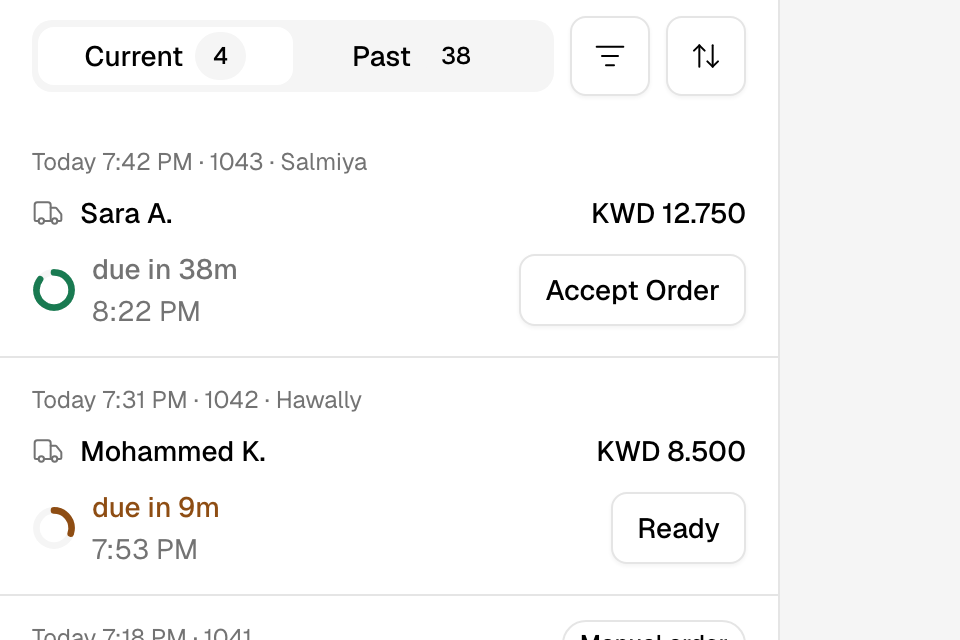
Accept an order
- Open the Orders tab.
- On the new order's row, tap Accept Order.
The customer gets the same messages as when you accept on the web. If your store has its own fleet but no driver on shift, the app may ask you to add a driver first. Tap Add rider to add one, or Skip for now to accept without one. To give the order to a driver later, see Assign a driver or courier to an order.
Move an order to the next step
The next step depends on the order type:
| Order type | Steps |
|---|---|
| Pickup | Accept Order > Ready for pickup > Fulfill Order |
| Your own delivery | Accept Order > Ready > Dispatch Order > Deliver Now |
| Your drivers or a delivery partner | Accept Order > Assign delivery. If the driver declines, Reassign. The driver marks the rest. |
You can also change the step from the order itself. Open the order and tap its status at the top, then pick a step. A step forward applies at once. A step back asks first, for example "Move back to Accepted?". Tap Move back.
For the full rules, see Accept an order and move it to the next step.
Open an order
Tap a row. The order opens over the list. It shows:
- The items, options and notes, and the totals.
- The customer, with Call and WhatsApp. WhatsApp opens the chat in Inbox when your WhatsApp is connected to Zyda. If not, it opens WhatsApp on your phone.
- Note: a note for your team. Only your team sees it. Tap Add note to write one.
- The car, gift or beach details, when the order has them.
- Order Timeline: each step, when it happened and who did it.
The buttons at the bottom:
- The next step, with the printer button beside it.
- Edit order: change the items. See Edit an order after it is placed.
- Due time: change when the order is due. When you move it later, tick Notify customer to send the new time. See Change an order's due time.
- Cancel: cancel the order.
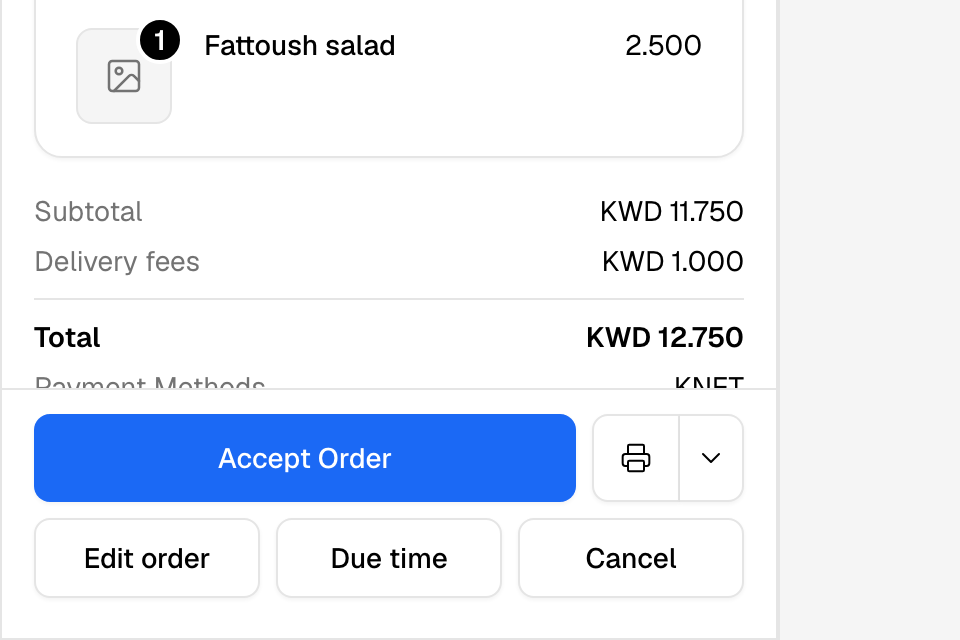
Cancel or refund an order
- Open the order.
- Tap Cancel.
- Choose why you are cancelling.
- Optional: mark the items as unavailable, or pause new orders for a while.
- Tap Confirm Cancellation.
There is no separate reject button. Cancel a new order to reject it. For the reasons and what the customer gets, see Cancel or reject an order.
To give money back on a cancelled order, open it and tap Refund. If a refund failed, tap Retry refund. See Refund an order in full or in part.
Rules and limits
- You need orders at view to see the tab. You need orders at edit to change orders.
- Refund and Retry refund need the refunds permission.
- An order still waiting for payment shows no next step and cannot be cancelled.
- A finished or cancelled order shows no next step.
Common questions
Why did an open order move to Past?
Current holds open orders up to 6 hours after their due time. After that the order shows under Past, even if nobody finished it.
Why can't I move a delivery partner's order to Dispatched?
The driver marks the order as picked up and delivered from their own app. You mark it accepted and ready.
Why is Edit order grey?
The order cannot change, for example because of its status, a booked courier or your POS. Tap the grey button to see why.