For: Owners, Branch staff, Operations
Where: Manage > Orders
Available: Web dashboard and Zyda phone app (Android) · All countries
Every order moves through a few steps, from new to delivered. Each step can tell the customer where their order is. This article shows the button for each step and what the customer gets.
How it works
A new order arrives in Current Orders with a blue dot. The row shows the button for the next step. Select it on the row, or open the order and use the button at the bottom.
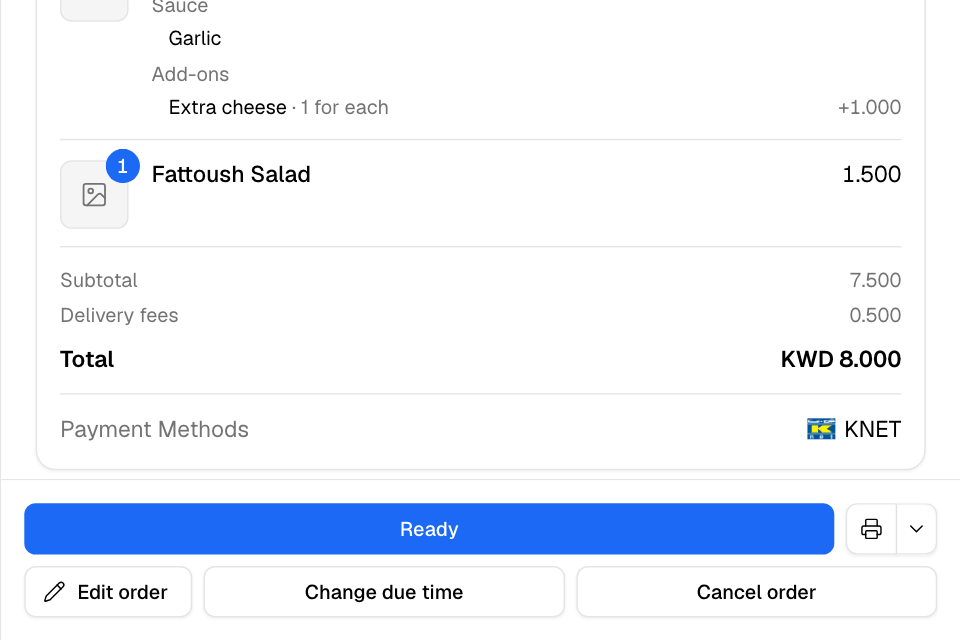
The steps
| Order type | New | Accepted | Ready | Out for delivery |
|---|---|---|---|---|
| Pickup and curbside | Accept Order | Ready for pickup | Fulfill Order | – |
| Delivery by your own staff | Accept Order | Ready | Dispatch Order | Deliver Now |
| Delivery by a driver or courier | Accept Order | Assign delivery | The driver updates it | The driver updates it |
| Dine-in round | Accept Order | Mark served | – | – |
When your store has drivers in Zyda or a courier company, the driver moves a delivery order to out for delivery and delivered. You can set only Accepted and Ready.
If your store accepts orders automatically, new orders arrive already accepted.
What the customer gets
| Step | The customer gets |
|---|---|
| Accepted | An email and a push notification. An SMS with a tracking link if order status SMS is on for your store. |
| Ready (pickup) | A push notification. |
| Out for delivery | A push notification. |
| Delivered | A push notification. |
Customers who ordered through WhatsApp get the updates in their chat.
Open an order
Select a row to open the order. You see:
- the items, options, customer notes, discounts and total
- the customer's name and phone, with buttons to call or open WhatsApp
- the address and a map, or live tracking while a driver has the order
- Note: a note only your team sees
- the payment, refunds, fees Zyda charged on the order, and a timeline of every step
Add a note for your team
- Open the order.
- In Note, select Add note.
- Type up to 1000 characters and select Save.
The customer never sees this note. It prints on the receipt, and the row shows a note mark.
Fix a status set by mistake
- Select the status badge on the row or in the order. It opens Change status.
- Choose the earlier step.
- Confirm with Move back.
Moving back sends no message to the customer. When you move forward again, the customer is not told twice.
Cancelled orders cannot change status.
Print a receipt
- Open the order.
- Select Print Receipt.
- For more choices, select the options button next to it: Language, Paper (A4 or thermal), Print QR code or Print Airwaybill. On a gift order, the main button is Print Gift Receipt.
The language and paper are saved for your store when someone with the Owner or Operations role prints. You can print only after the order is paid.
Act on many orders at once
- Tick the orders in the list. The header box ticks every order on the page.
- Choose an action in the bar under the table:
- Print receipts: up to 50 orders.
- Assign delivery: one driver for all of them, if you have your own drivers.
- Mark completed: on Past Orders only. The customer is not told.
Common questions
How do I reject an order?
Open it and select Cancel order, then choose the reason. See Cancel or reject an order.
Why can't I mark a delivery order as delivered?
A driver or courier has it. The driver updates the status from their app.
Why can't I print?
The order is not paid yet. You can print once payment is done.