For: Owners, Operations
Where: Setup > Menu > Items > Add Category
Available: Web dashboard · All countries
Categories group your items, such as Breakfast, Burgers and Drinks. Customers browse your store by them. You choose the branches and the hours each category shows.
How it works
A category holds either items or sub-categories, never both. A sub-category sits under a parent category, for example Hot drinks under Drinks. Add items to the sub-categories.
Each category has:
- The branches it is published in.
- The hours it shows: your operating hours, or specific days and hours.
- An optional photo.
A category with no branch ticked is hidden. Its items are hidden with it, even if each item says Published. The item editor then shows Hidden by category under the item's name.
Add a category
- Go to Setup > Menu > Items.
- Select Add Category.
- Enter the Name in English and Arabic.
- Optional: choose a Parent category to make it a sub-category.
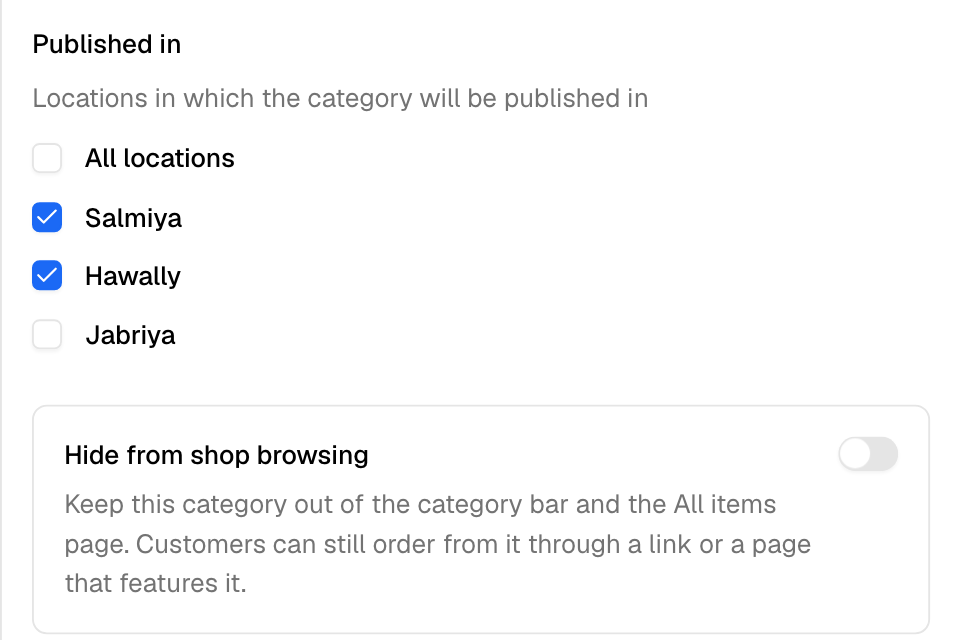
- Under Published in, tick the branches, or All locations.
- Optional: under Photo, select Add a photo. Use a .jpg or .png file up to 5 MB.
- Under Available on, choose Operating Hours or Specific Hours.
- Select Add.
To add a sub-category to a category, select Add sub-category in the category's row.
Show a category at set hours
Use this for a breakfast menu or a weekend special.
- Select Edit in the category's row.
- Under Available on, choose Specific Hours.
- Under Availability, choose Every day and set one From and To time. Or choose Custom per day, set each day's times, and untick the days the category does not show.
- Optional: set a Start Date and an End Date.
- Select Save.
The list shows the schedule under the category's name, for example "Sun - Thu 9:00 AM - 5:00 PM". After the end date, it shows Expired.
If the hours miss every time window for scheduled orders at a branch, the window shows a warning. Customers cannot schedule the category there on those days.
Hide a category from browsing
Hide from shop browsing keeps the category out of the category bar and the All items page. Customers can still order from it through a link or a page that features it. Use it for a hidden menu or a promotion page.
- Select Edit in the category's row.
- Turn on Hide from shop browsing.
- Select Save.
Publish or hide all items in a category
- Select Edit in the category's row.
- Under Items in this category, select Publish all items or Hide all items.
- Confirm.
This changes every item in the category at the category's branches. Items keep their other branches. Publish all items also publishes items you hid one by one.
Change the order
Drag the grip next to a category to move it. Drag a sub-category to move it inside its parent. Drag an item to move it inside its category.
You cannot change the order while a search is on.
Delete a category
- Select Edit in the category's row.
- Select Delete Category.
- Select Delete.
Deleting removes the category's sales from your reports. Hide the category instead if you may need the reports.
Rules and limits
- Both names are required.
- A category with items of its own cannot have sub-categories. A category with sub-categories cannot have items of its own.
- A category with sub-categories cannot become a sub-category. It also cannot be deleted. Move or delete its sub-categories first.
- Publish all items and Hide all items need the category to be published at a branch first. To hide the items of a hidden category, hide them before you hide the category.
- When a parent category is hidden, its sub-categories still show on your store, in the parent's place.
Common questions
Why is there no Add item button on my category?
The category has sub-categories. Add the item to one of the sub-categories.
Why is there no Add sub-category button?
The category already has items. Move its items to other categories first.
How do I see the category names in Arabic?
Use the View in switch above the list.