For: Owners, Branch staff, Operations
Where: Manage > Orders > Set as busy
Available: Web dashboard and Zyda phone app (Android) · All countries
When the kitchen falls behind, taking more orders makes every order late. Pause new orders for a while, and customers order again when you are ready.
How it works
A busy branch takes no new orders for the time you choose. Customers see that the branch is busy. Orders you already have are not affected.
A bar on the Orders page shows the busy branch and when it comes back, for example "busy · back in 25m".
Pause for a while
- Go to Manage > Orders and select Set as busy.
- With more than one branch, choose the branch.
- Choose Delivery, Pickup or Both.
- Choose how long, in minutes or hours. Or choose Set as busy for specific date & time.
- Select Set as busy.
The longest pause is 48 hours.
Close for the rest of the day
- Select Set as busy.
- Under Close for today, you see when the branch opens again. Select Close now.
- Confirm with Close for today.
This needs opening hours for the branch.
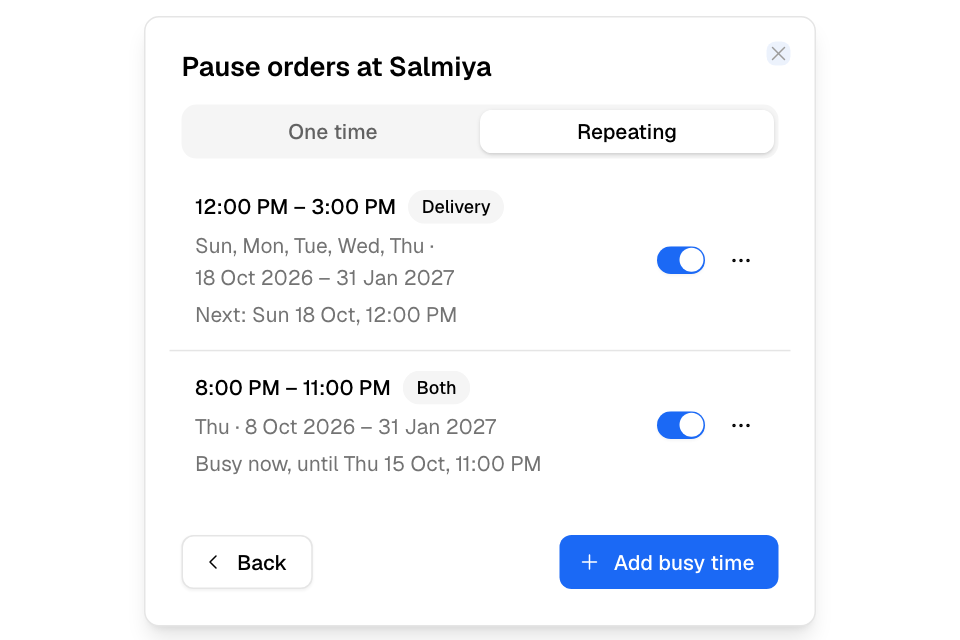
Repeat a busy time every week
Use this for times you are always busy, such as Friday lunch.
- Select Set as busy, then the Repeating tab.
- Choose the days, the hours and the dates it runs between.
- Select Add busy time.
Open again
Select Set as Available on the busy bar.
Common questions
Can I pause one branch only?
Yes. Each branch is paused on its own.
Can I pause while cancelling an order?
Yes. Cancel with the reason Kitchen too busy and choose how long to pause.