For: Owners, Branch staff, Operations
Where: Orders tab > Set as busy
Available: Zyda phone app (Android) · All countries
Needs: The new look of the Zyda app. The iPhone version does not have it yet.
The kitchen is full and more orders will be late. Pause new orders at a branch from your phone, and open it again when you are ready.
How it works
A bar under the Orders title shows if your branches take orders:
- "Taking orders", with Set as busy.
- One busy branch: when it comes back, with Set as Available. For example "Delivery busy · back in 25m".
- Several busy branches: for example "2 branches set as busy", with Edit availability.
A busy branch takes no new orders for the time you choose. Orders you already have do not change. The busy time works the same as on the web dashboard. See Pause new orders when you are busy.
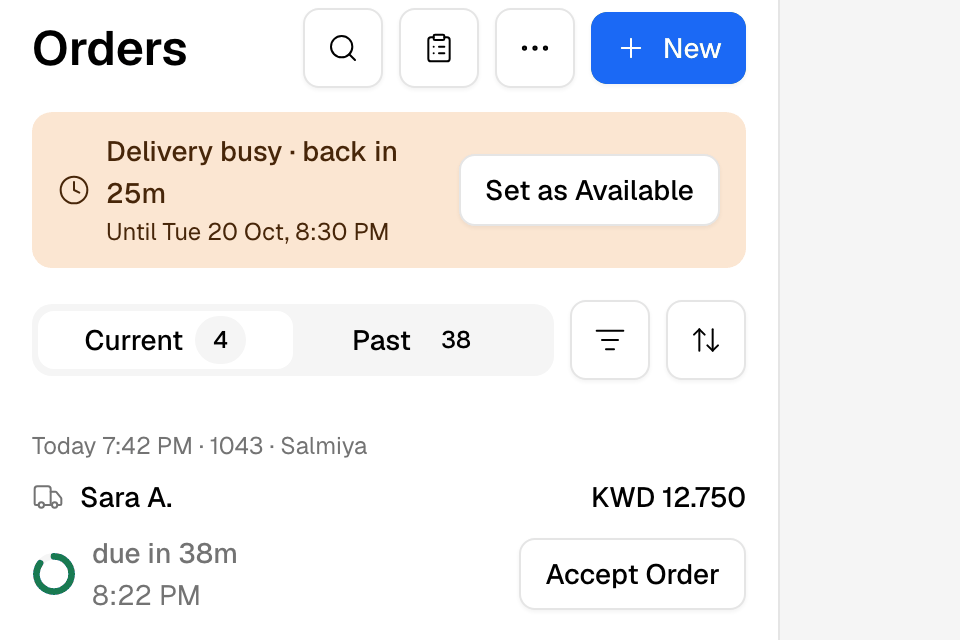
Pause new orders for a while
- On Orders, tap Set as busy on the bar.
- If you have several branches, pick the branch.
- On One time, under Busy for, choose Delivery, Pickup or Both.
- Choose how long:
- Set as busy for: a number of minutes or hours.
- Set as busy for specific date & time: a start and an end.
- Tap Set as busy.
To end it early, tap Set as Available on the bar. Then tap Set as Available in the box that shows the busy time. A busy time booked for later has Remove instead.
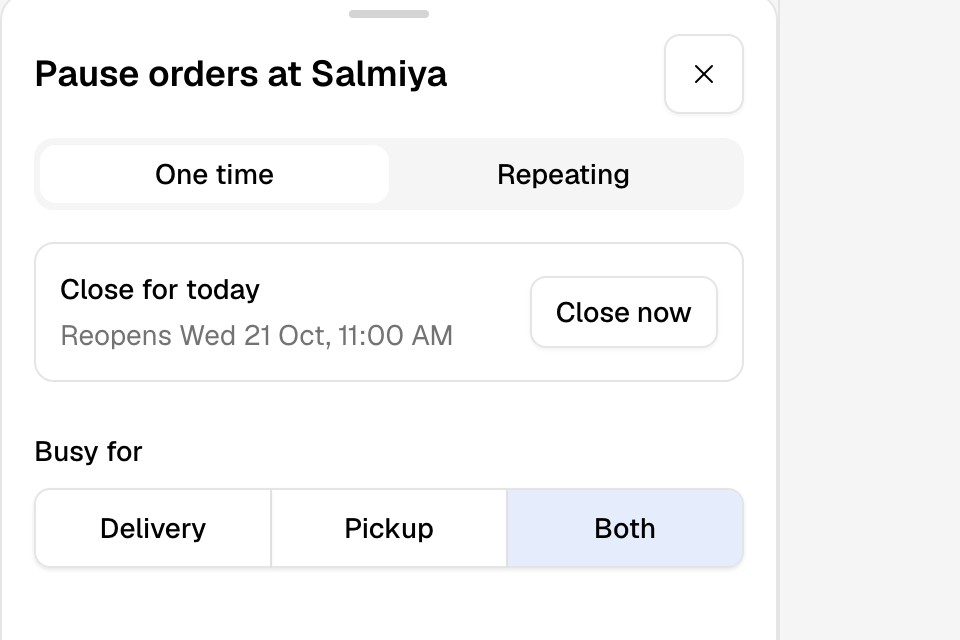
Close a branch for the rest of the day
- Tap Set as busy on the bar, and pick the branch.
- Under Close for today, read when the branch opens again.
- Tap Close now.
- The app asks, for example, "Close Salmiya for today?". Tap Close for today.
The branch stops taking orders now. It opens again at its next opening time.
Repeat a busy time every week
- Tap Set as busy on the bar, and pick the branch.
- Tap Repeating.
- Tap Add busy time.
- Under Busy for, choose Delivery, Pickup or Both.
- Set when it Starts and Ends each day.
- Under Days, tap the days. Under Dates, set the First day and Last day.
- Tap Add busy time.
Each repeating time has its own switch, so you can turn it off without deleting it. Tap More actions on a time to Edit or Delete it.
Rules and limits
- A one-time busy period lasts 48 hours at most. For longer, use Close for today or block the dates. See Block holidays and set the last order time.
- Close for today needs opening hours for the branch. If nothing opens in the next 7 days, it says "No opening time in the next 7 days".
- If a busy time is booked for later, remove it before you close for today.
- A repeating busy time runs for up to 365 days. Times are in the branch's time zone.
Common questions
Can I pause only delivery?
Yes. Under Busy for, choose Delivery. Pickup orders still come in.
Does a busy time set on the phone show on the web?
Yes. It is the same branch setting. The web dashboard shows it the next time Orders opens.