For: Owners, Operations, Finance, Marketing
Where: Understand > Sales > Overview
Available: Web dashboard · All countries
You want to know how the store is doing, and why. The sales overview shows your main numbers on one page, next to the same numbers for an earlier period.
How it works
Go to Understand > Sales, then select Overview. The page opens on the last 30 days, compared with the 30 days before.
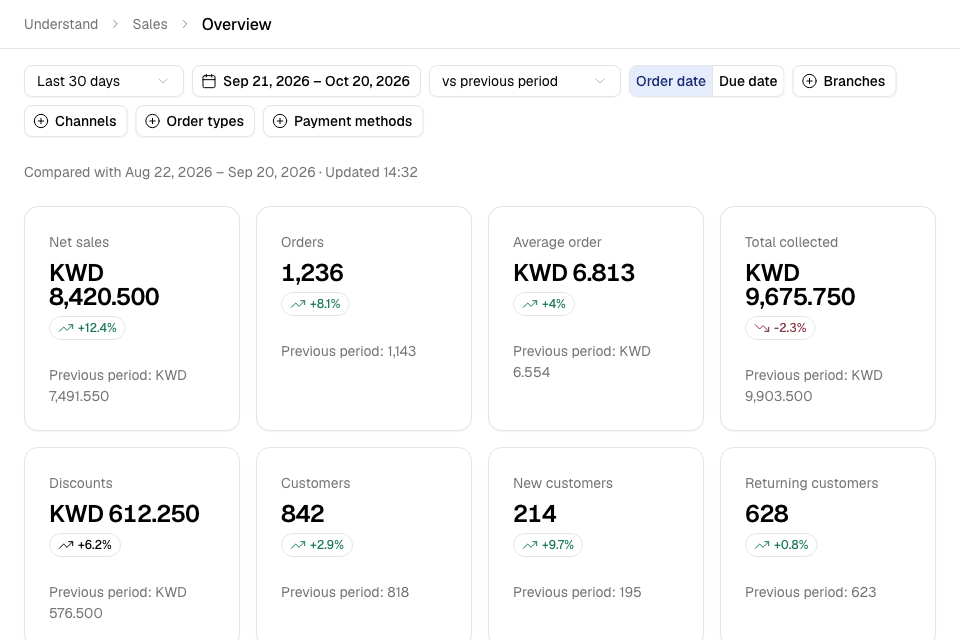
You see one card for each number. Each card shows the change from the earlier period, and the earlier number under it.
| Card | What it counts |
|---|---|
| Net sales | Item sales after item discounts, offers and promo codes. It does not include delivery fees, service fees or tax that is inside your prices. |
| Orders | Orders that were accepted. New orders count only after you accept them. |
| Average order | Net sales divided by orders. |
| Total collected | What customers paid, including delivery fees and tax. |
| Discounts | Item discounts, offers, promo codes and loyalty rewards paid in money. |
| Customers | Different customers who ordered in these dates. |
| New customers | Customers whose first order with you was in these dates. |
| Returning customers | Customers who ordered in these dates and had ordered from you before them. |
If you sell to businesses on account, you also see On account, still owed and Written off. These show only when the dates have such orders.
A green change is good and a red change is bad. Discounts are grey, because more discount is not good or bad by itself.
The line under the filters says which dates you compare with, and when the numbers were last updated. The numbers are less than one minute behind your orders.
The days in this report
By default, a business day starts at 05:00, not at midnight. An order at 01:00 on Friday counts for Thursday. This keeps a late night in one day.
If you accept an order and cancel it on a later day, it counts on the day of the order. Then it is taken off on the day you cancel it.
Choose the dates and filters
- Select the period, for example Last 7 days or This month.
- To pick your own dates, select Custom. Choose the first and last day, then select Apply. You can pick up to 93 days, and no day after today.
- In the comparison list, choose vs previous period, vs same days last year or No comparison.
- Select Order date or Due date. With Due date, a scheduled order counts on the day it is due.
- Optional: narrow the report with Branches, Channels, Order types or Payment methods. Tick one or more values in each.
- To clear the filters, select Reset. It shows once you change a filter.
Branches shows only when you can see more than one branch.
The filters are saved in the page address. Copy the address to share the same report with your team. A team member sees only the branches they have access to.
Read the charts
Sales over time draws each business day. For a one-day period, it draws each hour. Select Net sales or Orders to choose what it draws. The earlier period is drawn as a second line.
Busy hours shows each weekday and hour as a square. A darker square has more orders, or more sales. Select Orders or Net sales to choose what it counts. The line under it names your busiest hour.
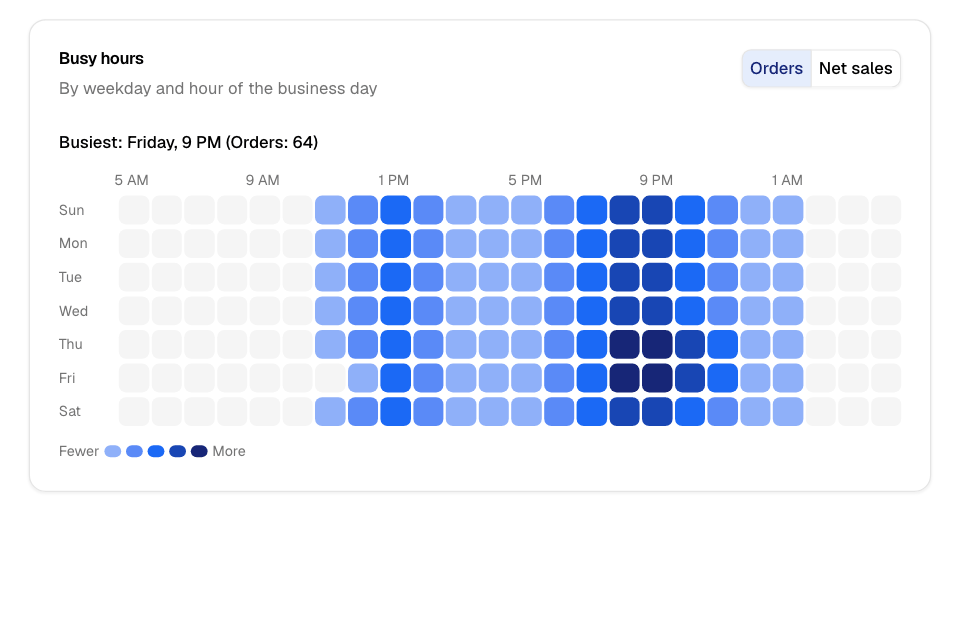
Use Busy hours to plan staff, or to pick quiet hours for an offer.
Read the breakdowns
Under the charts, four tables split your net sales:
- By branch (only if you have more than one branch)
- By channel: Storefront (your website), App (your own app), Manual (orders your team takes), Dyma (the Dyma app) and AI agent (orders Zyda's AI agent takes)
- By order type: Delivery, Pickup, Dine-in and Beach
- By payment method
Each table shows Net sales, Change, Share and Orders for each row. The biggest row is first.
If you filter to one channel, the channel table is hidden, because it would show one row only.
Rules and limits
- You need view access to sales. The Owner, Operations, Finance and Marketing roles have it.
- You see only the branches you have access to.
- A period is 1 to 93 days.
- This page has no export. To export sales by day, use Trends.
Common questions
Why is the overview different from Trends?
They count in different ways:
- The overview starts each day at 05:00. Trends starts each day at midnight.
- The overview includes today. Trends leaves out today unless you tick Include today.
- The overview takes out tax that is inside your prices. Trends keeps it in net sales.
- If you cancel an order on a later day, the overview takes it off on the day you cancel. Trends takes it off the day of the order.
Why are net sales lower than what I collected?
Net sales leave out delivery fees, service fees and tax that is inside your prices. Total collected includes them.
I see "Customer counts are not available for this range". What does it mean?
Zyda could not count customers for these dates. The other numbers are complete.
Where is my end-of-day report?
Use the closing report. See Close the day with the closing report.