For: Owners, Operations
Where: Serve > Dine-in > Live tables
Available: Web dashboard · All countries
During service, you need to know which table called, what to serve and who still owes money. Live tables shows every table of a branch on one screen, and updates as guests order and pay.
Branch staff do not see Live tables. Read "Who can use Live tables" below before your first service.
How it works
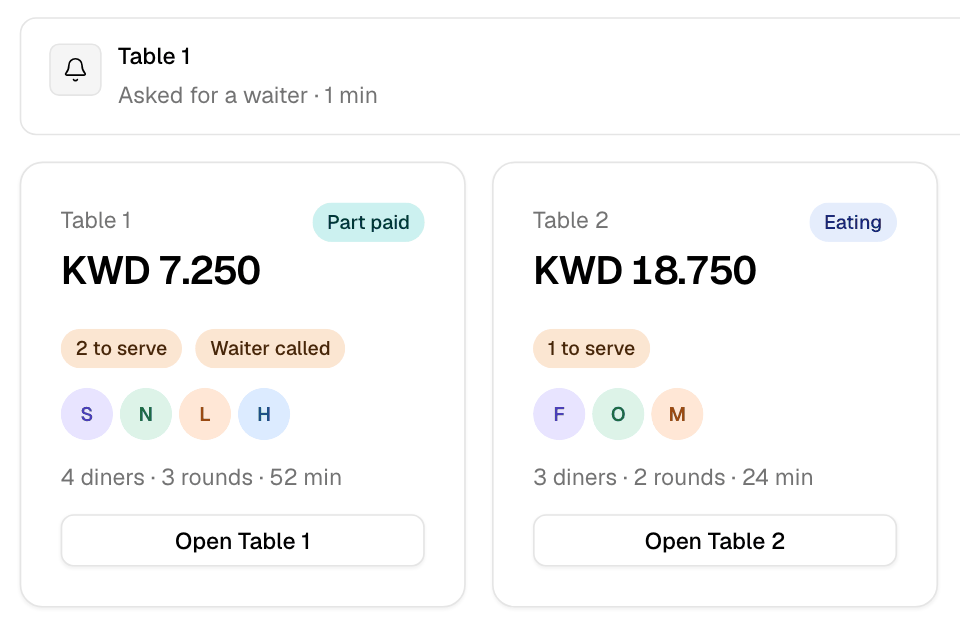
Each table has a card. The big number is the amount Left to pay. The badge says what the table is doing:
| Badge | Meaning |
|---|---|
| Free | Nobody is at the table. |
| Ordering | Guests joined but sent nothing yet. |
| To accept | The first round waits for your team. |
| Eating | Rounds were sent and nothing is paid yet. |
| Part paid | Some of the bill is paid. |
| Paid | The bill is paid in full. |
More badges show what needs you now:
- New round: a round arrived in the last minute.
- The number of items to serve.
- Waiter called, Possible walkout or Overpaid.
The card also shows the guests' initials, and how many guests, rounds and minutes the table has.
Each round is also an order on the Orders page, marked Dine-in with the table's name.
Open the board
- Go to Serve > Dine-in. Live tables opens.
- Choose the branch at the top. The board shows one branch at a time.
The board updates by itself. If the live connection drops, you see "Updates every 15 seconds".
Accept a table's first round
The first round of every new table waits for your team, even if your store accepts orders automatically. This lets you check that the guests really sit at the table.
- On the table's card, select Open and the table's name, for example Open Table 1.
- Check that the guests are at the table.
- Select Accept first round.
You see "First round accepted". The round goes to the kitchen. Later rounds from this table go to the kitchen at once.
You can also accept it on the Orders page: the round shows "Waiting to accept", and Accept Order accepts it.
To refuse the first round, cancel its order on the Orders page. The guests can then send a new round, and it waits for you again.
Answer a waiter call
When a guest selects Call a waiter or Ask for the bill, the call shows under Waiter calls, above the tables. It says the table, what the guest asked for and how many minutes ago.
- Select Acknowledge on the call. You see "Call acknowledged", and the call leaves the list.
- Go to the table.
Mark items served
- Open the table.
- Under To serve, the newest round is first. Do one of these:
- Select Mark all served on a round.
- Tick single items, then select the button that counts them, for example Mark 2 served.
Served items move to Served at the end of the list.
Add items for the table
A guest may order from your staff instead of the phone. You can add the items to the table's bill.
- Open the table.
- Under Table actions, select Add items. Your menu opens in the drawer.
- Add the items. Under This round, check the items and the Subtotal.
- Select Send to kitchen.
The items go to the kitchen as a round of this table. The guests pay for them with the rest of the bill. If the table's first round was still waiting, sending your items accepts it too.
Who can use Live tables
Serve > Dine-in shows only to people whose role has Pickup and curbside. The Owner and Operations roles have it.
Branch staff, Finance and Marketing do not have it. They do not see Live tables, so they do not see waiter calls, the bill or the payments. On the Orders page, Branch staff can still accept a table's first round and mark rounds served.
If your waiters use the Branch staff role, give them Live tables this way:
- Go to Setup > Team > Roles.
- Open the Branch staff template and select Copy and edit. Name the new role, for example Waiter.
- Give the new role Pickup and curbside. Keep Orders at Edit.
- Select Save role.
- Give your waiters the new role.
Pickup and curbside also opens the Pickup, Curbside and Dine-in settings to that role.
Rules and limits
- Every action on a table, such as accepting a round, answering a call or marking items served, needs permission to edit orders at that branch.
- You can add items only after a guest sent a round or gave a phone number, so the round has a customer.
- A table nobody uses for the session length closes by itself, unless it still owes money. Then it shows Possible walkout.
- Waiter calls show only on Live tables.
Common questions
Where do I see the bill and the payments?
Open the table. The drawer shows the Bill and the Payments. To take money or close the table, read Take payments, refund and close a table.
Can I change a dine-in round from the Orders page?
Only its step. On the Orders page you can accept a waiting round, select Mark served, or cancel the round. Payments and refunds are on the table.