For: Owners, Operations, Finance, Marketing
Where: Understand > Sales > Trends
Available: Web dashboard · All countries
One good week does not make a trend. Trends draws your sales day by day or month by month. You see if they grow, next to last period and last year.
How it works
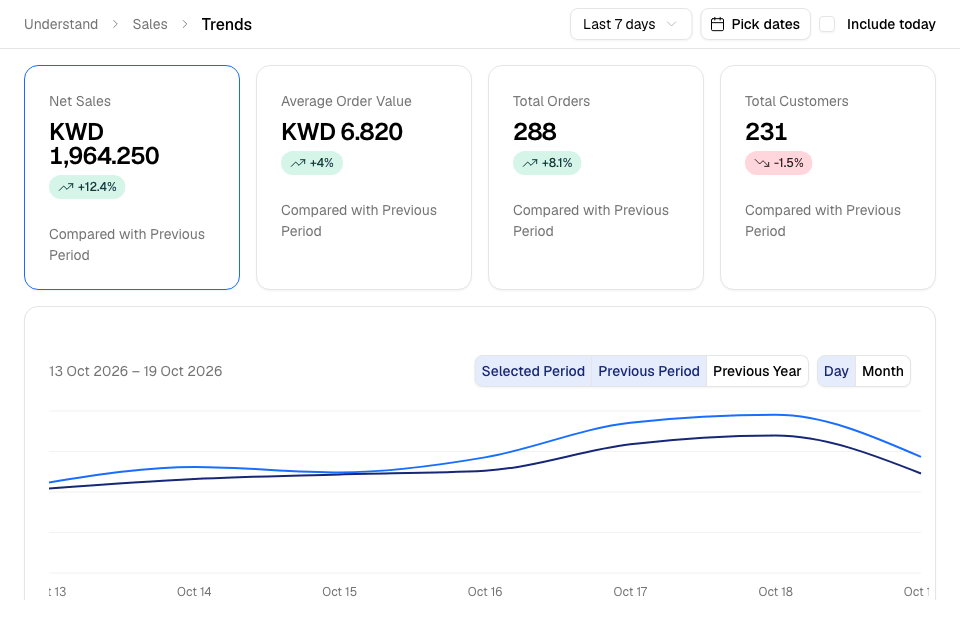
When you select Understand > Sales, the Trends page opens. It shows four cards:
- Net Sales: item sales after item discounts, offers and promo codes, without delivery fees or service fees.
- Average Order Value: net sales divided by orders.
- Total Orders: accepted orders.
- Total Customers: different customers who ordered.
Each card shows the change from the previous period. Select a card to draw that number in the chart.
The chart has three lines: Selected Period, Previous Period and Previous Year. Under the chart, you see the total of each period.
To see how these numbers are counted, point to the i button next to the page title.
Choose the dates
- Select the date list. Choose Last 7 days, Last 30 days, Last 90 days or All time.
- To pick your own dates, choose Pick dates. Choose the first and last day, then select Apply.
- Tick Include today to add today to the period. Without it, the period ends yesterday.
Today shows in the list only when Include today is ticked. You cannot pick a day before your store opened on Zyda, or a day after today.
The dates you choose stay when you move to Items, Areas or Report.
Change the chart
- Select Day or Month to draw one point for each day or each month.
- Select Selected Period, Previous Period or Previous Year to show or hide that line. Previous Year is hidden when the page opens.
See every day in a table
- Select View Full Report under the chart.
- The table shows one row for each day: Date, Sales, Avg. order, Orders and Customers.
- Select Day or Month to change the rows.
- Select a column title to sort by it. Select it again to reverse the order.
- To get the file, select Export. The file downloads to your computer.
The table shows 30 rows on each page.
Rules and limits
- You need view access to sales.
- Export needs the Download reports permission. The Owner, Operations and Finance roles have it.
- Only accepted orders count. A new order counts once you accept it. A cancelled order is taken out of the day it was placed.
- A day runs from midnight to midnight in your store's time. An order counts on the day it was placed.
Common questions
Why does Trends not match the overview?
The two pages count in different ways:
- Trends starts each day at midnight. The overview starts each day at 05:00.
- Trends leaves out today unless you tick Include today. The overview includes today.
- Trends keeps tax that is inside your prices in net sales. The overview takes it out.
Why don't I see Export?
Your role does not include Download reports. Ask the store owner for a role that has it. Roles are in Setup > Team > Roles.