For: Owners, Operations, Marketing, Finance, Branch staff
Where: Setup > Team > Roles
Available: Web dashboard · All countries
Before you give someone a role, check what it lets them see and do. This page lists the five roles Zyda gives every store, and the pages each role sees.
How it works
A role is a list of pages, the same pages as in the sidebar. For each page, the role has one of three levels:
- No access: the page does not show in the person's sidebar.
- View: the person can open the page.
- Edit: the person can open the page and change it. Edit includes View.
Some actions move money or data out of your store. Each of these has its own switch, for example Refund money. A role that can edit orders cannot refund unless its switch is on.
Zyda gives every store five ready-made roles, called Zyda templates. Zyda keeps them up to date, and you cannot change them. To change one, copy it. Read Create a role of your own.
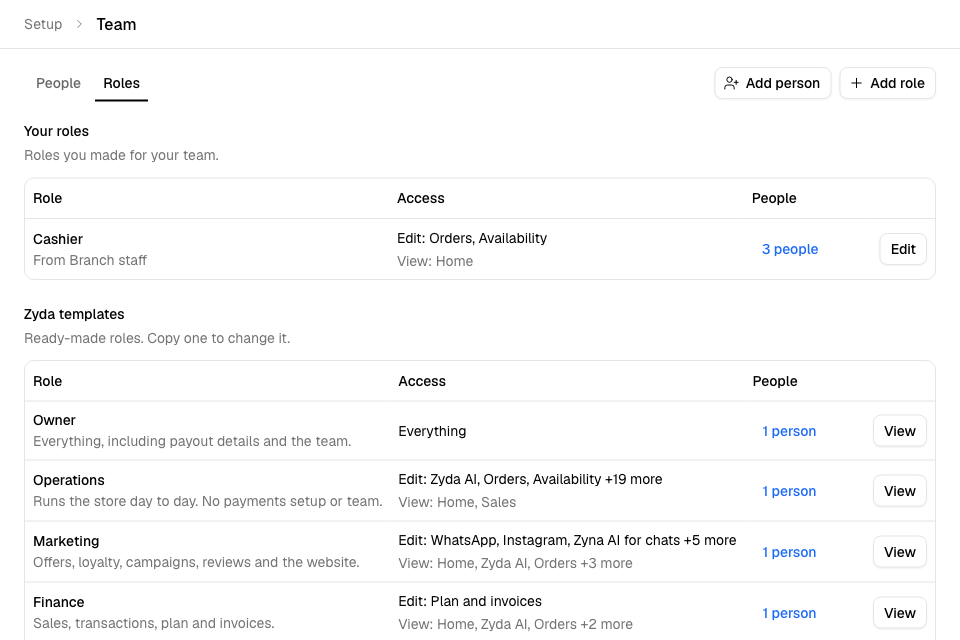
The five roles
| Role | Made for |
|---|---|
| Owner | Everything, including payout bank details and the team. |
| Operations | Runs the store day to day. No payments setup, no transactions and no team. |
| Marketing | Offers, loyalty, campaigns, reviews, chats and the website. |
| Finance | Sales, transactions, plan and invoices. |
| Branch staff | Orders, sold-out items and drivers in their own branches. |
Which pages each role sees
"View" means the person can open the page but not change it.
| Sidebar | Page | Owner | Operations | Marketing | Finance | Branch staff |
|---|---|---|---|---|---|---|
| Home | Yes | Yes | Yes | Yes | Yes, their branches | |
| Manage | Orders and Preparation | Yes | Yes | View | View | Yes, their branches |
| Manage | Closing | Yes | Yes | No | Yes | No |
| Manage | Availability | Yes | Yes | No | No | Yes, their branches |
| Manage | Drivers | Yes | Yes | No | No | Yes |
| Respond | Chats | Yes | Yes | Yes | No | No |
| Respond | Calls | Yes | Yes | Desk seat only | Desk seat only | Desk seat only |
| Respond | Reviews | Yes | Yes | Yes | No | No |
| Serve | Delivery | Yes | Yes | No | No | No |
| Serve | Pickup, Curbside and Dine-in | Yes | Yes | No | No | No |
| Serve | Catering | Yes | Yes | View | No | No |
| Serve | Wholesale | Yes | Yes | No | No | No |
| Grow | Offers, Loyalty, Campaigns and Banners | Yes | Yes | Yes | No | No |
| Understand | Sales | View | View | View | View | No |
| Understand | Customers | Yes | Yes | View | No | No |
| Finance | Fees & payout and Transactions | View | No | No | View | No |
| Finance | Plan | Yes | Yes | No | Yes | No |
| Setup | Business and Branches | Yes | Yes | No | No | No |
| Setup | Menu | Yes | Yes | View | No | No |
| Setup | Storefront | Yes | Yes | Yes | No | No |
| Setup | Payments | Yes | No | No | No | No |
| Setup | Team | Yes | No | No | No | No |
| Setup | Integrations | Yes | Yes | No | No | No |
Some pages also need a feature to be on in your store:
- Calls shows to Owner and Operations when your store has calls, or when they can turn calls on. Marketing, Finance and Branch staff see it only if they have a seat on your store's calls desk.
- Dine-in, Catering and Wholesale show when your store can use them.
- Transaction fees and the Deposits tab show only for stores paid through MyFatoorah. They follow Transactions.
- Performance under Delivery needs Sales, so Owner and Operations see it.
Who can refund, download and publish
| Switch | Owner | Operations | Marketing | Finance | Branch staff |
|---|---|---|---|---|---|
| Refund money | Yes | Yes | No | No | No |
| Download reports (sales) | Yes | Yes | No | Yes | No |
| Download customer lists | Yes | Yes | No | No | No |
| See product costs (cost, margin and cost of goods) | Yes | Yes | No | No | No |
| Publish or unpublish the store | Yes | No | No | No | No |
| Change payout bank details | Yes | No | No | No | No |
Change payout bank details belongs to the Owner only. No other role can have it.
Pages that follow the role name
A few pages check the ready-made role a person's role is based on, not only the levels:
- Team opens only for an Owner. A role of your own cannot give it, even with Team set to Edit.
- Wholesale shows only to the Owner and Operations, and to roles you copied from Operations.
- The Zyna AI tab under Chats needs a role based on Owner, Operations, Marketing or Finance. Roles based on Branch staff never see it.
- Only the Owner, and roles based on Operations, can change the plan or add and remove services. Finance can open Plan and buy AI credits, but cannot change the plan. Only the Owner can cancel the plan.
- Only the Owner, and roles based on Operations, can block a customer's phone number.
- Only the Owner can import or export the menu.
Rules and limits
- Home, Orders and Availability show only the person's branches when their role is limited to some branches. Read Limit a person to some branches.
- While the dashboard loads a person's role, their sidebar shows only Home.
- Each person has one role in each store.
Common questions
Why can't my operations manager see Transactions?
The Operations role has no access to Transactions and Fees & payout. Give them a role of your own, copied from Operations, with Transactions set to View.
Can Marketing download my customer list?
Not with the Marketing role. Copy it, and turn on Download customer lists in your copy.
Can Branch staff refund an order?
No. Ask someone with the Owner or Operations role to refund it, or give the person a role of your own with Refund money on.
Some pages say Manager. Is that another role?
No. Setup > Business > Alerts calls the Operations role Manager. It is the same role.
Why does a page show to someone it should not?
Check their role in Setup > Team > People, then open that role in Roles. What they see lists every page the role opens.