For: Owners, Operations
Where: Serve > Wholesale > Accounts > open a business > Statement
Available: Web dashboard · All countries
At the end of the month, a business wants one list of what it ordered and what it still owes. The statement gives it that list, and a link where it can pay everything at once.
How it works
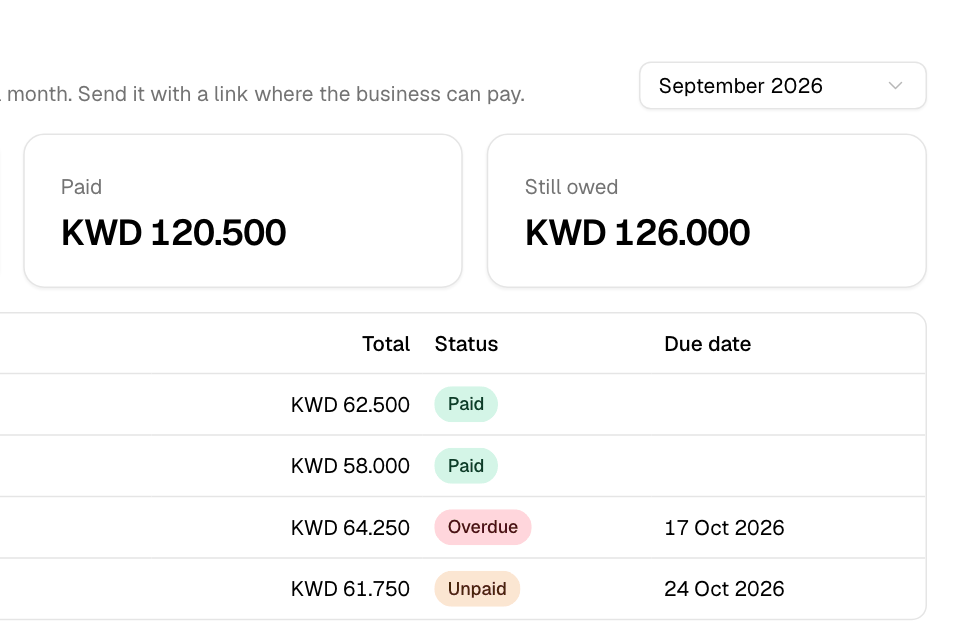
The Statement on a business's page lists its orders for one month, by delivery date. It shows what the orders came to, what is paid and what is Still owed. Orders still owed from earlier months show below it.
When you send the statement, the business gets a link to a statement page. The page shows the orders and your store's legal details. If your store takes online payments for it, the business can pay there. Paying marks its orders paid by itself.
Read a statement
- Go to Serve > Wholesale > Accounts and open the business.
- Scroll to Statement.
- Pick the month in the month box. It opens on last month.
Each order shows its Delivery date, Total and Status: Unpaid, Overdue, Paid, Written off or Refunded. Orders still owed also show their Due date.
Send the statement
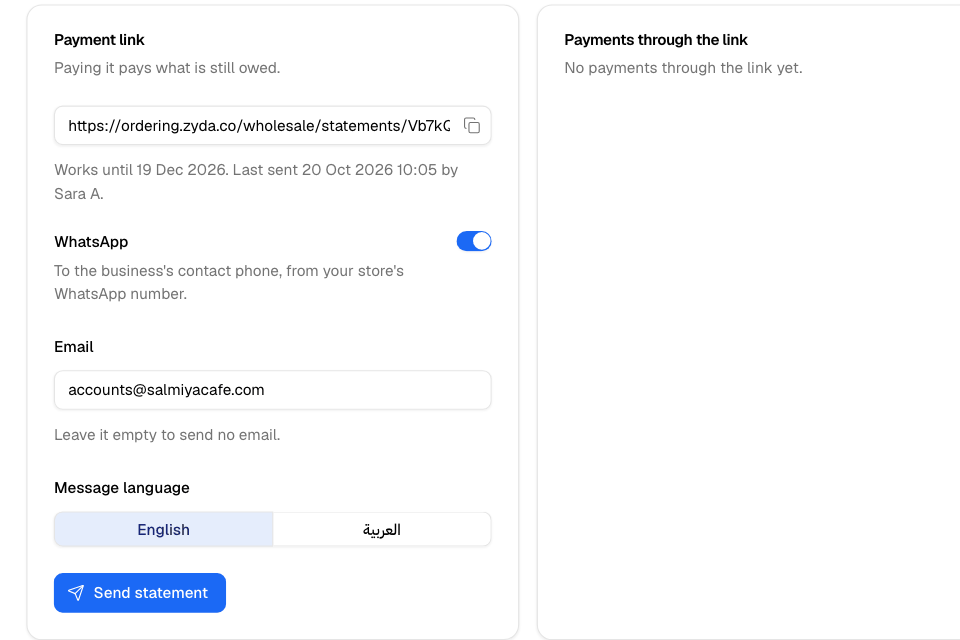
- Under the statement, find the Payment link card.
- Keep WhatsApp on to send it to the business's contact phone from your store's WhatsApp number.
- Optional: enter an Email.
- Choose the Message language: English or العربية.
- Select Send statement.
You see which way it was sent, for example "Statement sent by WhatsApp and email".
To share the link yourself, turn off WhatsApp and leave Email empty. The button becomes Make link only. Select it, then select the copy button next to the link.
Check payments
Payments through the link lists each payment with its state: In progress, Received, being applied, Paid or Failed.
Two flags need you to act:
- Overpaid: the business paid more than it owed. Give the extra amount back to the business.
- Not applied: orders were edited after the payment started, so they stay unpaid. Mark them paid by hand.
Rules and limits
- A month holds the orders delivered in that month, in your store's time zone. Cancelled and returned orders are left out.
- The month box offers this month and the 11 months before it.
- The link works for 60 days. Each new send renews it.
- You can send the same statement again after 10 minutes.
- Zyda sends a statement only when you select Send statement. Nothing is sent on a schedule.
- WhatsApp is sent only when something is due. When nothing is due, the email, if you entered one, says so.
- The business pays online through your own payment gateway: Tap, MyFatoorah, or Paymob on its newer Flash checkout. With any other gateway, the page asks the business to contact you to pay. The card says "Your store cannot take this payment online yet."
Common questions
WhatsApp was not sent. Why?
The card says why. These are the reasons:
- Your store has not connected WhatsApp, or the connection is incomplete.
- WhatsApp has not approved the statement message for your number yet.
- WhatsApp billing is not set up for your number.
The business paid by bank transfer. What do I do?
Open each order in Manage > Orders and select Mark paid. See Let a business pay on account.
Does the statement include orders paid online at checkout?
Yes. They show as Paid. Only orders on account can be owed.