For: Owners, Operations, Marketing
Where: Grow > Campaigns > New campaign
Available: Web dashboard · All countries
Customers who stopped ordering will not come back on their own. A campaign sends them a message, often with an offer, and counts the orders that follow.
How it works
One campaign uses one channel:
| Channel | Who gets it | Cost | Needs |
|---|---|---|---|
| SMS | Any customer with a phone number | 1 credit per SMS part, per customer | Kuwait or Egypt, and SMS credits |
| Customers, from your business number, with a button to order | Meta bills each message | A connected WhatsApp number and an approved template | |
| Push notification | Customers who turned on notifications in your app | Free | Your store's own app |
You see only the channels your store can use. Under Not set up yet, you can connect WhatsApp or ask about an app.
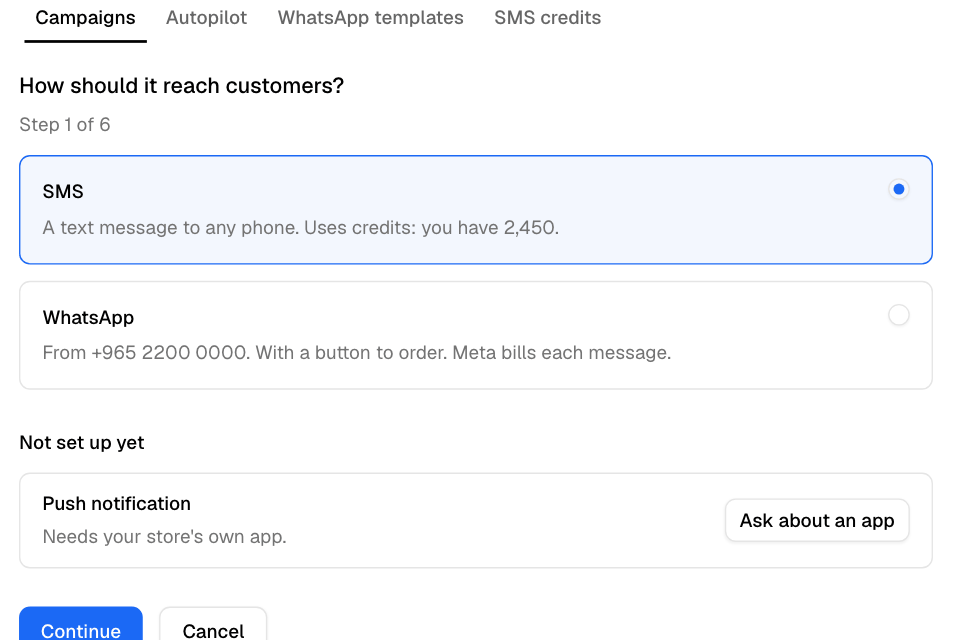
Create a campaign
- Go to Grow > Campaigns and select New campaign.
- Choose the channel and select Continue.
- What is it for?: choose a ready-made campaign, or Start blank. A ready-made campaign fills in the name, the text, the offer and who gets it. Enter a Campaign name. Only you see it.
- Recipients: choose who gets it. See Choose who gets a campaign.
- Offer (SMS and WhatsApp): choose one of your offers, No offer, or Create an offer.
- Write the message:
- SMS: type the text. Select Insert variable to add the Order link, Voucher code, Voucher value or Voucher expiry.
- WhatsApp: choose an approved template.
- Push: enter a title (up to 65 characters) and text (up to 240).
- Review and send: choose Now or On a date, check the summary, and select Launch Campaign. For WhatsApp, select Schedule broadcast.
A preview beside the form shows what the customer sees. Select Save as Draft at any step to finish later.
Test before you send
- SMS: select Send myself a test SMS. The test uses credits and includes a working code, valid until the end of the day.
- Push: select Send a test to a phone. The phone must be signed in to your app with notifications on. Tests are free.
Offers in campaigns
Only customers the campaign reaches can use its code. A forwarded link opens the offer, but the code works only for phone numbers on the campaign's list.
For WhatsApp, the code must be written in the approved template, letter for letter.
When messages go out
- Now: sending starts once you confirm.
- On a date: sending starts early in the morning of that day.
- SMS messages go out one after another, about one and a half seconds apart.
- WhatsApp: Meta limits how many new customers your number can message each day, for example 250. Zyda sends up to the limit each day and continues the next day. The review step shows how many days it takes. Verify your business with Meta to raise the limit to 2,000 a day.
Rules and limits
- You can send up to 5 SMS or WhatsApp announcements a month.
- Only one SMS or WhatsApp announcement can be active at a time. Push is not limited.
- An SMS can be up to 3 parts long. A single part holds 160 English characters, or 70 if the text has any Arabic. Longer texts use 153 or 67 characters per part.
- You cannot change a campaign's name or message after you create it. For SMS, you can change the dates.
- SMS goes out under the sender name shown in the preview. For your own sender name (up to 11 letters and numbers), contact Zyda support.
Common questions
Can customers reply?
On WhatsApp, yes: replies arrive in your chats. A customer who replies STOP gets no more marketing messages from your store. SMS cannot be replied to.
Why is Launch Campaign replaced by Save as Draft?
You used your 5 announcements this month. If you do not have enough SMS credits, the button is Save and buy credits instead.