For: Owners, Operations
Where: Serve > Curbside
Available: Web dashboard · All countries
Some customers cannot park, or do not want to leave the car. With curbside, they order ahead, drive to your branch and tap one button when they arrive. Your team then brings the order out to their car.
How it works
- At checkout, the customer chooses Car Pickup and adds their car. They give its colour and make, and can add its type and plate.
- When they arrive, they open their order page and tap I'm here.
- Your team gets an alert on the Orders page. The order shows Arrived with a timer, and moves to the top of the list.
- Someone on your team selects On my way on the order, then takes the order to the car.
Curbside orders are pickup orders. They follow the same steps on the Orders page: Accept Order, Ready for pickup, Fulfill Order.
How your team sees and answers arrivals is in Find and follow orders on the Orders page and Hear new orders and arrivals.
What the customer sees
The order page shows a large I'm here button, with the car they gave at checkout under it. The button shows until the order is fulfilled or cancelled, so the customer can tap it before you accept the order.
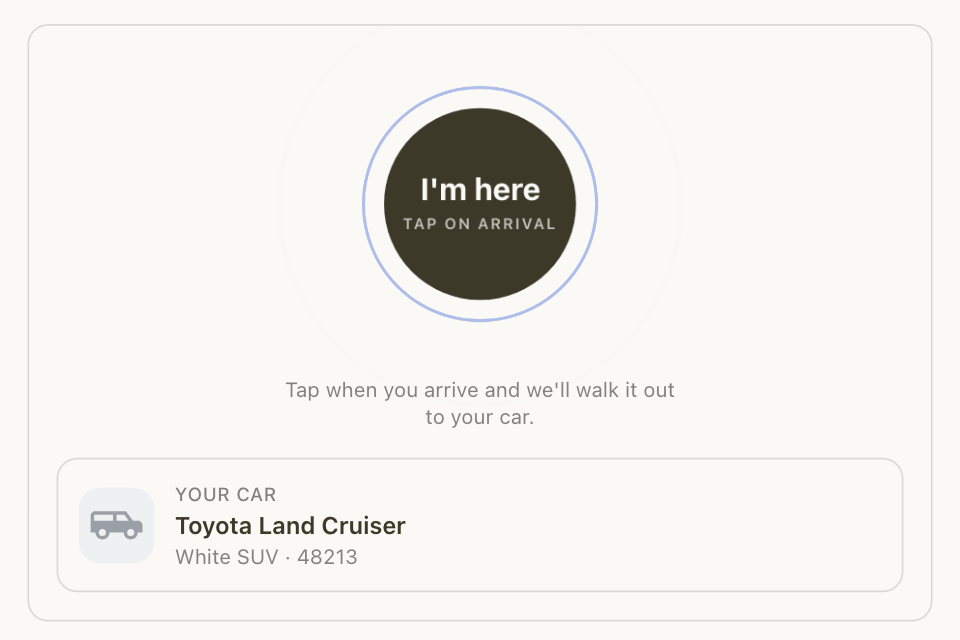
After the tap, the customer sees:
| Moment | What the customer sees |
|---|---|
| Right after the tap | "We've told the team", with a timer that counts how long they wait. |
| After 90 seconds | Still waiting? Notify again, to alert your team again. |
| Your team selects On my way | "On its way out!" and "The team is bringing your order to the curb." |
The customer must be signed in to send the alert. If they are not, they see Sign in to notify the branch.
The Curbside page
Go to Serve > Curbside.
If no branch offers curbside, the page explains curbside and shows a sample of the customer's phone. Select Turn on curbside to open the branch list, then choose Curbside only or Both for a branch.
When a branch offers curbside, the page shows:
- Curbside share of pickup: how many pickup orders in the last 30 days chose curbside. It counts every order placed, cancelled ones too.
- How curbside works: the three steps above.
- Set up: the branches that offer curbside, with Edit in Pickup, and Signage with Download.
- Ready time by branch: each curbside branch's ready time and phone.
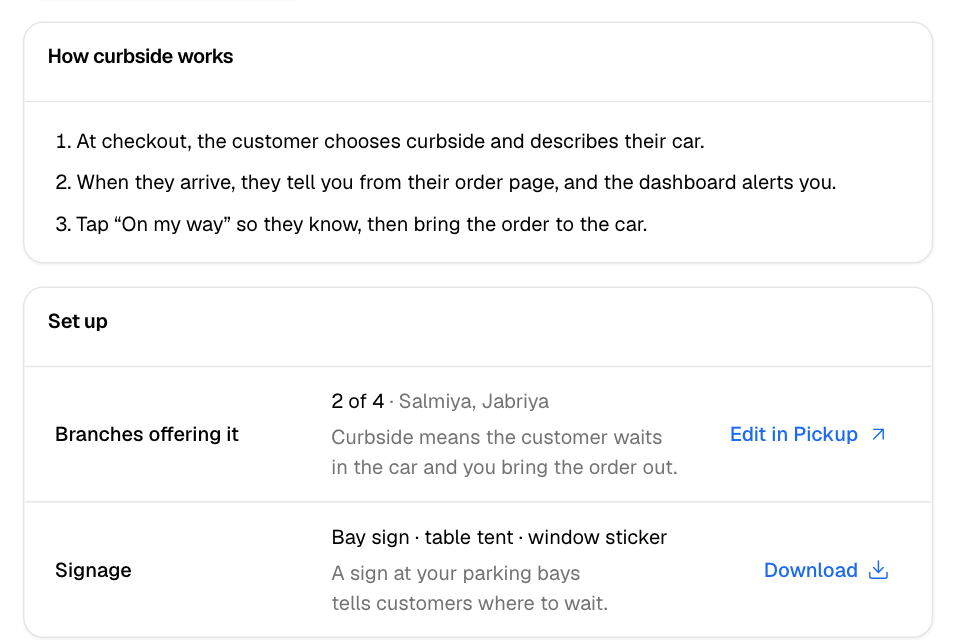
You change the branches, ready time and phone on the Pickup page. The Curbside page only shows them.
Rules and limits
- The car cannot be changed after the order is placed. Your team sees the car the customer gave at checkout.
- The customer can send the alert again only 90 seconds after the last one.
- Add a Branch phone for every curbside branch. If the alert fails, the customer can call the branch from the order page.
Common questions
Can customers write where they parked?
No. The order carries the car's colour, make, and type and plate if the customer added them.
Do I need to print a sign?
No, but a sign at your parking spots tells customers where to wait. Read Print QR signs for pickup and curbside.