For: Branch staff, Operations, Owners
Where: More > Settings > Notifications
Available: Zyda phone app (Android) · All countries
Needs: The new look of the Zyda app. The iPhone version does not have it yet.
A phone on the counter is only useful if someone hears it. Set how the Zyda app rings for new orders, and which notifications reach this phone.
How it works
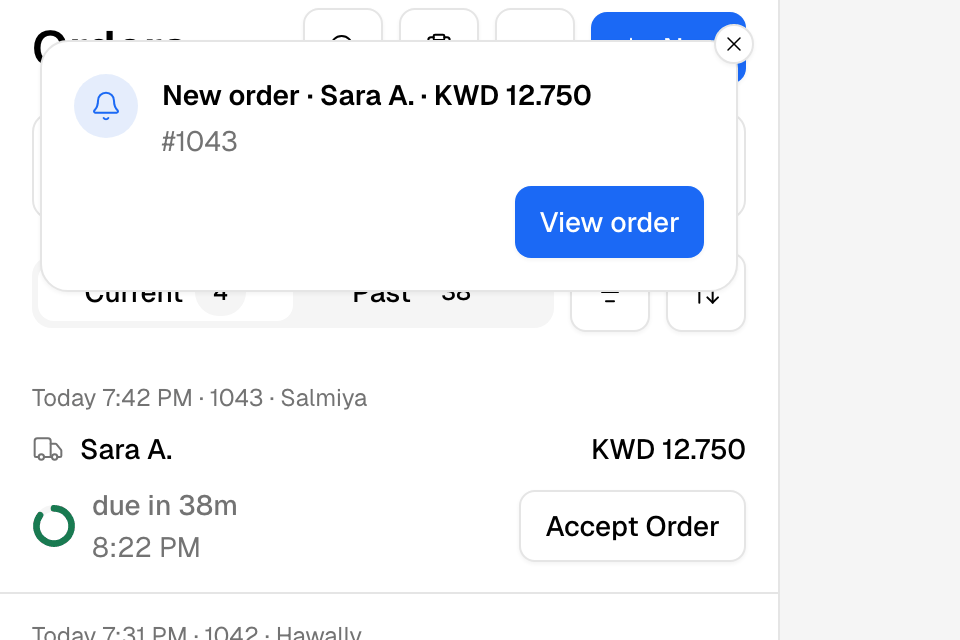
While the app is open, a new order rings and a card shows at the top of the screen. The card says "New order", the customer's name and the amount, with the order number under it.
- Tap View order on the card to open the order. Tap the X to close the card.
- If more orders come in, the card says, for example, "3 new orders". Tap View orders to see them on Orders.
- If nobody answers for 20 seconds, the card turns to "Order waiting". With Piano, the sound changes too.
- The card stays until you tap it, close it, or accept the orders.
When the app is closed or in the background, a new order comes as a phone notification. Tap it to open the order.
The Orders tab shows the number of new orders.
Choose the sound and ringing
- Go to More > Settings > Notifications.
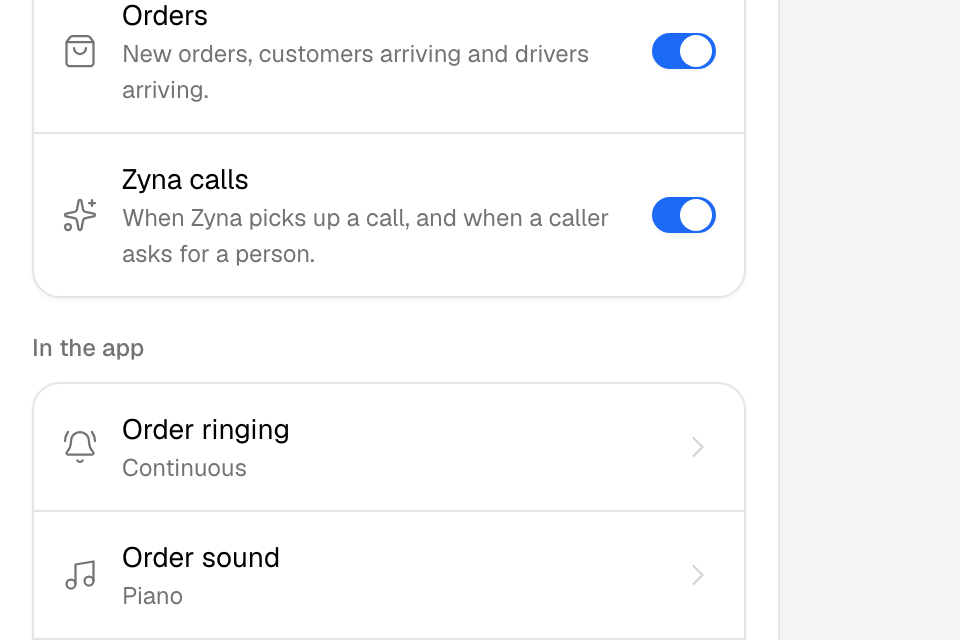
- Under In the app, tap Order ringing.
- Choose one, then tap Save Changes:
- Continuous: rings until someone acts.
- Single: one ring for each order.
- Off: no order sound in the app.
- Tap Order sound.
- Choose one, then tap Save Changes:
- Piano: a different sound for each moment.
- Classic: one beep for everything.
To hear a sound before you choose, tap its play button. Under Listen to the piano sounds you can play New order, Order waiting, Customer arrived, Incoming call and Driver arrived.
Turn the order card on or off
- Go to More > Settings > Notifications.
- Tap Order alerts.
- Choose On or Off.
- Tap Save Changes.
With Off, no card shows for new orders. The sound still follows Order ringing, and the Orders tab still counts new orders.
Choose which notifications this phone gets
Under Push on the same page:
- Orders: new orders, customers arriving and drivers arriving.
- Zyna calls: when Zyna AI picks up a call, and when a caller asks for a person. This shows only if your store takes calls with Zyda.
Turn a switch off to stop those notifications on this phone only. Other phones keep their own choice.
Rules and limits
- Every setting on this page is saved on this phone. Set each phone on its own.
- Order ringing Off stops only the new order sound. Customer and driver arrivals still play their sounds.
- If you have more than one store and turn Orders off, orders from your other stores stop showing in the app too.
- When the app is in the background, the notification sound follows your phone's sound settings.
- Keep the phone's volume up and allow notifications for Zyda in the phone's settings.
Common questions
Which sound plays by default?
In the new look, Piano. The Orders tab shows a card about the new sounds until you choose. Tap Keep new sounds or Use old sound.
Who else gets new order alerts?
Each person's role and phone decide it. To choose who gets emails and messages, see Choose which alerts your team gets.