For: Owners, Operations
Where: Setup > Branches > Order settings
Available: Web dashboard · All countries
These settings decide how your orders flow: how long the kitchen needs, how fast someone must accept an order, and what customers do at checkout. They apply to every branch of the store.
How it works
Setup > Branches > Order settings has four parts. Scheduled orders is explained in Set up scheduled orders and limit orders per time slot. This article covers the other three:
| Part | Setting | What it does |
|---|---|---|
| Timing | Preparation time | The time used for items that have no preparation time of their own. |
| Time to accept an order | You get an alert when an order waits longer than this. | |
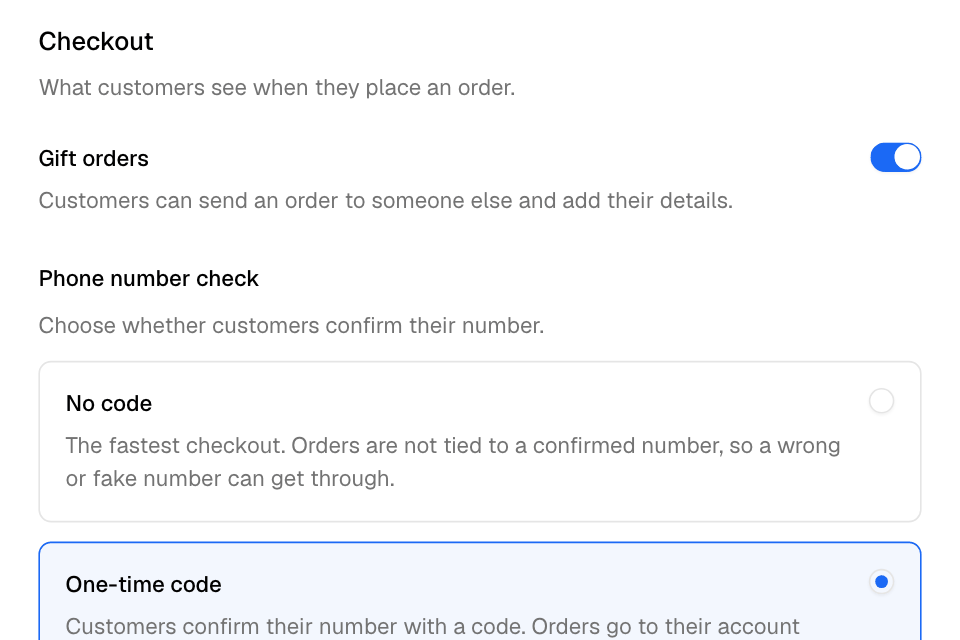
| Checkout | Gift orders | Customers can send an order to someone else and add their details. |
| Phone number check | Whether customers confirm their phone number with a code. | |
| Workflow | Accept orders automatically | Orders are accepted as soon as they are placed and paid. |
Set the timing
- Go to Setup > Branches > Order settings.
- Under Timing, enter the Preparation time. Choose Minutes, Hours or Days.
- Enter the Time to accept an order.
- Select Save.
You see "Order settings saved".
An item can have its own preparation time in the menu. That time wins over this one.
The alert for a waiting order is Order waiting. Choose who gets it in Choose which alerts your team gets.
Choose the checkout options
- Under Checkout, turn Gift orders on or off.
- Under Phone number check, choose:
- No code: the fastest checkout. The order is not tied to a confirmed number, so a wrong or fake number can get through.
- One-time code: customers confirm their number with a code. The order goes to their account with saved addresses and past orders. It adds one step.
- Select Save.
Accept orders automatically
- Under Workflow, turn on Accept orders automatically.
- Select Save.
Each new order is accepted as soon as it is placed and paid. Nobody needs to select Accept Order. The order still rings, so the kitchen knows it is there.
Rules and limits
- Every time is a whole number, 0 or more.
- The settings apply to the whole store, not to one branch.
- If your store is connected to a POS, such as Foodics, you cannot change Accept orders automatically.
- Only the Owner and Operations roles see Setup > Branches.
Common questions
Why is the accept time missing in my delivery reports?
With Accept orders automatically on, orders are accepted at once, so there is no accept time to measure.
Where do I set preparation time for one item?
In the item editor. See Add or edit a menu item.
Should I ask for a code at checkout?
A code stops fake numbers and links each order to the customer's account. No code is faster for customers. Choose by what costs you more: fake orders or lost checkouts.