For: Owners, Operations
Where: Serve > Catering
Available: Web dashboard · All countries
Food for an event takes time to prepare. With catering, customers order ahead for a date and time, and your website stops orders that come too late for your kitchen.
How it works
Catering is free on every plan. Serve > Catering is there for every store, but catering is off until you turn it on.
When catering is on, each item and category in your menu gets a Catering section. There you set two limits:
- Order ahead: the shortest time between the order and the start of the event. For example, 2 days.
- Events from and Events until: the first and last event times a customer can pick. Use them for a seasonal item, such as a tray for December only.
Items with no limits sell as before. Customers set their event on your website only when an item in the cart has a limit.
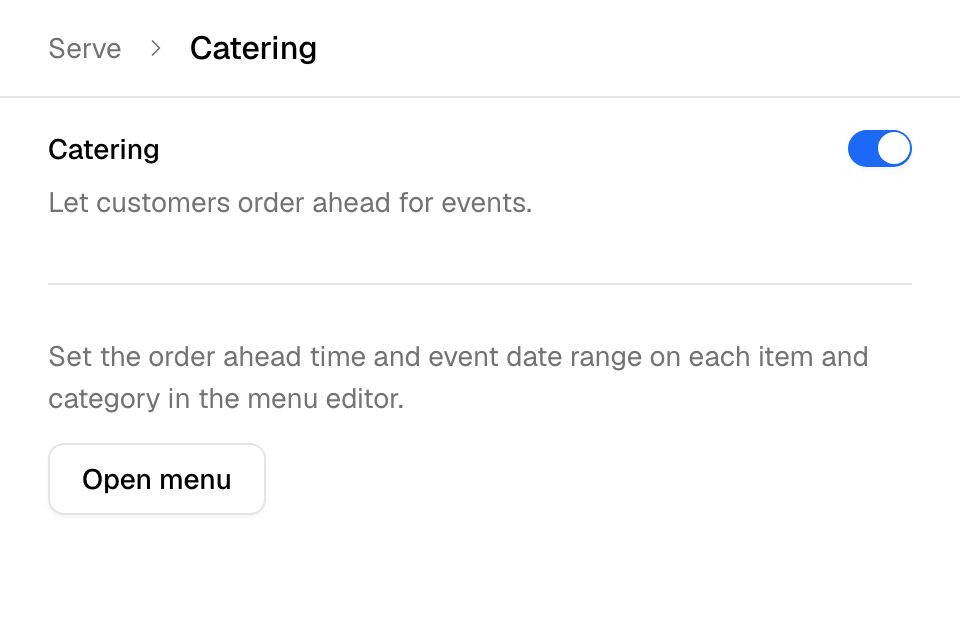
Turn on catering
- Go to Serve > Catering.
- Turn on Catering.
You see "Catering settings saved". To turn catering off, turn off the same switch.
Set how far ahead an item must be ordered
- Go to Setup > Menu > Items. You can also select Open menu in Serve > Catering.
- Open an item.
- Open the Availability tab.
- Scroll to Catering.
- In Order ahead, enter a number.
- Choose Hours or Days.
- Select Save catering.
The line under the field says the rule in words, for example "Order at least 2 days before the event."
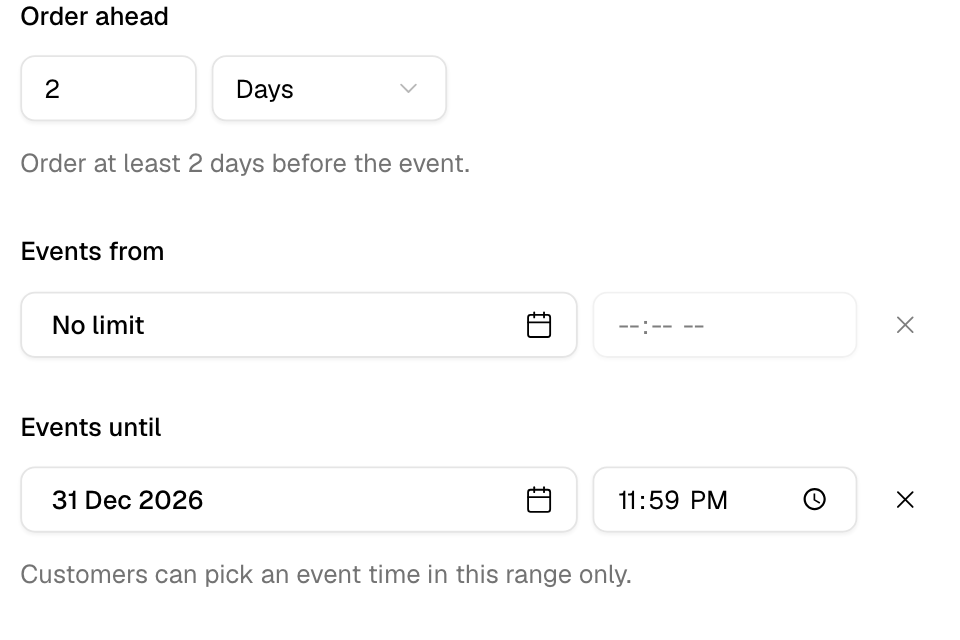
Set the dates an item can be ordered for
- Open the item's Availability tab and scroll to Catering.
- Under Events from, pick a day. Change the time if you need to.
- Under Events until, pick a day. Change the time if you need to.
- Select Save catering.
A day with no time starts at 00:00 (Events from) or ends at 23:59 (Events until). To remove a limit, select the X next to it. The field then shows No limit.
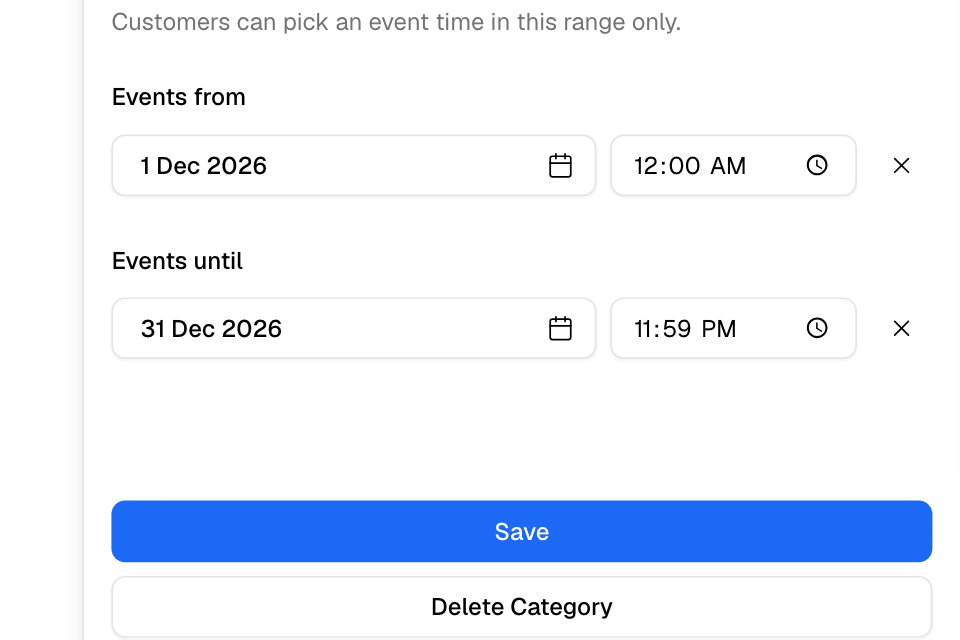
Set event dates for a whole category
- Go to Setup > Menu > Items.
- Select Edit next to the category name.
- Scroll to Catering.
- Set Events from and Events until.
- Select Save.
Rules and limits
- Only people who can edit the menu can turn catering on or off and change these fields.
- Order ahead takes whole numbers, up to 366 days. Leave it empty if customers can order at any time. Enter 0 if customers can order right up to the event.
- Events until cannot be before Events from.
- A category has event dates only. Order ahead is set on each item.
- If an item and its category both set dates, customers can pick only times inside both ranges. A hidden or unpublished category does not limit its items.
- Times are in your store's time zone.
- An item that comes from your POS (point-of-sale system) is read only, but you can still change its catering fields.
- When you turn catering off, the catering fields are hidden and no order is checked against them. Your saved values stay.
Common questions
Does catering cost extra?
No. Catering is included in every plan.
I turned catering on, but my website looks the same. Why?
Only items with Order ahead or event dates show a notice and ask for the event. Set the limits on the items you sell for events.
Can I set Order ahead for a whole category?
No. A category sets only Events from and Events until. Set Order ahead on each item.