For: Owners, Operations
Where: Setup > Branches > Order settings > Scheduled orders
Available: Web dashboard · All countries
Some customers want their order tomorrow at noon, not now. Scheduled orders let them pick a time slot at checkout. Time windows let each branch say when it takes these orders, and how many it can make in each slot.
How it works
With Allow scheduled orders on, customers choose a time slot at checkout. The slots come from the branch's opening hours, cut into the Default slot length. Customers can book as far ahead as Furthest time ahead.
To control a branch more closely, give it its own Time windows. Each window has its own slot length and can limit:
- Orders: the most scheduled orders your kitchen takes in each slot, pickup and delivery together.
- Deliveries: the most delivery orders your drivers take in each slot. Pickup orders do not count.
When a slot is full, your website and app stop offering it, and checkout refuses it.
Turn on scheduled orders
- Go to Setup > Branches > Order settings.
- Under Scheduled orders, turn on Allow scheduled orders.
- Set the Default slot length, for example 30 minutes.
- Set the Furthest time ahead, for example 7 days.
- Select Save.
Set time windows for a branch
- Under Time windows, choose the branch.
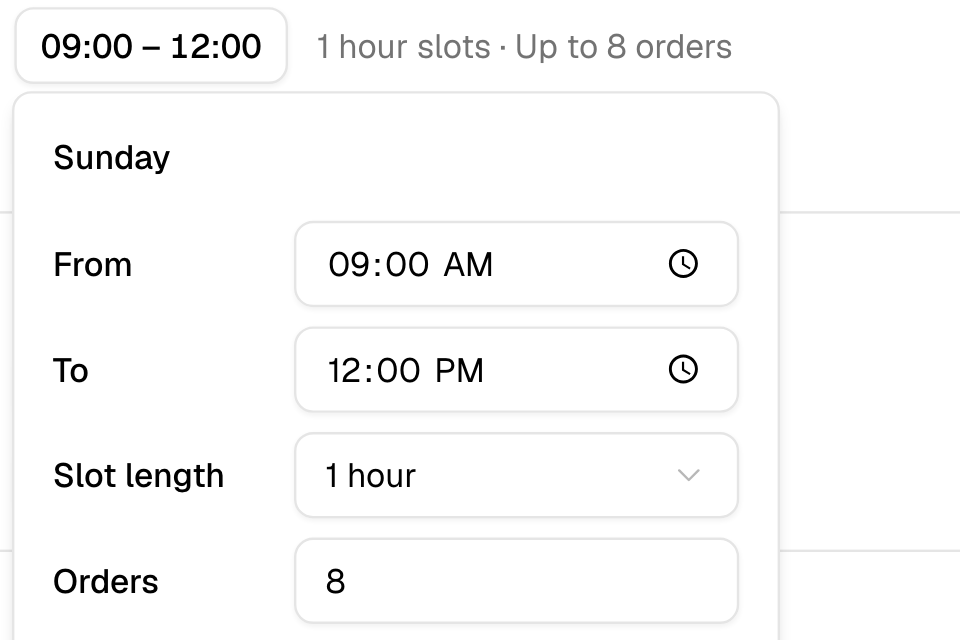
- Each day shows its opening hours. Select a window, such as 09:00 – 12:00, to change it.
- Set From, To and the Slot length.
- Optional: type a number in Orders, Deliveries, or both. Leave a limit empty for no limit.
- To add another window on a day, select Add window (the plus sign).
- To use one day's windows on every open day, select More on that day, then Copy to every open day.
- Select Save at the bottom of the page.
After a change, the branch shows Custom. A branch with no changes shows Opening hours.
Go back to the opening hours
Select Reset to opening hours, confirm, then select Save. The branch goes back to one window per open day, with no limits.
Rules and limits
- Time windows show only when Allow scheduled orders is on.
- The slot length is from 15 minutes to 24 hours.
- A window must stay inside that day's opening hours. Windows on a day cannot overlap.
- A custom week needs at least one window. Or reset to opening hours.
- Limits count scheduled orders only. Orders for now never count.
- An order waiting for online payment holds its place for up to 3 hours. A failed payment frees the place at once.
- Cancelled orders free their place.
- Orders your team places from the dashboard, and orders an AI agent takes, are accepted even when the slot is full. They still count toward the limit.
- A branch without its own windows uses its opening hours, the default slot length and no limit.
Common questions
A warning says a category is outside the time windows. What does it mean?
The category has its own hours, and none of them fall inside a window on those days. Customers cannot schedule an order from that category then. Change the window or the category hours.
What if one branch does not save?
The others save. You see "The time windows of" and the branch name. Fix that branch and select Save again.
How do I stop scheduled orders?
Turn off Allow scheduled orders and select Save. Customers can then order for now only.