For: Owners, Operations, Marketing
Where: Setup > Storefront > Editor > Navigation, Footer
Available: Web dashboard · All countries
Customers find their way around your store from the top, the bottom of the phone screen, and the footer. You choose what each one holds.
How it works
- Header > Navigation sets the top of your store: the logo, the menu links, and the bottom bar on phones.
- Footer & pages > Footer sets the bottom of every page.
Each has a Save button at the end. One save puts all the changes in that section into your unpublished changes. Customers see them after you select Publish.
Place your logo
- Go to Setup > Storefront > Editor and open Header > Navigation.
- Under Header style, choose:
- Overlay header on hero: the header is see-through over your home page banner, and turns solid when customers scroll.
- Round logo: shows your logo in a circle. Turn it off for a square or wide logo.
- Logo position: Left or Center.
- Logo width: drag to make room for a wide logo, up to 320 px. Default keeps the normal size.
- Select Save, then Publish.
Add links to the top menu
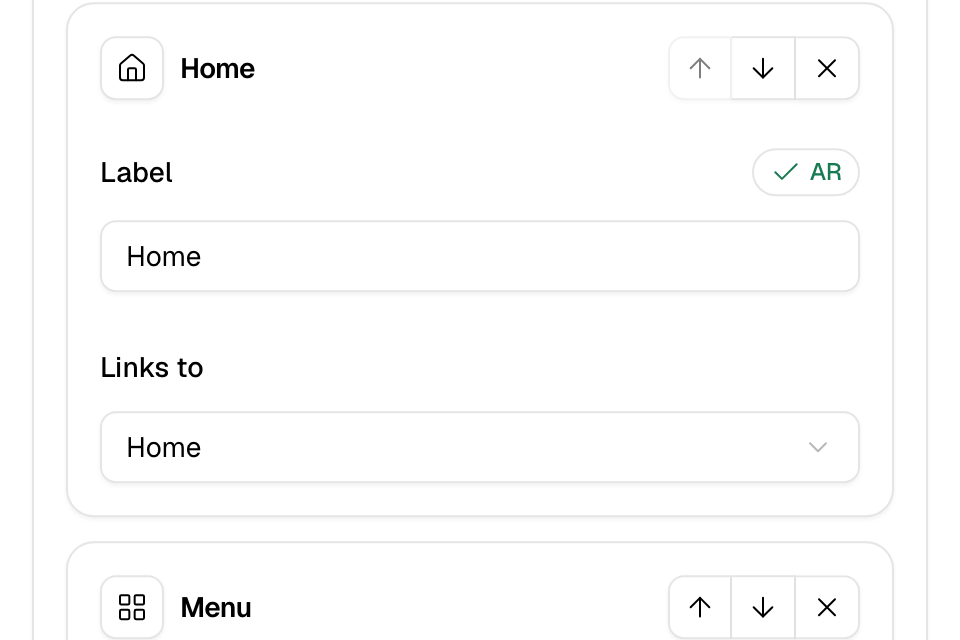
- Under Header navigation, select Add link.
- Type the Label. It is in the language you chose above the preview. Switch language and type the other one.
- Under Links to, choose where it goes: Home, All products, Category, Product, Page, Web address or Email.
- For a category, product or page, choose which one. For a web address or email, type it.
- Use the arrows to change the order. Select the remove icon to delete a link.
- Select Save, then Publish.
Add a bottom bar for phones
A bottom bar stays at the bottom of the phone screen, so customers reach your menu and cart with one tap.
- Turn on Mobile bottom navigation.
- Optional: turn on Dark bottom navigation for light icons on a dark bar in your colours.
- Under Tabs, set 3 to 5 tabs. For each tab:
- Select the icon to choose another one.
- Type the Label.
- Under Links to, choose Home, Menu (catalog), Cart, Search, Rewards, Wallet, Auto · loyalty, WhatsApp, Category, Product, Page or Custom URL.
- Check the Preview row.
- Select Save, then Publish.
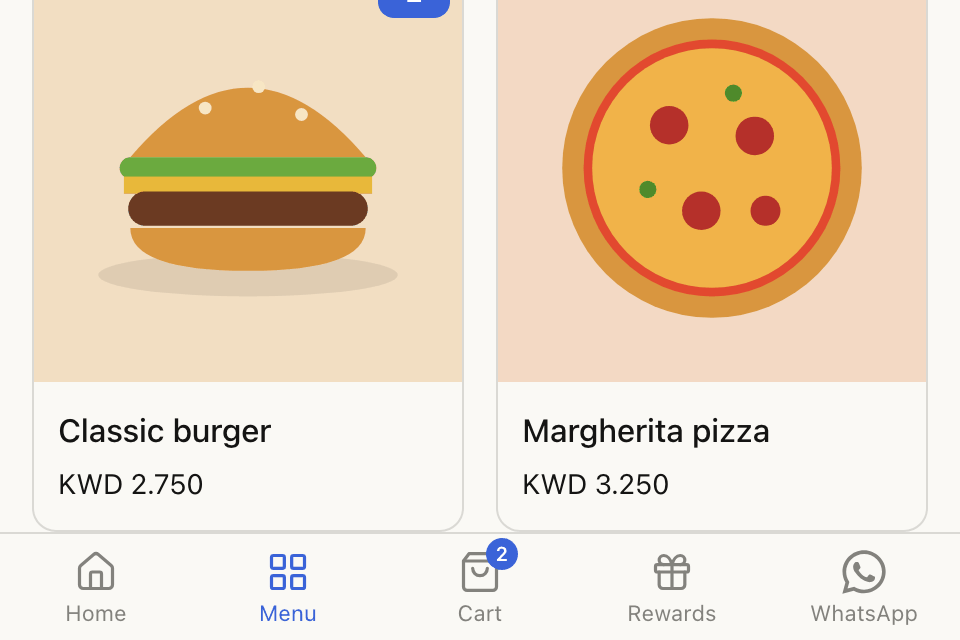
The first time, the bar has Home, Menu, Cart, an Auto · loyalty tab named Rewards, and WhatsApp.
What some tabs do:
- Cart shows how many items are in the cart.
- Auto · loyalty opens Rewards if you have a loyalty program, else Wallet if you have cashback, else Search.
- WhatsApp uses the WhatsApp icon. It opens your WhatsApp link from Web links. Without one, it uses a WhatsApp link from Link in bio, then the WhatsApp number you connected to Zyda. With none of these, the tab is hidden. See Add your social and WhatsApp links.
Set up the footer
- Open Footer & pages > Footer.
- Optional: turn on Dark footer for light text on a dark footer in your colours. This saves at once.
- Type the Footer text, in each language.
- Under Footer links, select Add link and add links the same way as the top menu. For example: About us, Contact, Catering.
- Select Save, then Publish.
The footer also shows your social icons, your branch phone numbers, your branches and your policies. If you add no footer links, it shows the same links as the top menu.
Rules and limits
- The bottom bar shows on phones only.
- The bottom bar needs 3 to 5 tabs. Each tab needs a label, and a destination when it links to a category, product, page or web address.
- Every menu link needs a name and a destination.
- The footer text here is the same text as Footer on the Branding page.
Common questions
Why can't I save my bottom bar?
Check the message. A tab may have no label, or a linked tab may have no destination.
Why does my WhatsApp tab not show?
Your store has no WhatsApp link and no connected WhatsApp number. Or your WhatsApp link on Web links uses the Website URL type, which the tab cannot use. Add a link with the WhatsApp type in Setup > Storefront > Web links.