For: Owners, Operations, Marketing
Where: Setup > Storefront > Editor > Style
Available: Web dashboard · All countries
Your store should look like your brand, but choosing a dozen colours and fonts that work together is hard. Style does most of it for you: it reads your logo, or starts from one colour, and keeps text easy to read.
How it works
Style is the first section in the editor. It has four parts:
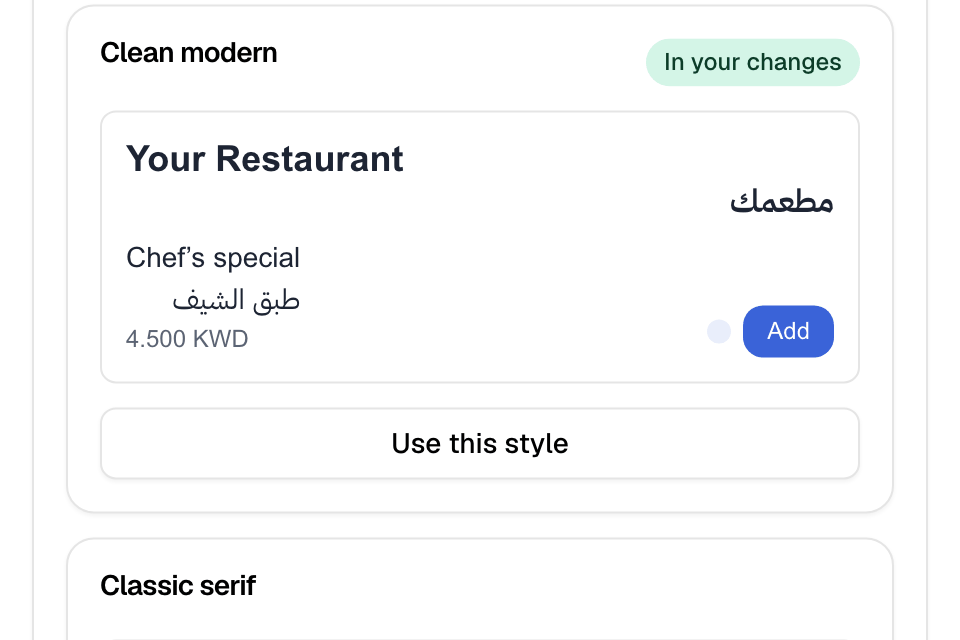
- Styles from your logo: Zyda reads the colours in your logo and makes three styles. Each style has colours, fonts and a layout.
- Start from one colour: you pick your brand colour, and Zyda chooses the other colours.
- Fonts: you pick a heading font and a text font that work together.
- Text size: you make every text on your store bigger or smaller.
Everything you choose goes into your unpublished changes. Customers see it after you select Publish.
If you changed some colours or fonts by hand, a style does not change them. The panel lists them under Your edits are kept. The badge Custom next to Style means you have edits of your own.
Make styles from your logo
You need a logo first. Add it in Setup > Storefront > Branding.
- Go to Setup > Storefront > Editor and open Start > Style.
- Select Generate from my logo. This can take up to 30 seconds.
- Look at the three styles. Each one shows a sample with its colours and fonts.
- Select Use this style on the one you like. It shows In your changes.
- Check the preview, then select Publish.
To get three new styles, select Try again.
Start from one colour
- In Start from one colour, select the colour box next to Brand colour and pick your colour.
- Optional: select Add a second colour for a highlight colour.
- Choose a Background: White or Tinted.
- Look at the sample. Readable means text on these colours is easy to read. Hard to read means some text has too little contrast.
- Select Apply.
Choose your fonts
Each font pair is shown in its own fonts and your colours.
- Under Fonts, select a pair, such as Clean modern or Classic serif.
- The pair in use shows In use.
A font pair changes the fonts and how round the corners are. Your colours stay.
Change the text size
Move the Text size slider from 80% to 150%. The change saves when you let go.
Keep or replace your own edits
After you use a style, Your edits are kept lists what you set by hand, such as Heading font (English).
- To keep them, do nothing.
- To use the style there too, select Use the style everywhere.
- To reset one field, open Colors or Typography and select Reset to style under it.
Set every colour and font by hand
Colors and Typography are the advanced settings. Select their links at the top of Style, or open them under Theme.
Colors: each colour has a box. Select it and pick a colour. The groups are Base, Primary, Card, Secondary, Accent, Muted, Destructive, Popover and Border & Input. "Low contrast — may be hard to read" means the text on that colour is hard to read. Select the reset icon to go back to the saved colour.
Typography:
- Sans-serif (body): the font for normal text, in English and in Arabic.
- Serif (headings): the font for headings, in English and in Arabic.
- Radius: how round the corners of buttons and cards are.
- Base text size: Default, Large or Extra large.
Select Save at the end of the panel. Then select Publish.
Upload your own fonts
Under Custom fonts, you can upload your own fonts. There is one place for headings and one for text, in English and in Arabic.
- Type the font family name in the box, for example Riwaya. Use letters, numbers, spaces and dashes.
- Choose the weight, from 300 to 700.
- Select Upload .woff2 and pick the file.
- Select Save, then Publish.
Your font replaces the font you picked for that place.
Rules and limits
- Generate from my logo needs a logo. If Zyda cannot read colours from it, use Start from one colour.
- You can make styles from your logo up to 30 times a day for each store. The count starts again at midnight UTC (3 AM in Kuwait). A failed try does not count.
- While Colors or Typography has changes you did not save, Style waits. Save them first.
- A custom font must be a .woff2 file under 5 MB.
Common questions
Will a style remove the colours I set myself?
No. It keeps them and lists them under Your edits are kept. Select Use the style everywhere to replace them.
Why does Generate from my logo say "Try again tomorrow"?
You made styles too many times today. Try again tomorrow, or use Start from one colour.
Can I go back to my old colours?
Yes. Select Undo, or select Discard before you publish. After you publish, use Version history.