For: Owners, Operations, Marketing
Where: Grow > Banners
Available: Web dashboard · All countries
Every visitor to your website can see your news: free delivery this weekend, a new item, or holiday hours. Use the top bar for a short line, or a popup for a picture.
Show a top bar
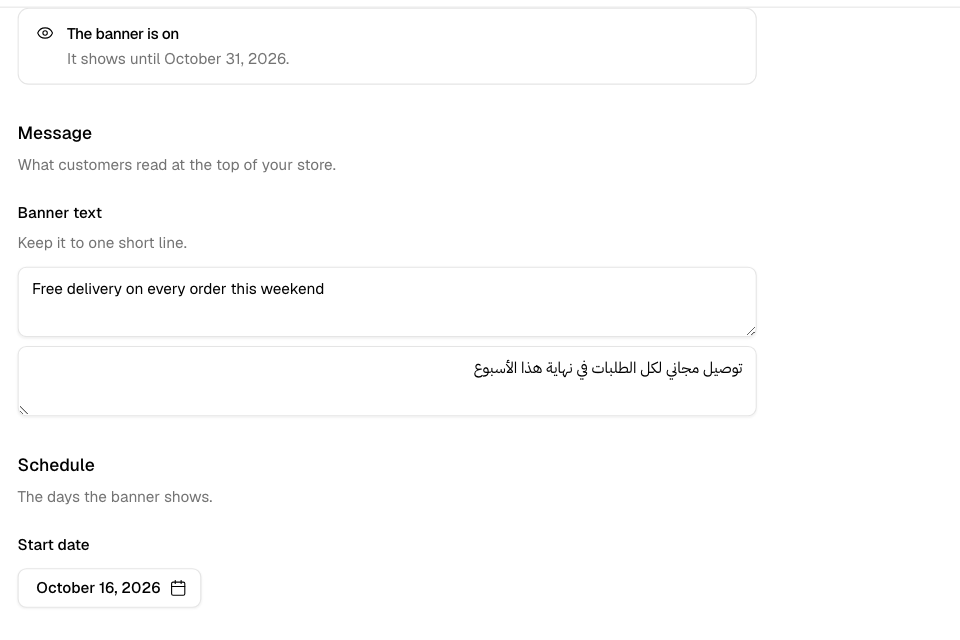
The top bar is one short line of text across the top of your website.
- Go to Grow > Banners > Top bar.
- Enter the Banner text in English. Select Add Arabic text and enter it in Arabic. Both are required.
- Choose a Start date. Optional: choose an End date.
- Select Turn on.
Customers see it in your store's language. A customer can close it, and it stays closed for them.
To stop it, select Turn off. The text is kept for next time.
Show a popup
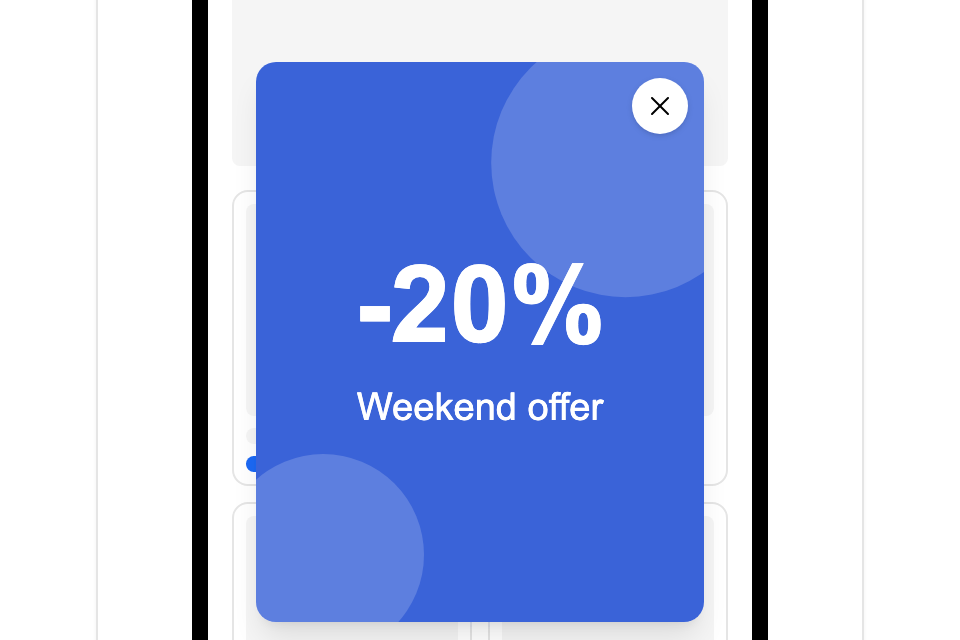
The popup is an image that opens in the middle of the screen when a customer opens your website.
- Go to Grow > Banners > Popup.
- Turn on Show the popup.
- Add an Image. Portrait 4:5 works best, for example 1080 × 1350. Optional: add an Arabic image.
- Under Link, choose where a tap goes: all products, a category, a product, a page, an external website, or none.
- Under Frequency, choose Once per customer, Once per visit or Every visit.
- Under Close automatically, choose never, or after 5, 10 or 15 seconds.
- Choose the dates and select Save.
The Preview shows the popup as customers see it.
Where the popup shows
- On browse pages only. Not on checkout, the cart, order tracking, the account pages or a product link.
- About a second after the page loads, once the image is ready.
- Never on top of a product or the cart.
If you change the image, customers who closed the old one see the new one.
Common questions
Who can change banners?
Anyone whose role can edit the storefront. The Owner, Operations and Marketing roles can by default.