For: Owners, Branch staff, Operations
Where: Manage > Orders > Create Order
Available: Web dashboard and Zyda phone app (Android) · All countries
A customer calls, sends a WhatsApp message or walks in. You take the order in the dashboard, and it goes to the kitchen like any online order. Zyda prices it, finds the delivery zone and can send the customer a payment link.
How it works
You find the customer by phone number, add items from your menu, then choose where, when and how they pay. Zyda works out the delivery fee, discounts and total. You cannot type a price or a free-form discount.
The order shows in Orders with a Manual order mark and the source you chose, for example Phone or WhatsApp. It then moves through the same steps as any other order.
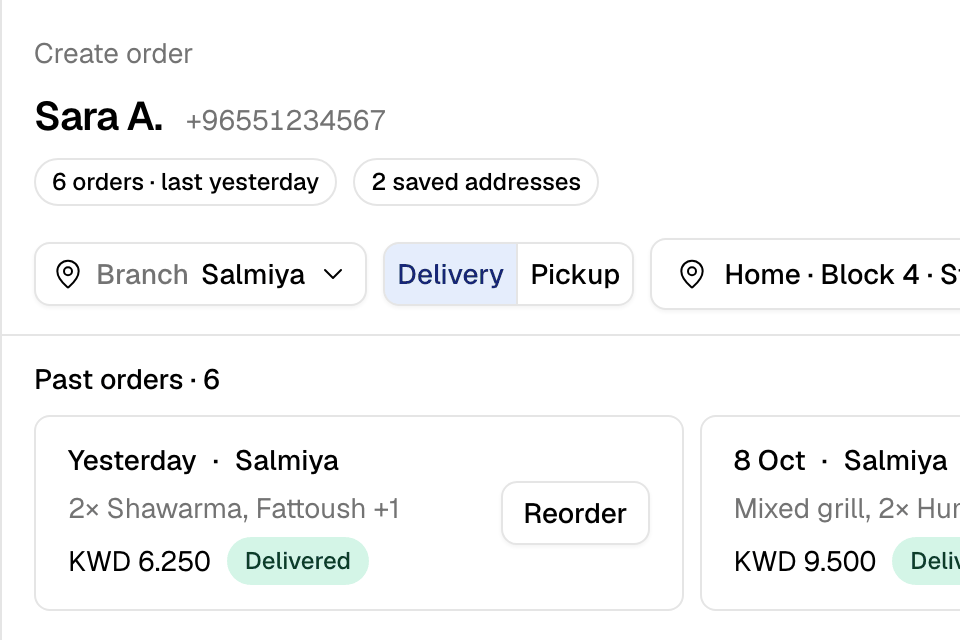
Step 1: Find the customer
- Go to Manage > Orders and select Create Order. In the new look of the Zyda app on Android, open Orders and tap New. See Create an order in the app.
- Choose the country code and type the customer's full mobile number.
- Select the customer. Under the name you see how many orders they placed with you and how many addresses they saved.
- If the number is new, you see "This looks like a new customer". Enter the Full Name and select Add Customer.
If you answer calls in the Zyda dashboard, the order screen can open by itself with the caller's number filled in.
A blocked number cannot order. You see "This number is blocked."
Step 2: Add items
- Pick a category or select Search the menu.
- Select an item. Choose the size and options. The screen says which options are required and how many to choose.
- Add a kitchen note if needed, set the Quantity, and select Add to order.
- To repeat an earlier order, open Past orders and select Reorder. If the order already has items, choose Add to cart or Replace cart. Items no longer on the menu are listed with the reason.
Each line in the order has Edit, Remove and Add note.
To use a promo code, select Enter a code, type it and select Apply. If it does not apply, the screen says why, for example "This code has been used the maximum number of times."
Select Continue to payment.
Step 3: Choose where, when and payment
Where
- Choose Delivery or Pickup. You see only what the branch offers.
- For delivery, choose a saved address, an address found on the Zyda network, or Add a new address.
- For a new address, search or drop the pin on the map. In Kuwait, you can search PACI. Fill in the address and select Save address.
Zyda finds the delivery zone from the pin. The zone sets the delivery fee, the delivery time and the minimum order. If another branch delivers to the address, the screen offers to switch to it.
When
- As soon as possible, or
- Later: pick a day and a time. You see only times the branch can take.
Payment
| Choose | When |
|---|---|
| Cash or Card on delivery | The customer pays when they get the order. |
| Send payment link | The customer pays online. Zyda sends a link by SMS in Kuwait and Egypt, and by WhatsApp in other countries. Never take card numbers on the phone. |
| Paid in store | The customer already paid at your counter. The order is marked paid. |
| Use the wallet balance | The customer spends their store wallet, with cash or card on delivery for the rest. |
Source
Under Order source, choose how the customer reached you, for example Phone, WhatsApp, Instagram or Walk-in. If you choose nothing, Zyda uses Phone. You can then filter the Orders list by source.
Select Place order. The new order opens so you can check it.
Rules and limits
- If Place order is grey, the screen says why, for example "Choose the delivery address to continue".
- Manual orders pay no service fee.
- Manual orders earn loyalty points for the customer. Cashback counts only for orders paid online with a payment link, unless your cashback covers cash too.
- You cannot add booking items, or items that need a photo from the customer. For a photo item, send the customer the payment link so they can add it.
- If you close the order screen, Zyda keeps the items. Open the same customer again to carry on.
Common questions
Can I give a discount on a phone order?
Use a promo code. There is no free-form discount, so every discount is tracked.
Does the customer get a review request?
No. Manual orders do not send a review invite.
Why is a time I want not shown?
The branch is closed, busy, too close to the order time for the kitchen, or past how far ahead you take orders.