For: Owners, Operations
Where: Serve > Dine-in > Live tables > Open > Table actions
Available: Web dashboard · All countries
Not every guest pays from the phone. Some pay cash at the counter, some leave early, and some pay too much. The table's drawer has the actions to settle each case, so the bill always matches what you collected.
How it works
Open a table on Live tables. The drawer shows the table's Bill, its Payments and, at the end, Table actions. Only the actions that fit the table show.
When a table is paid in full, it closes by itself. Then:
- Its rounds count as paid in your sales reports.
- If your store sends orders to Foodics, Foodics gets one paid dine-in order for the whole table.
- The table is free for new guests.
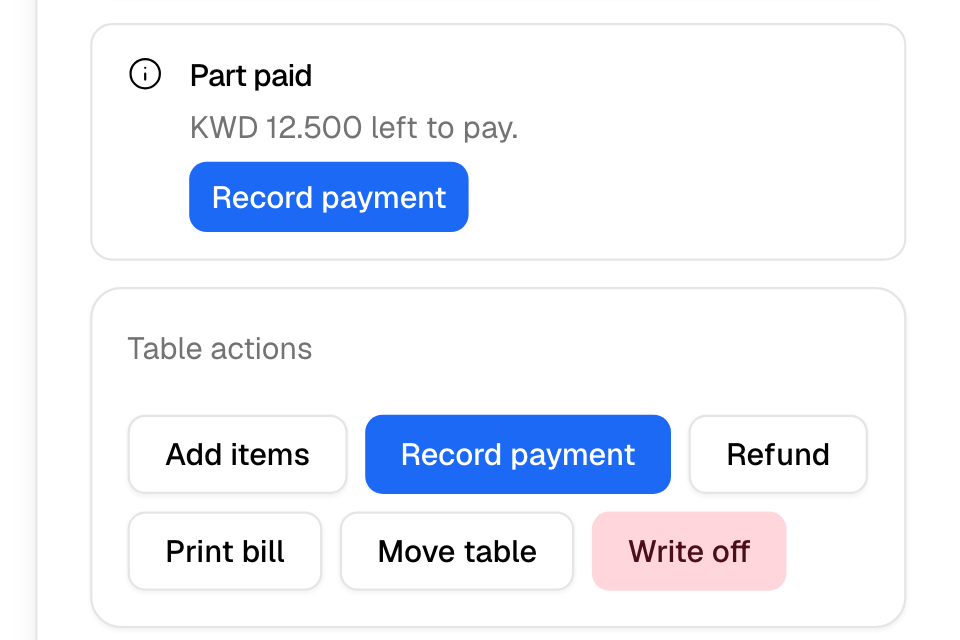
When something needs you, the drawer says so above the actions:
| Notice | What to do |
|---|---|
| Part paid | Take the rest with Record payment, or let the guests pay from their phones. |
| Possible walkout | Money is still owed and nobody used the table for the session length. Take the payment, or write it off. |
| Overpaid | An item was removed after it was paid. Refund a guest. |
Record a payment taken at the counter
- Open the table and select Record payment.
- Type the Amount. It cannot be more than what is left to pay.
- Optional: type a Tip (optional).
- Under Paid by, choose Cash or Card machine.
- Select Record payment.
You see "Payment recorded". The table owes less. If nothing is left to pay, the table closes.
Refund a guest
You can refund only payments guests made online. The money goes back to the card they paid with.
- Open the table and select Refund.
- Under Payment, choose the guest's payment.
- Type the amount, up to what the payment holds.
- To send the tip back too, tick Also refund the tip and type the Tip to refund.
- Select Refund, then confirm.
You see "Refund sent". A refund cannot be undone. If a guest paid cash, give the money back at the counter.
Print the bill
Select Print bill. The bill lists every round and the money. If money is still owed, it has a QR code that says "Scan to pay", so guests can pay from their phones.
Move guests to another table
- Open the table and select Move table.
- Under Free table, choose the new table.
- Select Move.
The guests, their rounds and their payments move to the new table. You see "Table moved".
Close or write off a table
Close table shows when the table owes nothing and no payment is going through, for example when nobody ordered. It also shows on a table you wrote off.
- Select Close table.
- Confirm. Guests at the table can no longer order or pay. The table is free for new guests.
Write off closes a table that still owes money, when you will not collect it.
- Select Write off.
- Type the Reason. Your staff and managers see it.
- Confirm. The amount will never be collected.
You see "Table written off". The table is free for new guests. Its rounds that were still open are marked served. A written-off table does not go to your POS, and its guests earn no loyalty points.
If Foodics did not take the order
A closed table can show Not in the POS, with the reason from Foodics. Fix the problem in Foodics, then select Send to POS again. Select View order to open the table's order.
Rules and limits
- You see these actions only on Live tables, which needs Pickup and curbside in your role. The Owner and Operations roles have it. Branch staff, Finance and Marketing do not, so they cannot take, refund or write off table payments. Read Run your tables from Live tables to give waiters access.
- Refund and Write off also need Refund money in your role. The Owner and Operations roles have it. Without it, the drawer says "Only staff who can refund orders can do this."
- Every other action on a table needs permission to edit orders at that branch.
- Counter payments do not earn loyalty points. Only online payments with a phone number do.
- A payment can still be going through when you write off a table. If it succeeds, any amount over the bill goes back to the guest by itself.
Common questions
Where do dine-in refunds show?
On the table, under Payments. A dine-in round on the Orders page sends you to its table for refunds.
Do points come back when I refund?
No. Guests earn points when the table is paid in full. A refund after that does not take the points back.