For: Operations, Branch staff, Owners
Where: Manage > Availability > Items
Available: Web dashboard · All countries
Some items are limited: 20 mugs on the shelf, or 50 portions the kitchen can make a day. Let Zyda count them, so the item stops selling at 0 and you do not have to watch it.
How it works
Each item counts in one of three ways:
| Choice | How it counts |
|---|---|
| On or off only | Nothing is counted. You turn the item on or off yourself. |
| Inventory | A stock count per branch, for goods you keep on a shelf. Each order takes from it. At 0, the item shows Sold out and cannot be ordered. |
| Capacity | How many the kitchen can make each day, per branch. It starts again each day. At 0, the item shows Sold out today. Customers can still order it for other days. |
An item uses one way of counting at every branch that counts it. The count itself is per branch and per size.
A sold-out item comes back by itself when you raise the count.
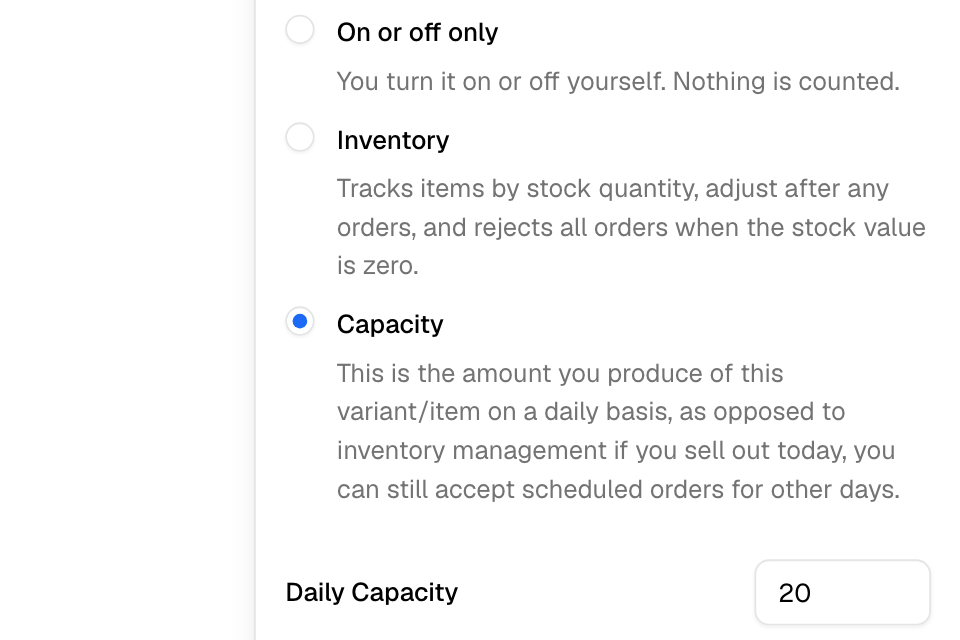
Start counting an item
- Go to Manage > Availability > Items.
- Choose the branch.
- Select the gear on the item's row.
- Choose Inventory or Capacity.
- Enter the quantity for this branch.
- Select Save.
If you leave the quantity empty, the branch keeps its last count for this way of counting, or starts at 0.
The Owner and Operations roles can also set this in the item editor, on the Availability tab, under Stock tracking. Choose Stock or Daily capacity, then select Save. Each branch then has a switch to count at that branch or not.
Change a count
- Go to Manage > Availability > Items and choose the branch.
- Type the new number in the item's count field.
- Select another field, or press Enter.
A count is a whole number, 0 or more. For capacity, the row also says how many are left today.
Warn customers when stock is low
- Go to Manage > Availability > Items.
- Select the "…" menu, then Stock settings.
- In Low stock at, enter a number. The warning shows at this many left, or fewer.
- Under Message customers see, choose:
- Few items left: does not show the count.
- Only 3 available: shows the real count.
- Select Save.
On Manage > Availability > Items, a row whose count is under this number shows Low Stock.
See stock history
- Select the "…" menu, then View history.
- Choose the branch, a category or a date range, or search by item, SKU or barcode.
Each row shows the item, the change (for example +5 or -3), who changed it and when. A change made by an order shows the order number. Select it to open the order. Select Export to download the list.
Import or export counts
- Export stock: select the "…" menu, then Export stock. The stock file opens in a new tab.
- Import stock: select the "…" menu, then Import stock. Select Download template, fill it in, then upload it and select Import stock. You get an email when it is done.
Rules and limits
- A count is a whole number, 0 or more.
- When you change how an item counts, each branch keeps its last count for the new way of counting. A branch that never used it starts at 0.
- An item that counts daily capacity cannot have booking slots. See Sell bookable time slots.
- An item you turned off by hand stays off, even when you raise its count. See Turn items off when they run out.
- Every plan includes stock tracking.
Common questions
Inventory or capacity: which do I choose?
Choose Inventory for goods you keep in stock, such as mugs, bottled drinks or packaged sweets. Choose Capacity for cooked food the kitchen makes each day, such as 50 portions of a daily special.
My item says Sold out. What do I do?
Raise its count. The item can be ordered again at once.