For: Branch staff, Operations, Owners
Where: Manage > Availability > Items
Available: Web dashboard · All countries
A dish runs out in the middle of service, or the kitchen cannot make it for a while. Turn it off at that branch, so customers cannot order it. It comes back when you choose.
How it works
Each item size has its own state at each branch. Customers cannot order an item that is unavailable at the branch they order from. The item stays on your menu, and you do not lose its settings.
You choose how long the item stays off:
| Choice | The item comes back |
|---|---|
| For 1 hour, For 2 hours, For 4 hours | By itself, when the time ends. |
| Until tomorrow | By itself, at 6:00 in the morning, branch time. If you turn it off between midnight and 5:59, it comes back at 6:00 the same morning. |
| Until I turn it back on | Only when you choose Available. |
A red dot next to the state means customers cannot order the item at this branch.
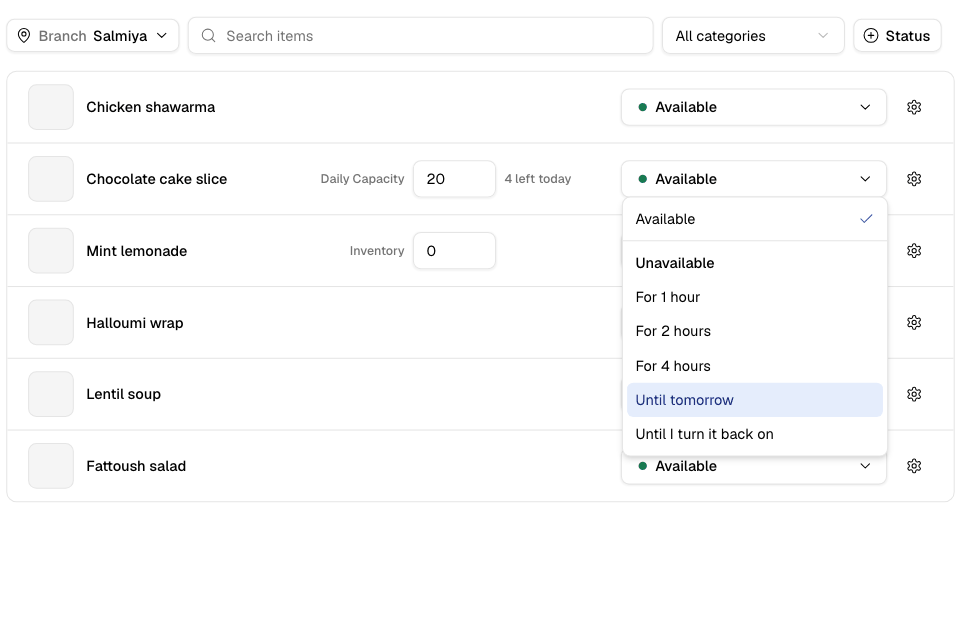
Turn an item off
- Go to Manage > Availability > Items.
- If you have more than one branch, choose the branch at the top.
- Find the item. Use Search items, the category list or the Status filter.
- Select the state button on the item's row. It says Available.
- Under Unavailable, choose how long.
The row now says, for example, "Unavailable until 9:00 PM".
Each size of an item has its own row. Turn off only the size that ran out, for example the large one.
Turn an item back on
- Find the item in Manage > Availability > Items.
- Select its state button.
- Choose Available.
Turn a modifier off
A modifier is an extra a customer picks with an item, such as a sauce or a topping.
- Go to Manage > Availability > Modifiers. The Owner and Operations roles find the same page in Setup > Menu > Modifiers.
- If you have more than one branch, choose the branch.
- Choose the modifier group on the left, or All modifier groups.
- Turn off the switch next to the option. It now says Unavailable.
The option is off at this branch until you turn the switch back on. There is no timer for options.
Other places to turn an item off
- In the item editor: the Owner and Operations roles can open the item in Setup > Menu. If the item counts stock or daily capacity, the Availability tab shows the same state button for each size at each branch.
- When you edit an order: if you remove an item from an order, you can tick it under Mark unavailable. See Edit an order after it is placed.
Sold out and Sold out today
If you count stock for an item, the row can also say:
- Sold out: the stock count reached 0.
- Sold out today: the daily capacity for today is used up.
A sold-out item comes back by itself when you raise the count. An item you turned off by hand stays off, even if the count goes up. See Track stock and daily capacity.
Rules and limits
- The state is per branch and per size. Turning an item off at one branch does not change other branches.
- Branch staff can change items only at the branches they work at.
- To hide an item from the menu for good, unpublish it instead. See Add or edit a menu item.
- To stop all orders for a while, set the branch as busy. See Pause new orders.
Common questions
What does the customer see?
The item cannot be ordered at that branch until it is available again.
Can branch staff do this?
Yes. Branch staff can turn items and modifier options on and off at their branches. They cannot edit the menu or prices.
Why can I not add a photo from this page?
Only the Owner and Operations roles can add a photo from the item's row. Branch staff see an empty photo square.