For: Owners, Operations
Where: Serve > Wholesale
Available: Web dashboard · All countries
Cafés, hotels and offices often order from you by phone or chat, at prices you agreed with them. Wholesale gives each business its own ordering link, with its own prices, delivery days and way to pay.
How it works
Wholesale is free on every plan. It is off until you turn it on.
Each business you add gets:
- A private Ordering link. The business sees only its products, at its prices.
- Its own Price list, Delivery days and Account (pay later), which you set on the business's page.
Business orders arrive in Manage > Orders, with the business's name on the order.
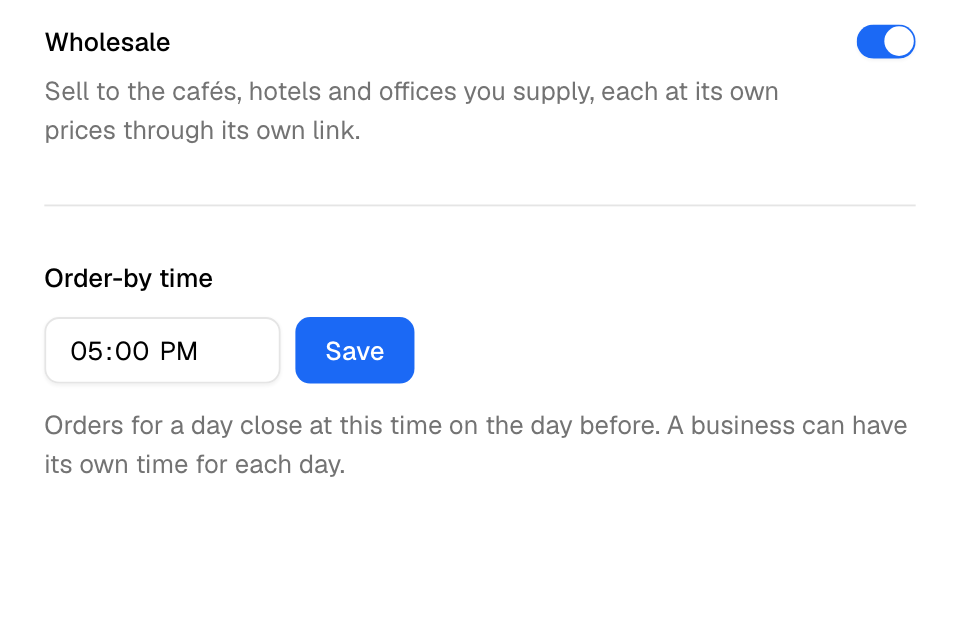
Turn on wholesale
- Go to Serve > Wholesale > Settings.
- Turn on Wholesale.
- Optional: change the Order-by time and select Save.
You can also select Turn on wholesale on the Accounts page.
The Order-by time is when orders for a delivery day close, on the day before. It starts at 18:00. Each business can have its own time for each day. See Set delivery days and order-by times.
Add a business
- Go to Serve > Wholesale > Accounts.
- Select Add business.
- Enter the Company name. To add the Arabic name, select Add the Arabic name.
- Enter the Contact phone. A landline is fine.
- Optional: enter the VAT number.
- Select Add business at the bottom of the form.
You see "Business added", and the business's page opens.
Send the business its link
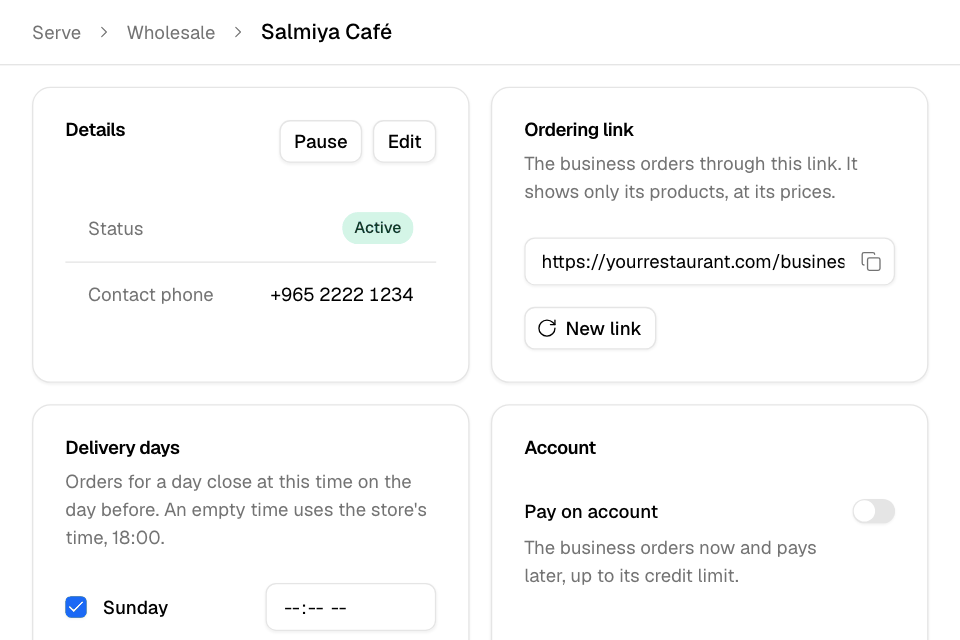
- On the business's page, find the Ordering link card.
- Select the copy button next to the link.
- Send the link to the business, for example by WhatsApp.
Before you send it, set the business's price list. A business with no products on its list sees "Your business price list has no products yet."
Pause a business or change its link
- To stop a business from ordering, select Pause in the Details card. Its link stops working. Select Resume to open it again.
- If a link reached the wrong person, select New link, then New link again to confirm. The old link stops working at once, also for any cart opened with it. Send the new link to the business.
- To change the name, VAT number or phone, select Edit.
Rules and limits
- Only the Owner and Operations roles see Serve > Wholesale. Other roles that open a wholesale link see "Owners and managers only".
- Stores whose POS (point-of-sale system) sets cart prices cannot use wholesale, so they do not see the tab.
- The Accounts list shows 20 businesses a page. Use Search businesses to find one.
- The Locations card lists a business's delivery locations. You cannot add locations from the dashboard. When a business has none, the buyer enters the delivery address at checkout.
- When you turn wholesale off, every business link stops working. A buyer with an open cart sees your shop prices and must check out again.
Common questions
Why can't I see Wholesale in the menu?
You need the Owner or Operations role. If you have it, your POS may set cart prices, and wholesale is not available with it.
Does the business need an account to order?
No. Anyone with the link can order and pay online. To pay later on account, the buyer signs in with an approved phone. See Let a business pay on account.
Do business orders get my offers, codes or loyalty?
No. Business prices replace them. Discount codes, offers and loyalty rewards do not work on business orders.