For: Owners, Operations, Marketing, Finance, Branch staff
Where: Claude: Customize > Connectors. ChatGPT: Plugins. Then the Zyda page Connect Claude to Zyda (or Connect ChatGPT to Zyda)
Available: Web dashboard · All countries
Needs: A Claude or ChatGPT account that can add connectors, and a Zyda dashboard login with a role in at least one store
You often need one number fast: today's sales, a late order, a price, a promo code's results. Connect Zyda to Claude or ChatGPT, and ask about your store in your own words, in English or Arabic. The AI app reads the same numbers you see in your Zyda dashboard. It never changes anything.
How it works
Claude and ChatGPT are AI apps. They can read data from other services through a connector. Zyda's connector has the address https://mcp.zyda.com/mcp.
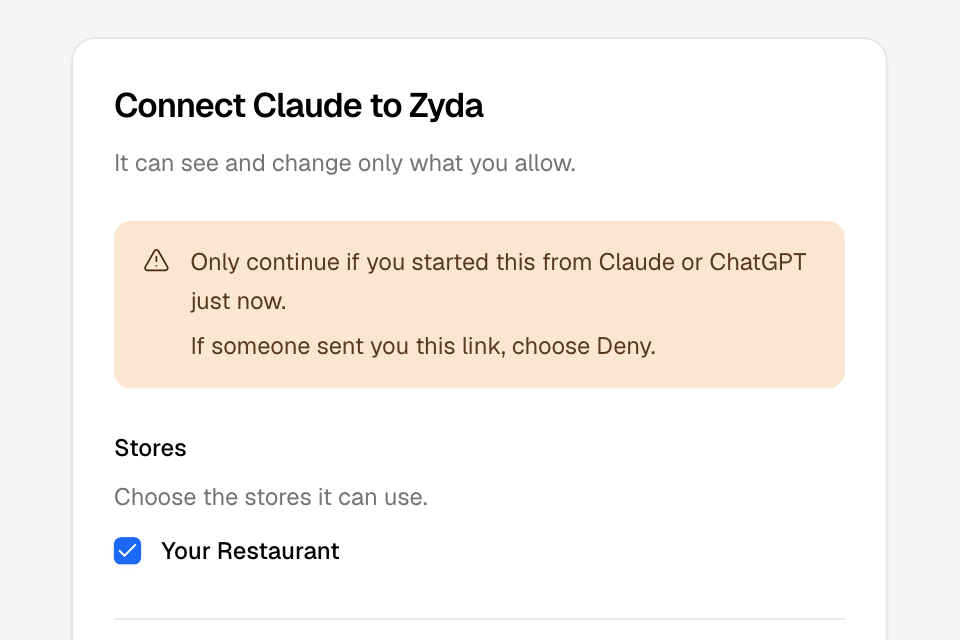
When you connect, you sign in to Zyda. Then a Zyda page asks you to choose two things:
- Stores: the stores the AI app can read.
- Permissions: the kinds of data it can read in those stores.
After you select Approve, you ask questions in your chat. The AI app reads your data from Zyda to answer.
- It only reads. It cannot change prices, orders, menus or settings. It cannot move money or give refunds.
- It sees only what your role in Zyda lets you see. Zyda checks your role every time the AI app reads.
- Customer phone numbers and emails are partly hidden, unless you allow them. Card numbers are never shown.
What you can ask
Ask in your own words. Name a branch, a date or an order number when you need one. Some examples:
| About | Example questions |
|---|---|
| Today | "How is my store doing today compared with last week?" "Which orders are waiting at Salmiya right now?" "Which branches are busy?" |
| Orders | "Find order 9F4E-39AH." "Show the canceled orders from yesterday." |
| Sales | "What were my sales by branch last month, compared with the month before?" "What are my busiest hours on Fridays?" "Which delivery areas order the most?" "How many new customers did I get this month?" |
| Closing and cash | "Show yesterday's closing for Salmiya." "Which cash shifts closed with a difference this week?" |
| Menu and stock | "How much is the chicken burger?" "What is sold out at Hawally right now?" |
| Promo codes and campaigns | "Which promo codes are active?" "How much did SAVE10 bring in?" "How much did my last WhatsApp campaign sell?" |
| Loyalty | "How many loyalty members do I have?" "Who are my top 10 members by points?" |
| Reviews | "What is my average rating this month?" "Show the 1-star reviews from last week." |
| Payments | "Which online payments failed today?" "When was my last bank deposit, and how much?" "How much did I pay in fees last month?" |
| Customers | "Who are my top customers by spend?" "What does this customer usually order?" These need See customers' phone numbers and emails. |
The AI app cannot read your delivery zones and their fees, your team, your plan, or your payout bank details.
Connect in Claude
- In Claude, go to Customize > Connectors.
- If Zyda is in the list, select it, then select Connect. Go to step 6.
- If Zyda is not in the list, select + Add, then Add custom connector.
- Enter the name Zyda and the address https://mcp.zyda.com/mcp. Select Continue.
- Keep the sign-in settings that Claude finds. Select Continue, then Add. Then select Connect beside Zyda.
- The Zyda sign-in page opens. Sign in with your Zyda dashboard email and password.
- On the page Connect Claude to Zyda, choose your stores and permissions. The section Choose stores and permissions below explains them.
- Select Approve. You go back to Claude.
To use Zyda in a chat, select + at the bottom of the chat, then Connectors, and turn on Zyda.
On a Claude Team or Enterprise plan, an Owner of your Claude organization adds the connector first. They add it in Organization settings > Connectors. Then each person connects with their own Zyda login.
Connect in ChatGPT
- In ChatGPT, open Plugins.
- If Zyda is in the list, select it and connect. Go to step 6.
- If Zyda is not in the list, select the plus button, then Add custom MCP server.
- Enter the name Zyda and the address https://mcp.zyda.com/mcp. For sign-in, choose OAuth.
- Read ChatGPT's warning and select I understand and want to continue. Then select Create as a plugin.
- The Zyda sign-in page opens. Sign in with your Zyda dashboard email and password.
- On the page Connect ChatGPT to Zyda, choose your stores and permissions.
- Select Approve. You go back to ChatGPT.
To use Zyda in a chat, type @ in the message box and choose Zyda.
ChatGPT shows Add custom MCP server only on some plans and workspaces. If you do not see it, your ChatGPT account cannot add a connector by its address.
Choose stores and permissions
The page warns you: continue only if you started the connection in Claude or ChatGPT just now. If someone sent you the link, select Deny.
- Under Stores, tick each store the AI app can read. If you have one store, it is ticked already.
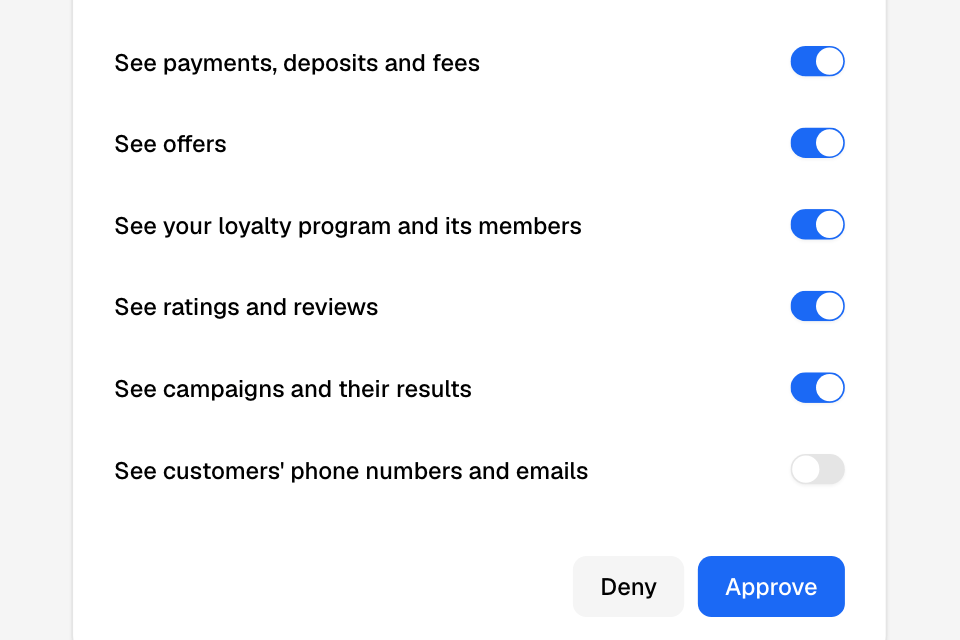
- Under Permissions, turn off anything the AI app should not read.
- To let it see customer phone numbers and emails, turn on See customers' phone numbers and emails.
- Select Approve. To cancel, select Deny.
Approve stays off until you tick at least one store. The page link works for 10 minutes. To read the page in Arabic, select العربية under it.
What the permissions mean
Each permission lets the AI app read one part of your store. You can give a permission only when your role in Zyda can open that part.
| Permission | The AI app can read | Roles that can give it |
|---|---|---|
| See your store's details | Your stores and branches, which branches are open or busy now, and today's figures from Home. It is always on. | Every role |
| See orders | Orders and their details, and the orders waiting now. | Every role |
| See your menu | Categories, items, sizes, options, prices, and what is sold out now. | Owner, Operations, Marketing |
| See sales, the day's closing and cash shifts | Sales reports, best sellers, sales by hour and by area, new and returning customer counts, delivery times, the closing report and POS cash shifts. | Owner, Operations, Marketing, Finance |
| See payments, deposits and fees | Online payments, your payment account balance and bank deposits, the fees ledger, and transaction fees by branch. | Owner, Finance |
| See offers | Promo codes and each code's results. | Owner, Operations, Marketing |
| See your loyalty program and its members | Your loyalty rules, points, rewards and members. | Owner, Operations, Marketing |
| See ratings and reviews | Ratings, reviews, comments and tags. | Owner, Operations, Marketing |
| See campaigns and their results | Your SMS, WhatsApp and push campaigns and their results. | Owner, Operations, Marketing |
| See customers' phone numbers and emails | Customer phone numbers and emails. It also lets the AI app search your customers and open a customer's profile. It starts off. | Owner, Operations |
A role of your own can give the permissions its pages allow. It cannot give See customers' phone numbers and emails. Only the Owner and Operations roles can give that one.
If you tick several stores, a permission stays on only when your role allows it in every ticked store. A permission your role does not allow is greyed out, with "Your role does not allow this."
Inside each permission, the AI app sees only what your role sees. A role limited to some branches reads only those branches. Without access to sales, money figures stay empty.
Privacy
- Read only. The AI app cannot change anything in Zyda.
- Phone numbers and emails are masked unless you turned on See customers' phone numbers and emails. A masked phone shows the country code and the last 4 digits, for example +965 •••• 4471. A masked email shows the first letter and the domain, for example s•••@example.com. This also applies to phone numbers and emails that customers write in reviews and notes.
- Card numbers are never shown. A card number in text a customer wrote shows as "[card number hidden]". A bank account number (IBAN) shows as "[bank account number hidden]". This is true even when customer details are allowed.
- No secrets. Keys, sign-in secrets, bank account details and legal IDs are never sent to the AI app.
- Zyda keeps a record of each read: who, which store, what kind of data, and when. Zyda never stores your questions.
- What you type in the chat stays in Claude or ChatGPT. Their own privacy terms apply to it.
Disconnect
- In Claude: go to Customize > Connectors. Select the three dots beside Zyda, then remove or disconnect it.
- In ChatGPT: open Plugins, open Zyda, and remove it.
When you change your Zyda password, every AI app connection of your login ends. If you are removed from a store's team, the AI app can no longer read that store.
Rules and limits
- Only Claude and ChatGPT can connect. Claude Code and other AI apps cannot.
- Zyda staff accounts and shared support logins cannot connect. The page says "This account cannot connect AI apps." Sign in with your own store login.
- To connect a store, your role must be able to open Home in it. Every Zyda template can. A role of your own with no access to Home cannot.
- The connection belongs to your login. Each person on your team connects with their own login.
- When you connect the same AI app again, your new choice replaces the old one.
- The page link works for 10 minutes and only once. After that, the page says "This link has expired." Start again from Claude or ChatGPT.
Common questions
Do I need a Zyda plan or add-on for this?
No. Every Zyda login with a role in a store can connect. Claude and ChatGPT have their own plans. Check that your plan can add connectors.
Can the AI app change my menu or cancel an order?
No. It only reads. Make changes in your Zyda dashboard.
Why does the AI app say it cannot see something?
You turned that permission off, or your role cannot open that page. To change your choice, disconnect and connect again.
Why are phone numbers hidden?
See customers' phone numbers and emails is off. Only the Owner or Operations role can turn it on. Disconnect, connect again, and turn it on.
Someone sent me a link to a "Connect" page. What do I do?
Select Deny. Continue only when you started the connection yourself, in Claude or ChatGPT, just now.
I think someone else connected an AI app to my login. What do I do?
Change your Zyda password. This ends every AI app connection of your login.