For: Owners
Where: Setup > Menu > Items > Import
Available: Web dashboard · All countries
Needs: The Owner role in both brands
You open a second brand with the same menu, or with most of it. Zyda has no copy button. Download the menu of the first brand as a spreadsheet, and import that file into the second brand.
How it works
The spreadsheet holds your categories, items, sizes, modifier groups and options. It has names and descriptions in both languages, prices and photo links. The import adds each row to the brand you import into.
Zyda matches by English name, inside the brand you import into:
- An item or category with the same English name is updated.
- A new name is added.
- Items that are not in the file stay as they are.
Nothing changes in the brand you took the file from.
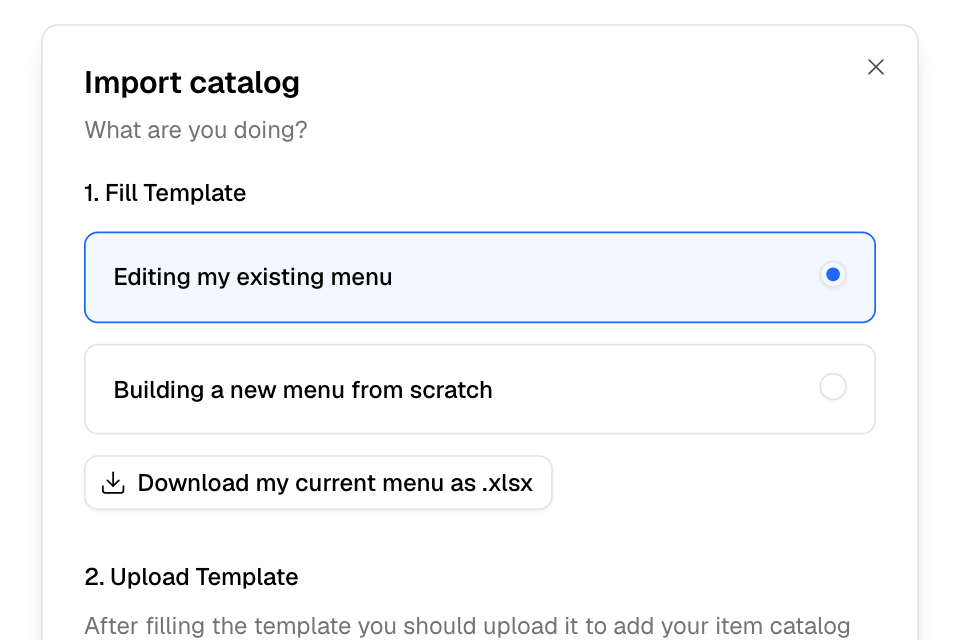
Copy the menu
- Switch to the brand that has the menu. See Switch between your brands.
- Go to Setup > Menu > Items.
- Select Import, then Import from spreadsheet.
- Under Fill Template, choose Editing my existing menu.
- Select Download my current menu as .xlsx.
- Open the file. Change what the new brand needs, for example names or prices. Save it.
- Switch to the other brand.
- Go to Setup > Menu > Items, then select Import and Import from spreadsheet.
- Under Upload Template, select Choose a file, and pick your file.
- Select Import.
You see "Upload received, processing in the background". Open Import and View import history to see the result. See Import or export your menu to fix a failed import.
What the new brand gets
- Categories and subcategories, with their English and Arabic names.
- Items with their names, descriptions, prices and photos.
- Sizes with their prices and discounted prices, and modifier groups with their options and prices.
- Your POS IDs and barcodes, if you filled them in.
- Allergens and nutrition, only when allergens are turned on in the new brand too.
- The Publish Product value of each item and the Publish Category value of each category. A new one that says Yes shows at every branch of the new brand. A new one that says No stays hidden.
Zyda copies each photo into the new brand's own storage. If a photo cannot be copied, the item still imports, without its photo.
What the file does not hold
The spreadsheet has no column for these, so you set them again in the new brand:
- Prices that differ by branch, and which branches sell each item.
- Stock and daily capacity.
- The Tags of an item.
- The items inside a combo.
- Offers, loyalty and campaigns.
See Know what each brand keeps separate.
Rules and limits
- Only the Owner can download and import a menu. You need the Owner role in both brands.
- Prices copy as numbers. If the other brand sells in another currency, change the prices in the file first.
- Two items with the same English name in the file become one item.
- The import runs in the background. You can keep working.
Common questions
Will the first brand change?
No. You only download from it. The import changes the brand you import into.
Can I copy only part of the menu?
Yes. Before you import, delete the rows you do not want. Do this in every sheet that lists them: products, sizes, groups and options.
An item has the same name in both brands. What happens?
Zyda updates the item in the new brand with the details from the file. It moves the item to the category in the file. The file has no tags, so the item loses the tags it had in the new brand.
Where are my branches' prices?
The file holds one price for each item and size. Set branch prices again in the new brand. See Set prices for items and branches.