For: Owners, Operations, Marketing, Finance, Branch staff
Where: Top bar > your brand's name > choose a brand
Available: Web dashboard and Zyda phone app (Android) · All countries
You run more than one brand on one Zyda sign-in. Open any of them in two taps, without signing out.
A brand is one online store with its own menu, branches, orders and team. Some screens call it a store. It is the same thing.
How it works
The name of the brand you are in is at the start of the top bar. Select it to see Your brands. Choose another brand, and Zyda opens it.
- You use one email and one password for every brand.
- The list shows the brands where you have a role. Your role can be different in each brand.
- Each brand opens on its start page. Zyda does not keep the page you were on.
- The sidebar changes to the pages your role allows in that brand.
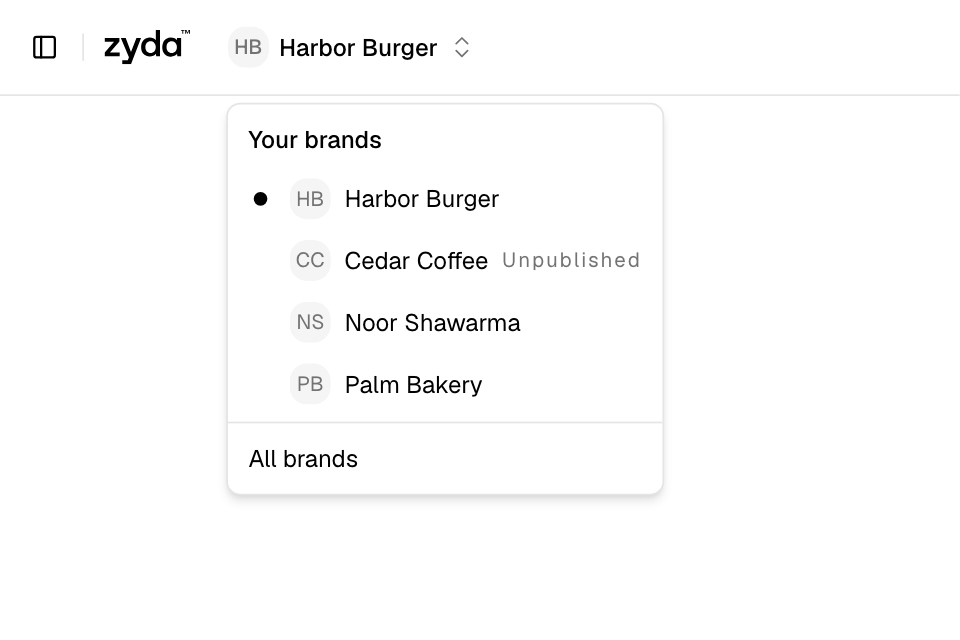
Switch to another brand
- Select the name of the brand you are in, at the start of the top bar.
- Under Your brands, select the brand you want. The brand you are in has a dot.
You see the other brand's start page.
With six brands or more, the menu has a Search brands box. Type part of a name, in English or in Arabic. The menu shows up to 50 brands, and search finds the rest.
Switch with the search box
- Select the search box in the top bar, or press Ctrl K. On a Mac, press ⌘ K.
- Type part of the brand's name.
- Under Your brands, select the brand.
The same list has All brands. It opens the full list. See Find a brand on the Switch Store page.
If you have unsaved changes
On a page with a form, Zyda asks Discard your changes? before it opens the other brand. Select Keep editing to stay on the page and in the same brand. Select Discard to leave without saving.
In the Zyda phone app
This works in the new look of the Android app. To turn the new look on, see Get the Zyda app and sign in.
- Open Home. If you do not see Home, open Orders or More.
- Tap the brand's name at the top of the screen.
- Search, then tap the brand you want.
The name opens the Switch Store screen only when you have two brands or more. With one brand, the name is plain text. The line under the name picks a branch, not a brand. See Find your way around the Zyda app.
Rules and limits
- You see only brands where you have a role. A role on one branch is enough to list the brand.
- A brand that customers cannot order from says Unpublished.
- After you sign in, Zyda opens one of your brands. It does not remember the last brand you used.
- The address of each page starts with the brand's number. A bookmark opens that brand again.
- Switching stops the rings and waiting-order alerts of the brand you leave. See Hear new orders from all your brands.
Common questions
A brand is missing from my list. Why?
You do not have a role in that brand. Ask its Owner to add you in Setup > Team. See Give one person access to more than one brand.
I opened a link and saw "Something went wrong! Please refresh the page".
You may not have a role in the brand in that link. Select Go to my store to open your first brand.
Can I open two brands at the same time?
Yes. Open the second brand in a new browser tab. Each tab shows the brand in its own address.
Does the language change when I switch?
No. The language is saved in your browser. See Switch the dashboard between English and Arabic.