For: Owners
Where: Top bar > your brand's name > All brands > Unpublish or Publish
Available: Web dashboard and Zyda phone app (Android) · All countries
Needs: The Publish or unpublish the store switch in your role (the Owner role has it). A live plan to publish again.
You may want customers to stop ordering from one brand, for example while you close it for a season. Take that brand offline. Your other brands keep selling.
How it works
Each brand is Published or Unpublished. You change it for the brand you are in.
When a brand is Unpublished:
- Customers who open its store link see "Sorry!" and "We can't receive your order at the moment".
- Nothing is deleted. Your menu, orders, team and plan stay as they are.
- Your other brands do not change.
When you Publish the brand again, customers can order again.
Zyda tells your team by email or SMS, depending on each person's alert settings. The alert is Branch or store published. See Choose which alerts your team gets.
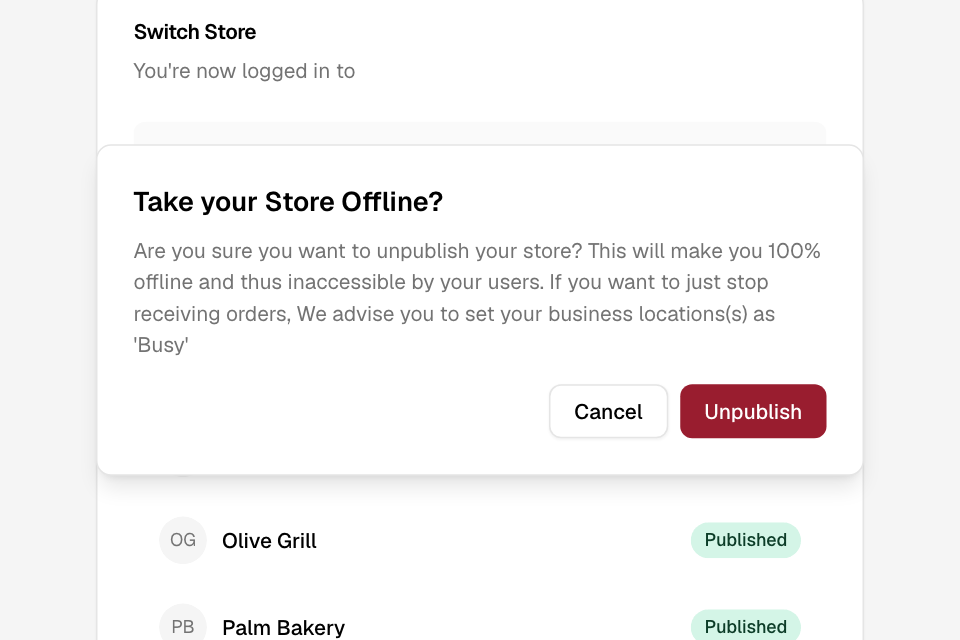
Take a brand offline
- Switch to the brand you want to take offline. See Switch between your brands.
- Select the brand's name in the top bar, then All brands.
- In the grey row at the top of the Switch Store page, select Unpublish.
- Read Take your Store Offline?
- Select Unpublish again. To keep the brand online, select Cancel.
The badge changes to Unpublished.
Publish a brand again
- Switch to the brand.
- Open the Switch Store page, as above.
- Select Publish.
Zyda does not ask a question. The badge changes to Published.
You can do the same in the Zyda phone app. Tap the brand's name, then Publish or Unpublish. This is in the new look of the Android app.
Rules and limits
- You see Publish and Unpublish only when your role has the Publish or unpublish the store switch. The Owner role has it. Operations, Marketing, Finance and Branch staff do not. See See what each role can open and do.
- To publish, the brand needs a plan that is not cancelled. If the plan is cancelled, Zyda does not publish the brand. The badge stays Unpublished. The app shows "Something went wrong!". Check Finance > Plan. See Check your plan and next bill.
- The button changes the brand you are in, not the brand in a row of the list.
- Publish and Unpublish work at once. There is no save step.
- Unpublish only hides the brand from customers. It does not cancel your plan.
Common questions
Should I use Unpublish to stop orders for an hour?
No. Set your branches as busy instead. The question Zyda asks says the same. See Pause new orders when you are busy.
Publish does nothing. What now?
Check that the brand has a live plan in Finance > Plan. Zyda does not publish a brand with a cancelled plan.
Can I take all my brands offline at once?
No. Do it for each brand. Switch to the brand, then use Unpublish.
A customer says the store is closed, but the badge says Published.
The brand may be outside its opening hours, or its branches may be busy. See Customers see your store as closed.